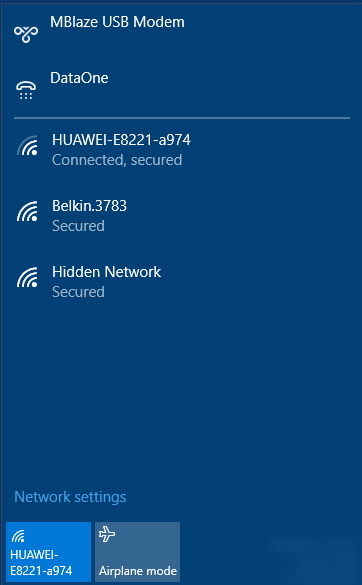
Sometimes, duplicate Wi-Fi network profiles or SSIDs may appear all of a sudden with suffix 2, 3, and so forth, in the list of available Wi-Fi networks, all pointing to the same SSID. This post tells you how to remove the redundant Wi-Fi network connections or connections that you added some time ago but are no longer in use.
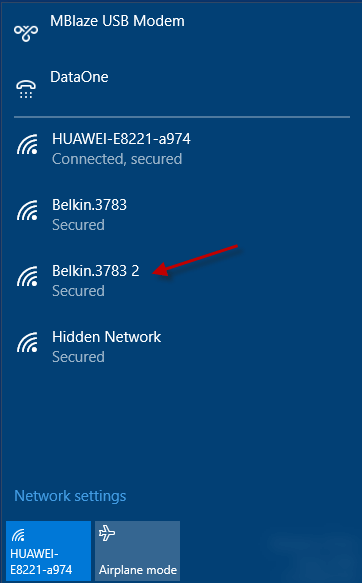
Editor’s note: Before proceeding, you should note that once the Wi-Fi profile is deleted the stored password for that profile is also cleared. Make sure you note down the Wi-Fi profile password and its settings if you think you will need them later. After removing the redundant profile, for some unknown reason, I had to input the WPA2-PSK key again for the original connection (Belkin.3783). While this may not necessarily be the same in your case, creating a Restore point or backing up the Wi-Fi profiles beforehand is suggested.
Using Manage Wi-Fi Settings in Windows 10
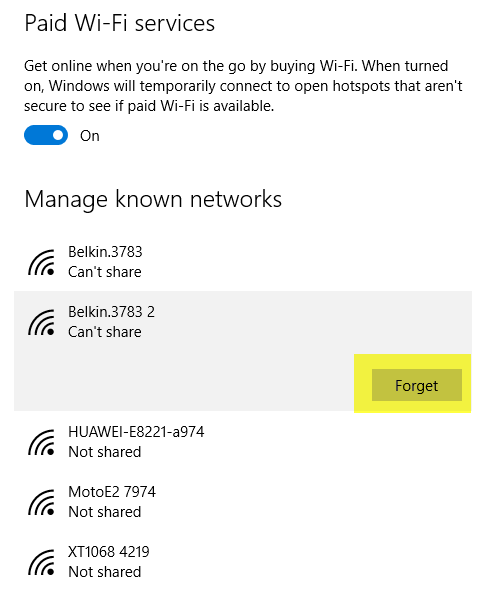
In Windows 10, open Settings → Network → Wi-Fi → Manage known networks.
On the Manage known networks page, select the profile you want to remove and click Forget
Using Netsh Command-Line
Open an admin Command Prompt, and type the following command:
netsh wlan show all | clip
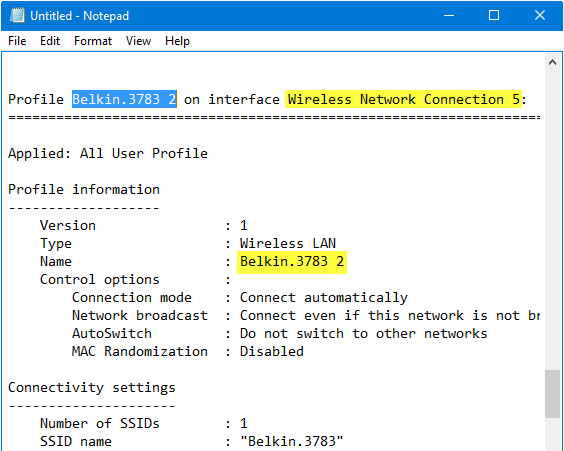
This copies the entire WLAN info to the clipboard. Open Notepad and paste the results. Use the Find option and locate the Wi-Fi profile entry that you want to remove.. (Belkin.3783 2 in this example), and note down the interface name, which in this case is Wireless Network Connection 5.
In the elevated Command Prompt window, type:
netsh wlan delete profile name="Belkin.3783 2" interface="Wireless Network Connection 5"
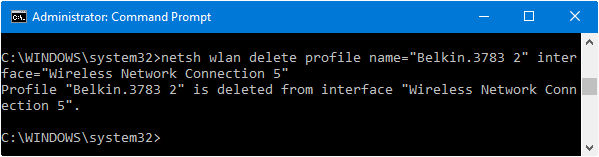
(The parameter “interface” is optional. If it’s omitted then the profile “Belkin.3783 2” will be deleted from all the interfaces that have such a profile.)
You should see the message Profile “Belkin.3783 2” is deleted from interface “Wireless Network Connection 5”, and the duplicate SSID/Wi-Fi profile Belkin.3783 2 shouldn’t appear now.
One small request: If you liked this post, please share this?
One "tiny" share from you would seriously help a lot with the growth of this blog. Some great suggestions:- Pin it!
- Share it to your favorite blog + Facebook, Reddit
- Tweet it!

I use Classic Shell to add shell:::{1fa9085f-25a2-489b-85d4-86326eedcd87} as a Menu item. Then you can right click inside and open Properties, remove network and rename like Vista/7.
@Anon: The old interface seems to have been removed in Windows 10… and I’ve added the GUI method via Manage Wi-Fi Settings in the article.
Nice How-To. Thanks.
is it safe to click forget in the one with number 2 at the end? i remember now time i ago i click forget and now i have only 1 is it safe to have only one?