This post explains how to clear the Windows Update history on Windows 10 and 11.
The Windows Update client keeps track of installed and failed updates. The updates include Feature updates, monthly Cumulative Updates (Quality Updates), driver updates, Microsoft Defender Antivirus definitions, Windows Security Platform updates, and other non-security updates. There is no GUI option to clear the update history.

Clear the Windows Update History
The update history is stored in the following SQLite database files:
- C:\Windows\SoftwareDistribution\DataStore\DataStore.edb
- C:\ProgramData\USOPrivate\UpdateStore\store.db
(The successful update entries are stored in the Store.db database file. The failed update attempts are stored in the DataStore.edb database file.)
Option 1: Clear the Windows Update History (all entries)
To clear the entire Windows Update history, open Command Prompt (admin) and run these commands:
net stop wuauserv

net stop usosvc

del /a C:\windows\SoftwareDistribution\DataStore\DataStore.edb

del /a C:\ProgramData\USOPrivate\UpdateStore\store.db
Open Settings → Update & Security → Windows Update → View update history.
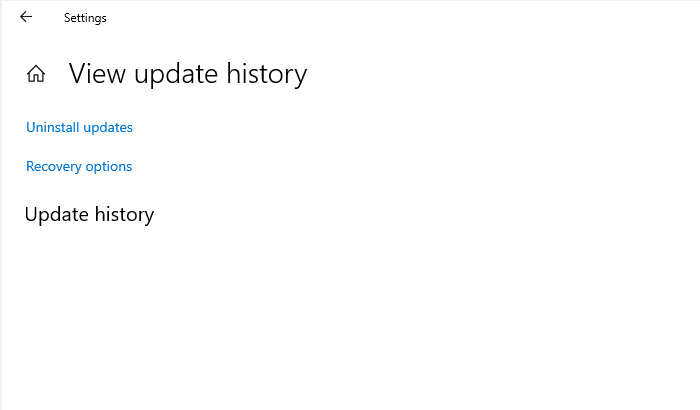
The page should now be empty.
Option 2: Clear failed entries from the Windows Update history
To clear the failed updates from the Windows Update history, open Command Prompt (admin) and run these commands:
net stop wuauserv

net stop usosvc

del /a C:\windows\SoftwareDistribution\DataStore\DataStore.edb
Open Settings → Update & Security → Windows Update → View update history.
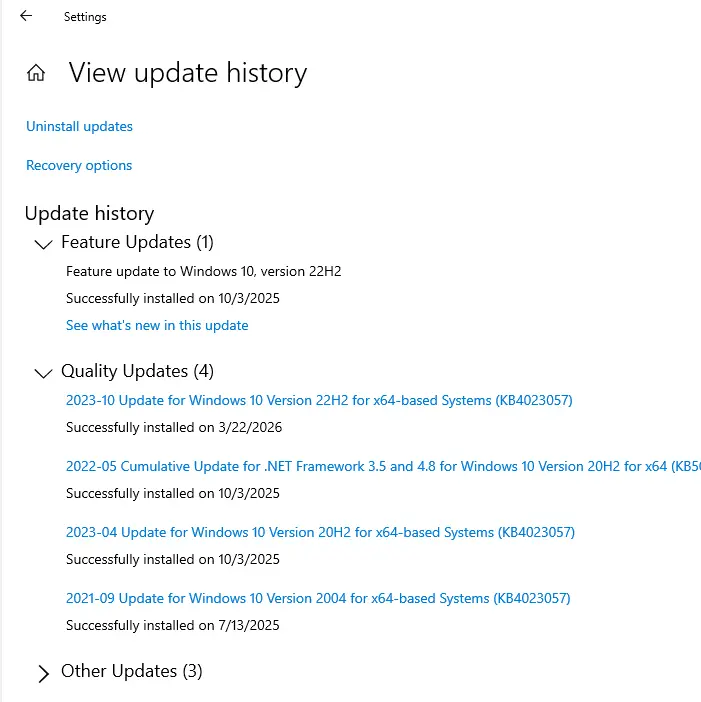
As seen from the above screenshot, the “Failed to install” entries are gone. The “Successfully installed” entries will be intact.
One small request: If you liked this post, please share this?
One "tiny" share from you would seriously help a lot with the growth of this blog. Some great suggestions:- Pin it!
- Share it to your favorite blog + Facebook, Reddit
- Tweet it!
