The Send To menu in Windows allows you to quickly send a file to different locations, including a CD/DVD, USB drive, or a third-party application. We’ve covered a few articles on the “Send To” menu before, and here are the three new and undocumented registry edits that can be used in Windows 7 through Windows 10.
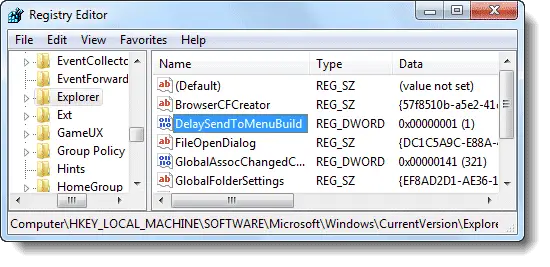
DelaySendToMenuBuild
By default, when you right-click on a file or folder, items in your Send To folder are enumerated even before you actually click the Send To menu. By setting the DelaySendToMenuBuild DWORD value data to 1, you can change the default behavior so that Send To menu entries are generated only when you click or hover over the Send To menu, rather than on every right-click.
After the registry edit, you’ll notice that the context menu pops up a little bit faster than before.
DelaySendToMenuBuild (REG_DWORD value) is implemented in the following registry location:
HKEY_LOCAL_MACHINE\SOFTWARE\Microsoft\Windows\CurrentVersion\Explorer
NoSendTo
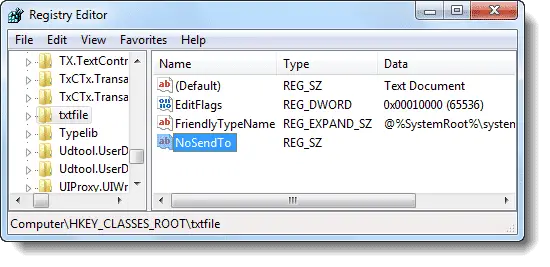
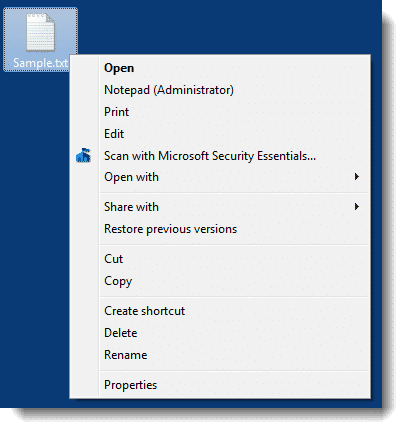
The NoSendTo value can be used to hide the “Send To” menu in the right-click menu for a file type. It’s implemented in the file type’s ProgID. For example, to hide the “Send To” menu for text files (.txt), create a NoSendTo (REG_SZ) value in this location:
HKEY_CLASSES_ROOT\txtfile
NoSendToMenu
NoSendToMenu (REG_DWORD) registry value removes the Send To option for all files types. This value is implemented (set to 1) in one of the following keys:
HKEY_CURRENT_USER\SOFTWARE\Microsoft\Windows\CurrentVersion\Policies\Explorer
HKEY_LOCAL_MACHINE\SOFTWARE\Microsoft\Windows\CurrentVersion\Policies\Explorer
NoDrivesInSendToMenu
Whenever I right-click a file or folder and click Send To, it takes 5 seconds for the Send To menu to pop up. This list used to come up in a second or so. What is happening under the hood?
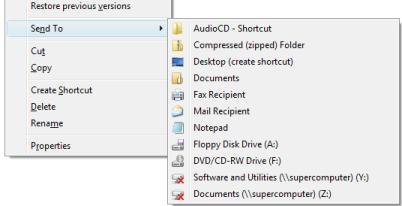
The Send To menu displays removable drives by default, as shown below:
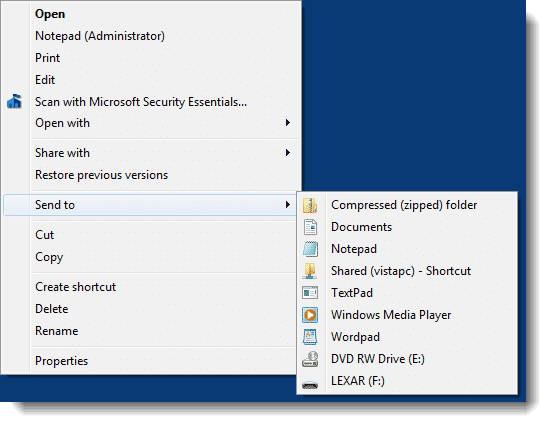
When you click the Send To menu, the shell has to get the list of files in the SendTo folder of your user profile. It also has to query the file class data for each file type in the SendTo folder, and enumerate the list of drive letters in the system. Also, the shell seems to access the remote path of each network drive for some information.Enumeration of local drives and inaccessible network drives are usually the main cause of the delay.
I have two network drive mappings and an optical drive connected to my system. Send To menu opens slowly only if the networked computer that hosts the share is unavailable. If I disconnect the drive mappings to test, the Send To menu pops up in just a second.
Remove Drive letters from the Send To menu
You can prevent drive letters from being listed in the Send To menu by using the NoDrivesInSendToMenu registry setting. This speeds up the display of the Send To menu.
Launch the Registry Editor (regedit.exe) and create a DWORD (32-bit) value named NoDrivesInSendToMenu in the following registry key:
HKEY_CURRENT_USER\Software\Microsoft\Windows\CurrentVersion\Policies\Explorer
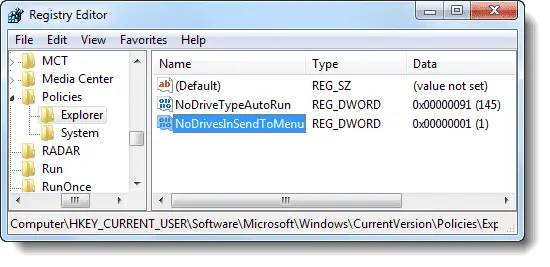
The NoDrivesInSendToMenu setting hides all the drives (fixed | network | optical | removable) from the Send To menu.
(To add or remove items to the Send To folder, type the command shell:sendto in Start, Search box, and press enter. The SendTo folder of your user profile opens. For other shell: commands in Windows, see article Shell: commands to access the special folders.)
By enabling the NoDrivesInSendToMenu (DWORD) value, you can hide drive letters from the Send To menu without actually hiding the drives in Explorer. This edit works in Windows 7 and higher.
You need to restart the Explorer shell or log off and log back in for this registry edit to take effect.
View Hidden Items in the Send To Menu
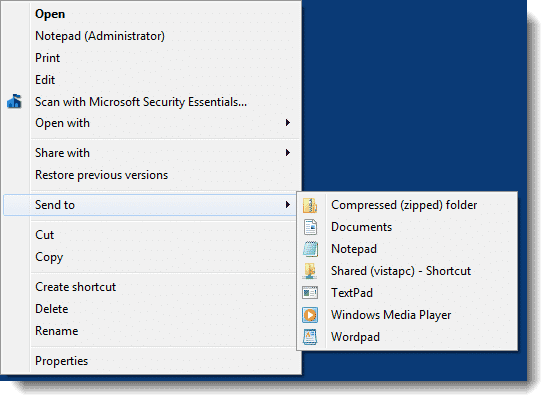
The Send To menu by default displays the shortcuts & other items from the SendTo directory and the drive-letters present in the system. You can view the additional items using the Shift key.
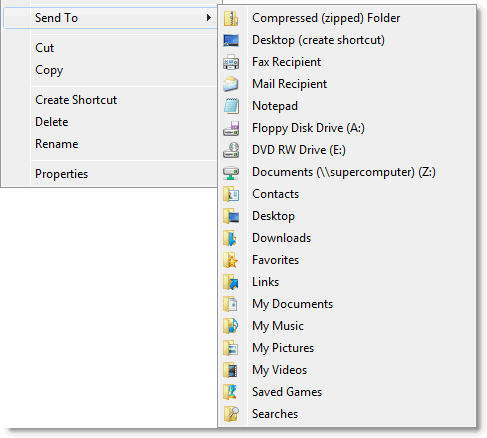
Press and hold the Shift key, right-click on a file or folder and click Send To. The sub-folders within your user profile home directory (%userprofile%) will be displayed in the Send To menu.
One small request: If you liked this post, please share this?
One "tiny" share from you would seriously help a lot with the growth of this blog. Some great suggestions:- Pin it!
- Share it to your favorite blog + Facebook, Reddit
- Tweet it!

anything to send to multiple removable drives in one shot or group multiple removable drives in case i want the same content on several removable drives?
Shortcut to robocopy
@john: Yea. Batfile with robocopy, or vbscript should work perfectly fine. Or, simply use “robocopy /mir” with scheduled tasks to sync drives/folders at specified intervals.
“”By enabling the NoDrivesInSendToMenu (DWORD) value, you can hide drive-letters from the Send To menu without actually hiding the drives in Windows Explorer environment. This edit works in Windows 7 and Windows Vista, and is explained in this article. It’s implemented in this registry location:
HKEY_CURRENT_USER\Software\Microsoft\Windows\CurrentVersion\Policies\Explorer
“”
Works Great!… ‘Send To’ Menu Opens Very Quickly Now. Thanks.
Everyone shows how to add/remove entries in the SENDTO folder, but I can’t find any solutions on how to add the CD/DVD optical drive to SENDTO. For some reason mine is missing. It was there when I first got the PC. I see it on my other PC. I don’t mean adding it as a shortcut, I am referring to when you open the Contexts menu and select Send to it should show the DVD drive so you can send folders/files to it and burn them to a DVD. Thank you for anyone who have an answer to this perplexing issue. Ron G