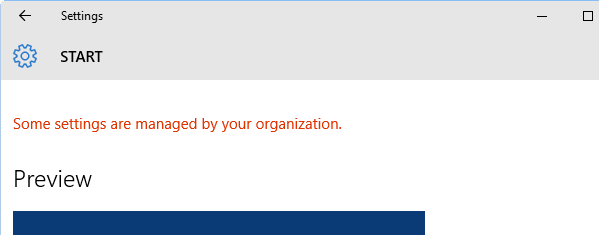
If the Personalize settings page show the red text message Some settings are managed by your organization at the top, it means that some of the settings in that particular page are locked down by an administrator in that computer, via Group Policy Editor or through the registry. For classic Control Panel items, you may see the message One or more of the settings on this page has been disabled by the system administrator if one or more Policies are set for that page.
Registry File: Download personalize-policies-remove.zip, unzip and extract the enclosed registry file to a folder, and double-click the registry file to run it. This removes the Personalize Policies listed in this article.
Contents of the REG File
Windows Registry Editor Version 5.00

;Removes Personalize Policies in Windows 10, as in the following page:
;https://www.winhelponline.com/blog/personalize-some-settings-managed-organization/
;Created by Ramesh Srinivasan for The Winhelponline Blog

[HKEY_CURRENT_USER\SOFTWARE\Microsoft\Windows\CurrentVersion\Policies\ActiveDesktop]
"NoChangingWallpaper"=-

[HKEY_CURRENT_USER\SOFTWARE\Microsoft\Windows\CurrentVersion\Policies\System]
"NoDispAppearancePage"=-
"NoDispScrSavPage"=-

[HKEY_CURRENT_USER\SOFTWARE\Policies\Microsoft\Windows\Personalization]
"NoChangingLockScreen"=-
"NoChangingSoundScheme"=-
"NoChangingStartMenuBackground"=-
"NoLockScreen"=-

[HKEY_CURRENT_USER\SOFTWARE\Policies\Microsoft\Windows\System]
"DisableLockScreenAppNotifications"=-
"DisableLogonBackgroundImage"=-

[HKEY_CURRENT_USER\SOFTWARE\Microsoft\Windows\CurrentVersion\Policies\Explorer]
"NoChangeStartMenu"=-
"NoControlPanel"=-
"NoSetTaskbar"=-
"NoStartMenuMFUprogramsList"=-
"NoThemesTab"=-

[HKEY_CURRENT_USER\SOFTWARE\Policies\Microsoft\Windows\Explorer]
"ForceStartSize"=-
"LockedStartLayout"=-

[HKEY_CURRENT_USER\SOFTWARE\Policies\Microsoft\Windows\CloudContent]
"DisableWindowsConsumerFeatures"=-


[HKEY_LOCAL_MACHINE\SOFTWARE\Microsoft\Windows\CurrentVersion\Policies\ActiveDesktop]
"NoChangingWallpaper"=-

[HKEY_LOCAL_MACHINE\SOFTWARE\Microsoft\Windows\CurrentVersion\Policies\System]
"NoDispAppearancePage"=-
"NoDispScrSavPage"=-

[HKEY_LOCAL_MACHINE\SOFTWARE\Policies\Microsoft\Windows\Personalization]
"NoChangingLockScreen"=-
"NoChangingSoundScheme"=-
"NoChangingStartMenuBackground"=-
"NoLockScreen"=-

[HKEY_LOCAL_MACHINE\SOFTWARE\Policies\Microsoft\Windows\System]
"DisableLockScreenAppNotifications"=-
"DisableLogonBackgroundImage"=-

[HKEY_LOCAL_MACHINE\SOFTWARE\Microsoft\Windows\CurrentVersion\Policies\Explorer]
"NoChangeStartMenu"=-
"NoControlPanel"=-
"NoSetTaskbar"=-
"NoStartMenuMFUprogramsList"=-
"NoThemesTab"=-

[HKEY_LOCAL_MACHINE\SOFTWARE\Policies\Microsoft\Windows\Explorer]
"ForceStartSize"=-
"LockedStartLayout"=-

[HKEY_LOCAL_MACHINE\SOFTWARE\Policies\Microsoft\Windows\CloudContent]
"DisableWindowsConsumerFeatures"=-
More Information
If you’re a home user and are clueless about which Policy controls which user interface option, here is the list of Policy keys for Personalize in Windows 10. The Policy name, the registry location as well as the equivalent Group Policy setting are given.
Note that this list may not necessarily cover all the Personalize Policies. There may be additional Policy settings for Personalization, but this page is primarily written to help users understand which Policy is affecting which GUI option in Personalize window. For a full listing of Policies, you need to use Group Policy Editor, available in Windows 10 Pro Editions and higher.
Policies can be set either in HKEY_CURRENT_USER or HKEY_LOCAL_MACHINE, in the registry paths given in the table. You need to check both the registry locations, to set or remove Policies. For example, to remove the NoChangingWallpaper Policy, you need to go to the specified registry paths (both), and delete or rename the value named NoChangingWallpaper, if exists in the right pane.
Policy Settings for Personalization in Windows 10
|
Background |
|
| Value Name | NoChangingWallpaper |
| Registry Path | SOFTWARE\Microsoft\Windows\CurrentVersion\Policies\ActiveDesktop |
| Group Policy | Administrative Templates > Control Panel > Personalization > Prevent changing desktop background |
| More Info | Background drop-down and Background color choices grayed out. |
|
Colors |
|
| Value Name | NoDispAppearancePage |
| Registry Path | SOFTWARE\Microsoft\Windows\CurrentVersion\Policies\System |
| Group Policy | Administrative Templates > Control Panel > Personalization > Prevent changing color and appearance |
| More Info | All these settings under Choose a color settings in the Colors tab grayed out:
|
|
Lock screen |
|
| Value Name | NoChangingLockScreen |
| Registry Path | SOFTWARE\Policies\Microsoft\Windows\Personalization |
| Group Policy | Administrative Templates > Control Panel > Prevent changing Lock screen image |
| More info | Disables Background drop-down for Lock screen. |
| Value Name | NoLockScreen |
| Registry Path | SOFTWARE\Policies\Microsoft\Windows\Personalization |
| Group Policy | Administrative Templates > Control Panel > Do not display the Lock screen |
| More info | Disables Background drop-down for Lock screen. |
| Value Name | DisableLockScreenAppNotifications |
| Registry Path | SOFTWARE\Policies\Microsoft\Windows\System |
| Group Policy | Administrative Templates > System > Logon > Turn off app notifications on the lock screen |
| More info | No app notifications are displayed on the lock screen. |
| Value Name | DisableLogonBackgroundImage |
| Registry Path | SOFTWARE\Policies\Microsoft\Windows\System |
| More info | Show Window background picture on the sign-in screen option missing from Lock screen settings page. |
|
Themes |
|
| Value Name | NoThemesTab |
| Registry Path | SOFTWARE\Microsoft\Windows\CurrentVersion\Policies\Explorer |
| Group Policy | Administrative Templates > Control Panel > Personalization > Prevent changing theme |
| More info | The Themes list are grayed out, and unchangeable. |
| Value Name | NoDispScrSavPage |
| Registry Path | SOFTWARE\Microsoft\Windows\CurrentVersion\Policies\System |
| Group Policy | Administrative Templates > Control Panel > Personalization > Prevent changing screen saver |
| More info | Screensaver settings are dimmed out in the Themes tab. Attempting to launch the Screensaver dialog directly via Start, causes error Your system administrator has disabled launching of the Display Control Panel. |
| Value Name | NoChangingSoundScheme |
| Registry Path | SOFTWARE\Policies\Microsoft\Windows\Personalization |
| Group Policy | Administrative Templates > Control Panel > Personalization > Prevent changing sounds |
| More info | Hides the Sounds tab in the Sounds dialog box, so that the Sound schemes can’t the modified by user. |
If any of the above Policies are set, the Themes tab may show the message One or more of the settings on this page has been disabled by the system administrator appears at the bottom.
|
Start |
|
| Value Name | NoChangeStartMenu |
| Registry Path | SOFTWARE\Microsoft\Windows\CurrentVersion\Policies\Explorer |
| Group Policy | Administrative Templates > Start Menu and Taskbar > Prevent users from customizing their Start Screen |
| More info | Show more tiles is grayed out. Pin to Start missing from right-click menu. |
| Value Name | ForceStartSize |
| Registry Path | SOFTWARE\Policies\Microsoft\Windows\Explorer |
| Group Policy | Administrative Templates > Start Menu and Taskbar > Force Start to be either full screen size or menu size |
| More info | Use start full screen is grayed out. |
| Value Name | LockedStartLayout (similar to NoChangeStartMenu) |
| Registry Path | SOFTWARE\Policies\Microsoft\Windows\Explorer |
| Group Policy | Administrative Templates > Start Menu and Taskbar > Start Layout |
| More info | Show more tiles is grayed out. Pin to Start missing from right-click menu. |
| Value Name | NoSetTaskbar |
| Registry Path | SOFTWARE\Microsoft\Windows\CurrentVersion\Policies\Explorer |
| Group Policy | Administrative Templates > Start Menu and Taskbar > Prevent changes to Taskbar and Start Menu Settings |
| More info | The following settings are grayed out in the Start settings page:
|
| Value Name | DisableWindowsConsumerFeatures |
| Registry Path | SOFTWARE\Policies\Microsoft\Windows\CloudContent |
| Group Policy | Administrative Templates > Windows Components > Cloud Content > Turn off Microsoft consumer experiences |
| More info | Occasionally show suggestions in Start is grayed out and turned off. |
| Value Name | NoStartMenuMFUprogramsList |
| Group Policy | Administrative Templates > Start Menu and Taskbar > Remove frequent programs list from the Start Menu |
| Registry Path | SOFTWARE\Microsoft\Windows\CurrentVersion\Policies\Explorer |
| More info | Show most used apps is grayed out. |
One small request: If you liked this post, please share this?
One "tiny" share from you would seriously help a lot with the growth of this blog. Some great suggestions:- Pin it!
- Share it to your favorite blog + Facebook, Reddit
- Tweet it!
|
Background |
|
| Value Name | NoControlPanel |
| Registry Path | SOFTWARE\Microsoft\Windows\CurrentVersion\Policies\Explorer |
| Group Policy | Administrative Templates > Control Panel > Prohibit access to Control Panel and PC settings |
| More info | Cannot open Control Panel, or individual applets. And, opening Personalize page causes error This file does not have a program associated with it for performing this action. |

Thanks alot
I’ve been searching for this post, i onced used this registry file once, then Microsoft “again” f**ked me on another update and I cant move, resize and the freaking “some settings are managed by your organization” showed up again on my settings.. thanks
THANK YOU!!!!!! after months of not being able to change my desktop finally!!!
u are best sir u solved the only problem of my pc!
salute to u buddy! now i can add more tiles in start menu!!! thanku soooooooo much!!
it doesn’t work for me. domain and workgroup.
Almost none of this entries exist in my registry, yet, I cannot change the appearance due to policies :/
Any clue?
oh my gosh, you saved me from having a nervous breakdown and/or throwing my laptop against the wall! thank you, thank you! nothing else worked, or I was too dumb to figure out group editor. my computer starts up a lot quicker, too! bless you!
This is exactly what I was looking for.
Every other answer to this issue was incredibly patronising and unhelpful.
Thank you!
I join in thanking you for this wonderful solution. Used the editor I found online and under Admin, was finally able to change the screen background after two weeks of watching YT vids and taking notes, trying those solutions and none were working. So blessings to you for this, until MS finds a way to break something else in it’s Win 10 updates…but for now, I’ve been able to modify a number of our company’s workstations and put the branding screen on each…I’ll follow your blogs for further notes on changing settings in the various registry categories for future reference and I’m sharing this link with many of my friends experiencing the same headaches with Windows 10.
Also one additional tip here…if you want to change the desktop and other parameters under Standard User, you’ll have to maybe change the S.U. temporarily to Admin, then run the registry utility or manually enter the changes, then once done, change the S.U. back to standard user and seems to be fine afterwards. I had to discover the work around since they’d put a parental control software on Win 7 and had forgotten it was hidden on systems. I removed it from a number of PC’s when I noticed it was causing even more distress trying to do a simple thing in the system settings. Such a headache what they did last year and forgot the thing was still running despite its license expiring. Guy left last year and tried to warn the client to write it’s keyword down somewhere but they didn’t so I ran into him recently and he told me the name of the app, so I played with it and just decided it was a keystroke logger and felt it was unnecessary for our staff and a nuisance in general. What a day of figuring out things here…even the USB ports were locked out, so I DL’d it from my Google Drive account and unzipped it under the S.U. Admin temp setting and ran it to give me access to the settings and the message was finally gone. Thank God I thought through this issue today…my brain hurts, but it’s happier now that I know the registry is key to defeating MS’s newest blunder. So never give up, folks…think it through to solving the puzzle I say. Peace to all…
awesome,tried for ages to fix this about ready to reboot my pc out of the window
Hi I have ran the program (maybe not at program, but you understand) and it worked, but is there any option for reversing the program and make it the same as before. I changed the settings on a school-laptop and I don’t think it meant to be changed. Please help…
Oh you are the best. bookmarking this.
Made no difference. Doesn’t work on Win10Pro. I still can’t access many settings.
I want that you fix to me :
Windows 10: notifications & actions ” some of these settings are hidden or managed by your organization”