We may face the icon cache corruption issue sometimes in Windows 10/11 and earlier OS. The icon cache corruption causes the wrong icons to show up for certain programs or in certain areas of the Windows shell, or no icons at all. For example, your pinned taskbar shortcuts may show up with the wrong icon.
My earlier post Incorrect icon shown for a file type tells you how to refresh the shell icons using Default Apps. In some cases, the old icon may still show up after changing the file type association.
To render the icons for various shell objects like folders, special folders, and files, Windows caches the icons in database files so that Windows doesn’t have to read the file or folder icon and extract them every time. Occasionally, you’ll see icon-caching bugs in Windows resulting in incorrect, missing, or out-of-date icons being shown for programs and desktop shortcuts and other areas of the shell.
To resolve the incorrect icons issue, you may want to clear and rebuild the icon cache database completely. This post explains how to accomplish the task using different methods. The instructions apply to all versions of Windows, including Windows 11.
Clear and Rebuild the Icon Cache:
 Before proceeding, try a simple fix like the ie4uinit.exe refresh method. In many situations, all that you need to do is refresh the icons without the need to clear and rebuild them.
If refreshing the icons using ie4uinit.exe or Default Apps doesn’t help, you’ll have to clear the icon cache completely.
How to Clear and Rebuild the Icon Cache in Windows
Let’s see how to clear the icon cache completely and let Windows rebuild it automatically.
1) Clear & Rebuild icon cache using ClearIconCache.exe Utility
Clear Icon Cache (ClearIconCache.exe) utility from Leo Davidson will cleanly exit Explorer, delete the shell icon cache (IconCache*.db), and localized thumbnail cache (ThumbCache*.db), and then restart Explorer.
Leo Davidson is a trusted source — he is the one who wrote the famous PDF x64 thumbnail & preview fix for Windows some years back. And he’s the owner of FileTypeDiag and many other useful portable tools.
With Clear Icon Cache, you double-click the program, and it takes care of the details for you. Clear Icon Cache works in Windows Vista, Windows 7, Windows 8, and Windows 10. Though Windows 11 isn’t mentioned, it should work on Windows 11 without any issues.
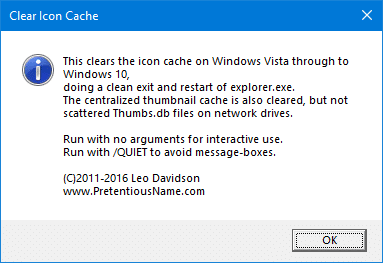
To run the utility in noninteractive or silent mode, run ClearIconCache.exe /QUIET
As said earlier, the utility also clears the thumbnail caches on the computer.
RELATED: How to Restart Explorer Gracefully Using Shortcut or Command-line
2: Clear & Rebuild the Icon Cache Database Manually
The icon cache database files are located in your %LocalAppData% folder with file names prefixed with iconcache_ – each icon size has a separate cache (database) file.
The file names look like this:
iconcache_16.db
iconcache_32.db
iconcache_48.db
iconcache_96.db
iconcache_256.db
iconcache_768.db
iconcache_1280.db
iconcache_1920.db
iconcache_2560.db
iconcache_exif.db
iconcache_idx.db
iconcache_sr.db
iconcache_wide.db
iconcache_wide_alternate.db
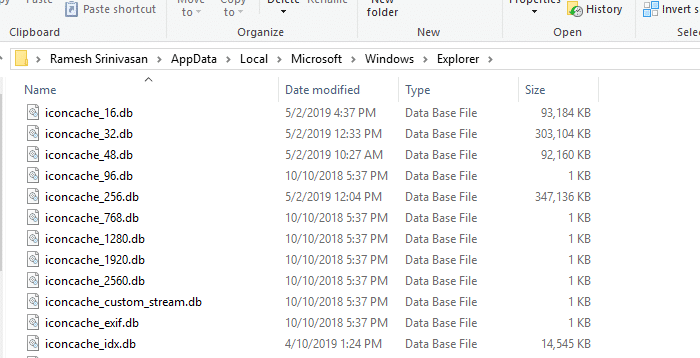
To clear the icon cache manually, follow these steps:
- Close all folder windows that are currently open.
- Launch Task Manager using the Ctrl + Shift + Esc key sequence.
- In the Task Manager Process tab, right-click on the Explorer.exe process and select End Process.
Note: It’s even better if you exit explorer gracefully. See instructions for Windows 7 and Windows 10 to know how to quit the Explorer.exe shell process gracefully. Don’t restart a new explorer.exe process yet!
- Click the End process button when asked for confirmation.
- From the File menu of Task Manager, select New Task (Run…)
- Type CMD.EXE, and click OK
- In the Command Prompt window, type the commands one by one and press Enter after each command:
CD /d %userprofile%\AppData\Local
DEL IconCache.db /a
- Additionally, in Windows 8, Windows 10, and Windows 11, the icon cache database is also stored in
%userprofile%\AppData\Local\Microsoft\Windows\Explorer. To clear them, you must close all running applications, and run these commands in the Command Prompt.CD %userprofile%\AppData\Local\Microsoft\Windows\Explorer DEL IconCache*.db /a EXIT
If you receive Access is Denied error when deleting the IconCache*.db files, then one or more of the open programs is using the icon cache database. Close all programs and try again, or try clearing them from Safe mode.
- In Task Manager, click File, select New Task (Run…)
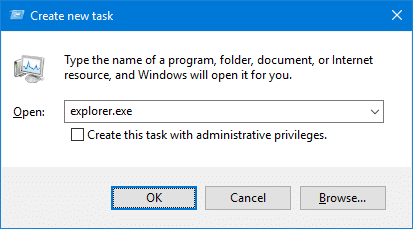
- Type EXPLORER.EXE, and click OK.
Editor’s note: Instead of using Task Manager to exit Explorer.exe in Step 3 above, an even better way to do this is to terminate the Explorer.exe Shell cleanly using the method described in the article Terminate and Restart Explorer.exe Process Cleanly in Windows 7. If you’re using Windows 8, Windows 10, or Windows 11, check the article How to Exit Explorer and Restart Explorer in Windows 10/11.
Method 3: Automatically Clear & Rebuild the Icon Cache Using Script
This method uses a small script that I wrote to clean up the icon cache completely. Once done, the script restarts the Explorer shell for the change to take effect.
Contents of the Script – Cleariconcache.vbs
'cleariconcache.vbs
'Clears the icon cache databases to lets Windows rebuild them fresh.
'for Windows Vista, 7, 8, Windows 10, Windows 11.
'Written by Ramesh Srinivasan.
'Written on Jan 31 2016
'Updated on Apr 01 2016
'Reviewed on Aug 02 2022
'https://www.winhelponline.com/blog/

Option Explicit
Dim WshShell, objFSO, strICPath1, strICPath2, strmsg, rtnStatus, Process, iDirtyFlags, iDirtyFlags2
Const DeleteReadOnly = True
Set WshShell = WScript.CreateObject("WScript.Shell")
Set objFSO = CreateObject("Scripting.FileSystemObject")
strICPath1 = WshShell.ExpandEnvironmentStrings("%LOCALAPPDATA%")
strICPath2 = strICPath1 & "\Microsoft\Windows\Explorer"

ExitExplorerShell
WScript.Sleep(3000)
ClearIconCache
WScript.Sleep(2000)
StartExplorerShell

Sub ExitExplorerShell()
	strmsg = "Explorer Shell will be terminated now."
	strmsg = strmsg & " Please save all your work and close all programs."
	strmsg = strmsg & "Icon cache may not be cleared if programs are using them. Want to continue?"
	rtnStatus = MsgBox (strmsg, vbYesNo, "Clear the Icon Cache")
	If rtnStatus = vbYes Then
		For Each Process in GetObject("winmgmts:"). _
			ExecQuery ("select * from Win32_Process where name='explorer.exe'")
	   		Process.terminate(1)
		Next
	ElseIf rtnStatus = vbNo Then
		WScript.Quit
	End If
End Sub

Sub StartExplorerShell
	WshShell.Run "explorer.exe"
End Sub

Sub ClearIconCache()
	If (objFSO.FileExists(strICPath1 &"\IconCache.db")) Then
	On Error Resume Next
    	objFSO.DeleteFile strICPath1 &"\IconCache.db", DeleteReadOnly
	On Error Goto 0
    	If Err.Number <> 0 AND Err.Number <> 53 Then
    		iDirtyFlags = 1
    	End If
	End If

	If objFSO.FolderExists(strICPath2) Then
	On Error Resume Next
    	objFSO.DeleteFile(strICPath2 & "\icon*.db"), DeleteReadOnly
	On Error Goto 0
    	If Err.Number <> 0 AND Err.Number <> 53 Then
    		iDirtyFlags2 = 1
    	End If
	End If

	WshShell.Run "ie4uinit.exe -ClearIconCache"
	WshShell.Run "ie4uinit.exe -show"
End Sub

If iDirtyFlags = 1 Then
	rtnStatus = MsgBox ("Some programs are still using the IconCache.db in LOCALAPPDATA. Close all programs and try again", vbOKonly, "Clear the Icon Cache")
End If

If iDirtyFlags2 = 1 Then
	If iDirtyFlags <> 1  Then
		rtnStatus = MsgBox ("Some programs are still using the cache in Location 2. Close all programs and try again", vbOKOnly, "Clear the Icon Cache")
	End If
End If

If iDirtyFlags = 0 And iDirtyFlags2 = 0 Then
 	MsgBox "Successfully cleared the Icon Caches.", vbOKOnly, "Clear the Icon Cache"
End If

Set WshShell = Nothing
Set objFSO = Nothing
How to Use?
- Download
cleariconcache.vbsor create the VBScript file manually using Notepad. - Save all your work and close all programs, so that icon cache files are not locked by any program.
- Double-click the script file
cleariconcache.vbs

- Click Yes when you’re prompted to restart the shell.
Optionally, when the following dialog shows up, you can manually terminate the explorer shell gracefully (instead of the script doing it forcefully). See instructions for Windows 7 and Windows 10/11 to know how to quit the Explorer.exe shell process gracefully. Don’t restart a new explorer.exe process yet! Once done, click Yes.
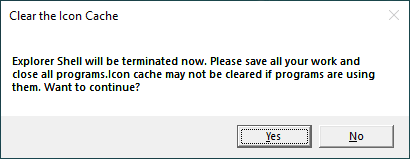
If the Icon Cache database files can’t be deleted, some programs are using them. Close all applications and try rerunning the script.
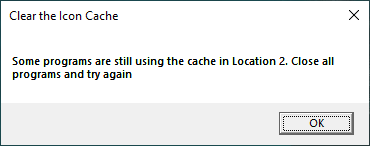
It should be able to delete the icon cache files.
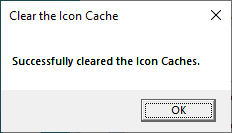
After clearing the cache, the Explorer shell should start automatically and rebuild a fresh set of icon cache.
I hope you were able to fix icon rendering issues on your Windows computer by clearing the icon cache completely.
One small request: If you liked this post, please share this?
One "tiny" share from you would seriously help a lot with the growth of this blog. Some great suggestions:- Pin it!
- Share it to your favorite blog + Facebook, Reddit
- Tweet it!

This is the ONLY thing that worked for me. All the other advice was useless. Thank you so much!
Thank you so much
you are really very smart
all my respects to you 😀
Beautiful work!! Thank you!
Clearing the icon caches didn’t solve this problem for me. However, when I manually created a new shortcut to the exe file, it used the right icon.
I didn’t even need to delete the old one and replace it with the new one – creating the new shortcut fixed them both, presumably by forcing Windows to reexamine the exe and updates its cache.
I tried the second and the third solution but nothing worked. I had the problem after upgrading from 8.1 to 10. Your vbs said the job is done successfully but I still had missing icons. This is how I fixed:
– I added in the register HKEY_LOCAL_MACHINE\SOFTWARE\Microsoft\Windows\CurrentVersion\Explorer a string key called “Max Cached Icons” and set it to 8192, then restarted my pc
– I login with another existing account (if you don’t have one then create) and I can see all icons. Then simply I copy & paste from the 2 directories (drag & drop files from “C:\Users\GoogUser\AppData\Local\Microsoft\Windows\Explorer” to “C:\Users\BadUser\AppData\Local\Microsoft\Windows\Explorer”). I got errors during copy (that’s why I tried using explorer and not shell) but I was lucky and good files were copied.
For my PC, I think the problem was “iconcache_256.db”. This file was 1 Kb on bad user and 5120 Kb on good user. Other files have the same size. Copying this file solved my problem and I can soon see the icons, without rebooting the PC or restarting explorer.exe
2nd method did it well, thanks.