Summary: This post tells you how to start Internet Explorer in InPrivate mode by default, using a shortcut or double-clicking a .url or .htm file. Instructions apply to all versions of Windows, up to Windows 10 as of the last revision of this post.
InPrivate Browsing mode in Internet Explorer enables you to surf the web without leaving a trace in the computer, as the cache is erased automatically when the “InPrivate Browsing” window is closed.
Shortcut to open IE in InPrivate Browsing mode
Right-click on the Desktop, click New, Shortcut
Type the following and click Next
"%ProgramFiles%\Internet Explorer\iexplore" -private
Note: The command-line argument is case-sensitive.
Provide a name for the shortcut, e.g., “Internet Explorer (Private),” and click Finish.
The following indicator is shown when Internet Explorer is running in InPrivate mode.
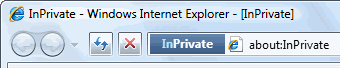
Fig 1: InPrivate Browsing mode indicator
Internet Explorer Desktop icon – InPrivate mode as default
Alternately you can change the default double-click action for the Internet Explorer namespace icon to launch Internet Explorer in InPrivate Browsing mode. Use the following registry fix to set the “Start in InPrivate mode” option as the default context menu option for Internet Explorer (Namespace) Desktop icon.
Note: The above REG file adds a subkey under the Internet Explorer Namespace registry key. The GUID for IE Namespace is {871C5380-42A0-1069-A2EA-08002B30309D}
Registry Fix
Download ie-inpriv-context.zip and save to Desktop. Unzip and extract the contents of the file to a folder. Double-click the file inprivate-context.reg to run it. To undo the change, run the file undo.reg included in the Zip file.
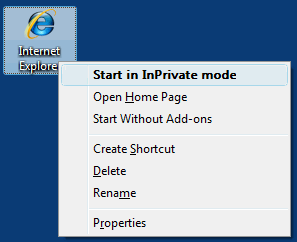
Fig 2: Start in InPrivate mode as the default action.
Double-clicking the Internet Explorer namespace icon will start Internet Explorer in InPrivate mode.
Register Internet Explorer (InPrivate) with Default Programs
The above two methods help only if you’re launching Internet Explorer directly. What about when double-clicking a .url file or .htm/.html/.mht file, or when launching websites via the Run dialog, etc.? For this, you need to associate all file types and protocols with the IE (InPrivate) mode. A long time ago, I wrote a program to do this for Windows Vista and 7 (32-bit), and I haven’t updated the program since then.
So, here is a REG file that registers Internet Explorer (In Private) Mode entry to the Default Programs listing for all versions of Windows, including Windows 10. Download ie-inprivate-default-programs.zip, unzip, and run the enclosed REG file.
The enclosed REG file assumes your system drive as C:\. If it’s different in your case, alter the REG file using Notepad and update the correct drive letter. The zip file also contains an undo file if you want to reverse the changes, i.e., unregister Internet Explorer (InPrivate) from Default Programs.
In the Default Programs applet, select Internet Explorer (InPrivate) and click Set this program as default.
Note that even if Internet Explorer (InPrivate) mode is set as default, when a normal IE window is already open, double-clicking a webpage or internet shortcut file would still use the existing IE window that’s running in normal mode.
One small request: If you liked this post, please share this?
One "tiny" share from you would seriously help a lot with the growth of this blog. Some great suggestions:- Pin it!
- Share it to your favorite blog + Facebook, Reddit
- Tweet it!
