 Windows 7 does not provide a GUI to change the icons shown for Libraries, and the Libraries don’t use the icon references provided in the desktop.ini file. Here is a nice way to customize the Library icons in Windows 7.
Thanks to Bogo for this excellent tip!
Changing the Library icon in Windows 7
1. Start Notepad
2. Click Start, type the following path and press ENTER:

3. Drag the library (for which you want to change the icon) into the Notepad window.
4. Add the following entry after the line <isLibraryPinned>
For example, to assign the 84th icon (index starts from 0) from Shell32.dll, type the following line:
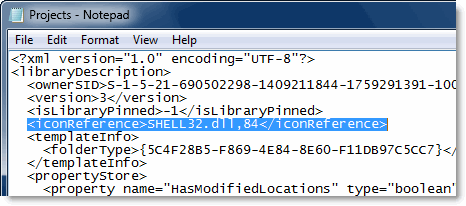
Note: The <iconReference> line may already exist for the default Libraries. For custom Libraries, you need to add it manually.
5. Save the file and close Notepad. Press F5 to refresh the Libraries window to see if the Library icon has changed.

One small request: If you liked this post, please share this?
One "tiny" share from you would seriously help a lot with the growth of this blog. Some great suggestions:- Pin it!
- Share it to your favorite blog + Facebook, Reddit
- Tweet it!
