When you click the Windows Explorer or File Explorer shortcut Pinned to the Taskbar, or when running explorer.exe directly, the following error message may be displayed:
This file does not have an app associated with it for performing this action. Please install an app or, if one is already installed, create an association in the Default Apps Settings page.

And the same error occurs when using the Win + E shortcut or running explorer.exe manually.
In earlier Operating Systems (e.g., Windows 8 and below), the following error is displayed:
This file does not have a program associated with it for performing this action. Please install a program or, if one is already installed, create an association in the Default Programs control panel.
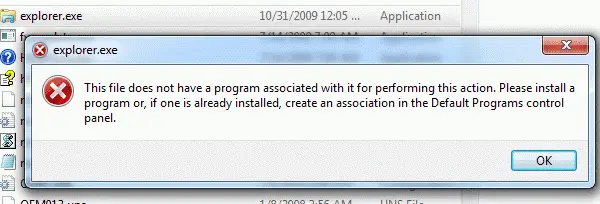
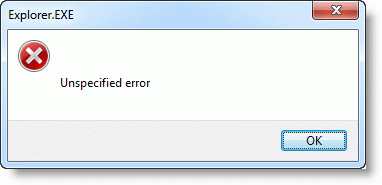
And using the Win + E key sequence causes “Unspecified error”
However, Explorer may launch correctly when including additional switches such as /e or /n with explorer.exe, or double-click the This PC icon. Also, all other shortcuts for other applications Pinned to the Taskbar may work fine, thus implying that this is not a Shortcut (.lnk) file association problem.
Cause
This problem occurs due to missing data in the HKEY_CLASSES_ROOT\Folders registry key. The File Explorer pinned shortcut located at the following path is a special shortcut that references a value under the “Folder” registry key:
%AppData%\Microsoft\Internet Explorer\Quick Launch\User Pinned\TaskBar
Information in this article applies to Windows Vista through Windows 10.
Fix for File Explorer shortcut association error
To fix the File Explorer shortcut association error, follow these steps:
- Start the Registry Editor (
regedit.exe) - Go to the following branch:
HKEY_CLASSES_ROOT\Folder\shell\opennewwindow\command
- Create a new String value (REG_SZ) named
DelegateExecute - Set its value data to
{11dbb47c-a525-400b-9e80-a54615a090c0} - Repeat steps #3 & 4 under the following registry key as well:
HKEY_CLASSES_ROOT\Folder\shell\explore\command
- Exit the Registry Editor.
The “Opennewwindow” branch is missing?
Some users have indicated that the entire key opennewwindow has been deleted from their computer. If the opennewwindow key is entirely missing, then download the “Folder” association registry fix for your Operating System from the links provided below:
Unzip the file and run the enclosed .reg file. You should now be able to start File Explorer from the Taskbar shortcut or using Win + E keyboard combo!
One small request: If you liked this post, please share this?
One "tiny" share from you would seriously help a lot with the growth of this blog. Some great suggestions:- Pin it!
- Share it to your favorite blog + Facebook, Reddit
- Tweet it!

I found the problem is if the Computer\HKCR\Folder\shell\opennewwindow key is deleted. Using Windows 10 1809
this bug ruined my weekend, suddenyl a blue screen and shut down my PC, then when restarted windows I got two errors, ONE made my Windows menu/cortana unabled, didnt react (it was fixed executing new task and making a windows repair trought some comands, it took some minutes) but also I had my explorer.exe unabled with that “shell:::{52205fd8-5dfb-447d-801a-d0b52f2e83e1}” error, I came this web by a forum and I cant believe the solution was so simple, thanks!
Two more possible fixes:
Windows 10 has twice broken this way on my laptop.
The 2nd fix below has worked both times.
1. Closing all explorer windows and run this cmd:
del /F /Q %APPDATA%\Microsoft\Windows\Recent\AutomaticDestinations\*
May require reboot.
2. Download the free Winaero Tweaker from winaero.com
Run Winaero Tweaker.
Under File Explorer, Explorer Starting Folder was not set.
Select any of the choices provided, then exit.
Thank you sooo much. Winaero fixed it.
Did manual fix, but still error, however after ran your .reg file, all worked! Thank you!