When designing Web pages, you may need to frequently empty the browser cache so that the browser reads the updated stylesheets and scripts, instead of reusing the ones from the cache. Using a cache cleanup tool like CCleaner can help, but they remove the cache for all sites. This is not an option if you want to preserve the Temporary Internet Files cache for other websites.
Here is a way to clear the Internet Explorer cache for a particular domain so that the cached items for other domains remain unaffected.
Clear the Cache For a Particular Website
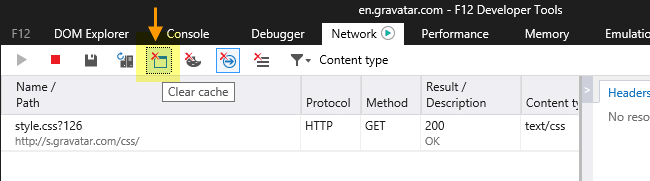
Internet Explorer Developer Tools has an option to clear the Temporary Internet Files Cache for a particular domain. Start Internet Explorer and open the website for which you want to clear the cache. Press the F12 key to launch Developer Tools. Click the Network tab in Developer Tools and click the clear cache icon, as shown in this picture:
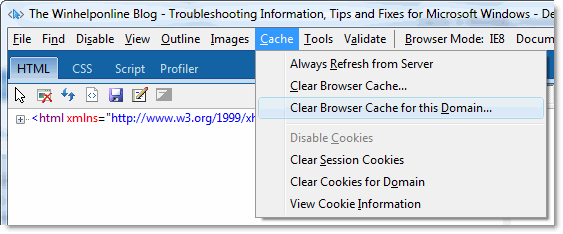
In older versions of Internet Explorer, there would an option named Clear Browser Cache for this Domain… under the Cache menu in Developer Tools. The menu option has since been removed. If you’re using an old version on IE, refer this screenshot.
One small request: If you liked this post, please share this?
One "tiny" share from you would seriously help a lot with the growth of this blog. Some great suggestions:- Pin it!
- Share it to your favorite blog + Facebook, Reddit
- Tweet it!

