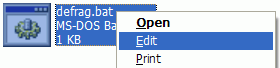
When you right-click on a Windows batch file (.bat) file and click Edit, Notepad opens the file by default. If you have a Notepad replacement software installed in your system, you can set it as the default editor for Windows batch files.
Change the Default Editor for Batch Files
- Launch the Registry Editor (
regedit.exe) - Navigate to the following branch:
HKEY_CLASSES_ROOT\batfile\shell\edit\command
- Double-click the
(default)value on the right. - By default, it points to
notepad.exe. Replace the existing data with the complete path of your editor.
Example:"C:\Program Files (x86)\Notepad++\notepad++.exe" "%1"
Be sure to include the
"%1"at the end (with quotes), as mentioned above. - Optionally, to change the default editor for .CMD files as well, then make the change in the following key as well:
HKEY_CLASSES_ROOT\cmdfile\shell\edit\command
- Exit the Registry Editor.
When you right-click on a Windows batch file and choose Edit, your chosen editor will now open the batch file for editing.
One small request: If you liked this post, please share this?
One "tiny" share from you would seriously help a lot with the growth of this blog. Some great suggestions:- Pin it!
- Share it to your favorite blog + Facebook, Reddit
- Tweet it!

Thanks much for this and your other help and hints. I would gladly follow your suggestions to Pin, Share, Blog, Facebook, Reddit, Tweet if I used any of these but I don’t. But please feel free to share my thanks and appreciation of your work anywhere. I’m not a Luddite, just an EE who writes in ASM and plain C. and uses Windows as a tool. Thanks again, Aaron