Surprisingly, Windows doesn’t have a built-in option to allow users to set custom icons for file types. If you have a custom file type and the corresponding program doesn’t have a nice-looking icon in its .exe or .dll resource, you can manually change or customize the default icon for that file type.
This article explains how to change the default icon for a file type using different methods in Windows. Instructions apply to all versions of Windows, including Windows 10
How to Change the Default Icon for a File Type
You can change the default icon for a file type using the built-in Registry Editor. In the second method, let’s see how to change the default icon using Default Programs Editor.
Method 1: Using the Registry Editor
Let’s assume you want to change the file type icon for .txt files, and here is how to do that.
- Click Start, type
regedit.exe, and press Enter - Navigate to the following branch:
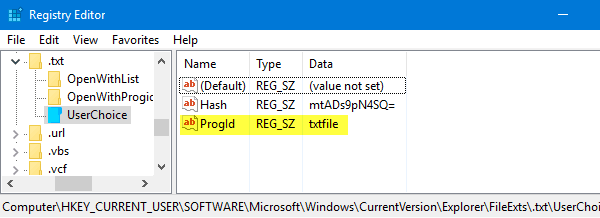
HKEY_CURRENT_USER\Software\Microsoft\Windows\CurrentVersion\Explorer\FileExts\.txt\UserChoice
- In the right pane, note down the value data for
Progid(e.g.txtfile). This is the user-chosen (via Default Programs or Open with dialog) Programmatic Identifier for the file extension.
Registry Branch Not Found?
- If the
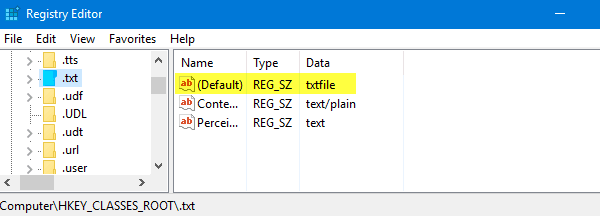
UserChoicebranch does not exist, navigate to the following branch:HKEY_CLASSES_ROOT\.txt
- In the right pane, note down the
(default)value data (e.g.txtfile).
- Navigate to the following key (where
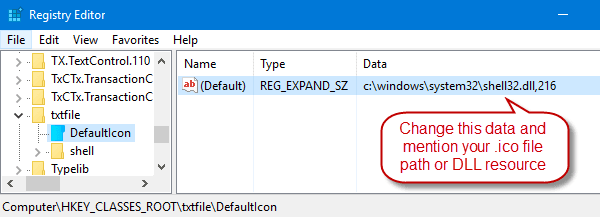
txtfileis the Prog ID noted in Step 2 or Step 4 above)HKEY_CLASSES_ROOT\txtfile\DefaultIcon
If the
DefaultIconkey does not exist by default, you need to create it manually.
- In the right-pane, double-click
(default)and mention the path to your custom icon (.ico file or reference to an icon inside an EXE/DLL file. See “Icons From DLL/EXE Files” paragraph at the end of this article).
- Edit the
(default)value data, mentioning the path to an icon file. For this example, I used a notepad icon file from the web, saved it to a permanent location, and mentioned the full path.If you’re using a custom icon file, make sure it’s at least 128 x 128. Although it’s not a rule, this is to make sure icons look nice when folder view is set to large or extra-large icons.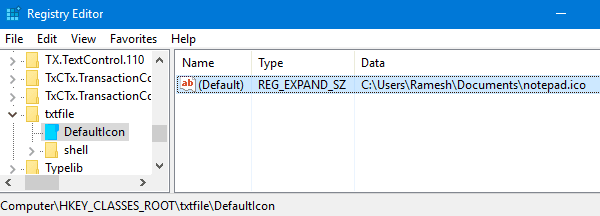
- Exit the Registry Editor.
- Log off, log back in, or refresh the icons and see if the Text file icons are updated.

Icons From DLL/EXE Files
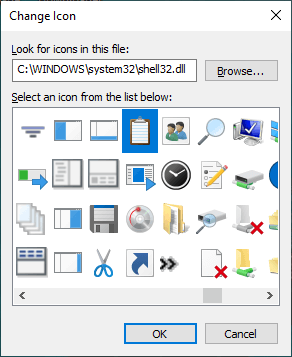
If you don’t have a custom .ico file, you may use the icon picker dialog box to choose an icon from an EXE/DLL file.
- To launch the icon picker dialog, right-click on a folder in your system, click Properties.
- Click the Customize tab, and click the “Change Icon…” button.
- Use the icon picker to choose the icon and make a note of the index. The index starts from “
0“, and you need to proceed vertically when counting (top to bottom.)
- Browse to
shell32.dllorimageres.dlland note down the icon index. - Cancel the icon picker dialog and close the folder properties dialog.
For example, to set the 260th icon in Shell32.dll, mention the following path in Step 8:
C:\Windows\System32\Shell32.dll,260
(This procedure doesn’t change the file type associations, only the icon assigned to that file type. If the icons don’t update even if you restart Windows, refresh the icons manually or rebuild the icon cache.)
Additional note
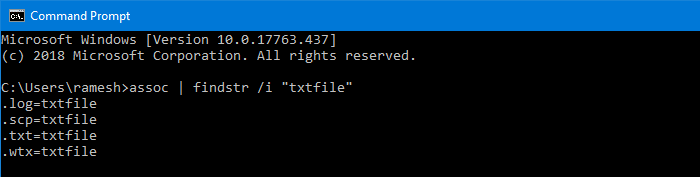
As the icon change is made to the ProgId txtfile in the registry, it also affects the other file extensions that use the same ProgId. For instance, in my system, the txtfile ProgID is being used by .log, .scp & .wtx file extensions. Those files will also show up with the new icon.
To know which file extensions are using a ProgID (i.e., txtfile), run this command in the Command Prompt window:
assoc | findstr /i "txtfile"
RELATED: See article How to Remove File Type Associations Using the Registry Editor for more information on File extension → ProgID mapping.
It’s possible to change the default icon for a file type without affecting other file types. To do that, you’ll need to create a new file class or ProgID for the file extension, and assign the default icon in the newly created file class.
Method 2: Using Default Programs Editor
Don’t want to edit the registry to change file type icons? There are 3rd party tools like Default Programs Editor and FileTypesMan that can change the file type icons and association settings.
Default Programs Editor is a useful tool that helps you edit file type associations and add or remove AutoPlay handlers and static context menu entries. We’ve covered Default Programs Editor before. Default Programs Editor – A Useful File Association Editor
In this method, let us see how you can accomplish the task using the Default Programs Editor.
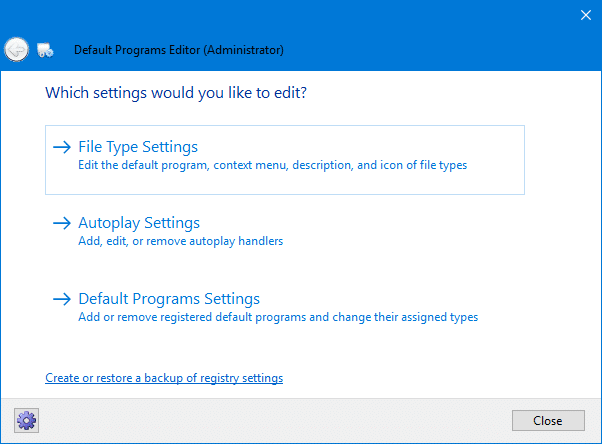
- Download Default Programs Editor, unzip, and run the executable.
- Select File Type Settings
- Click Icon
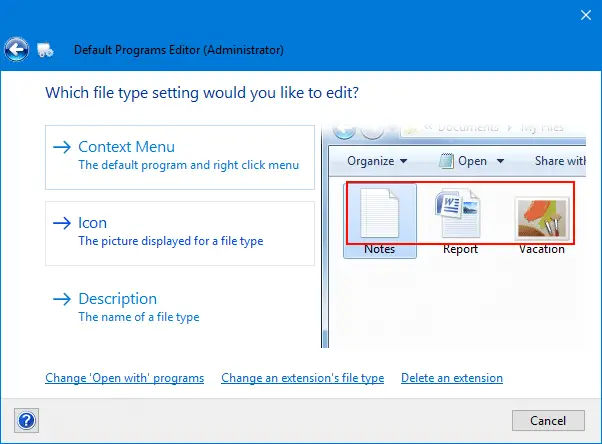
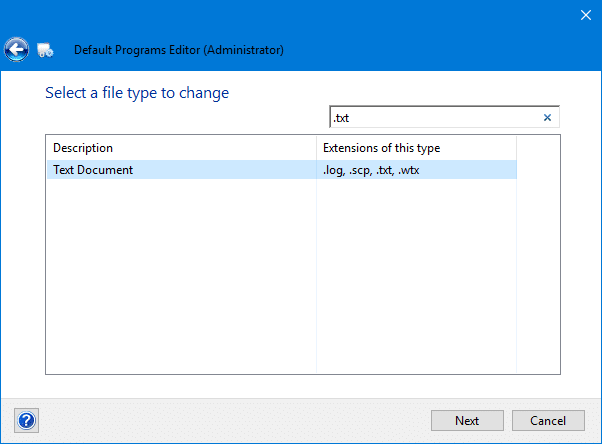
- Select the file extension for which you want to change the icon, on the next screen.
- This screen shows the current icon for the file type. To change it, click on the Browse button.
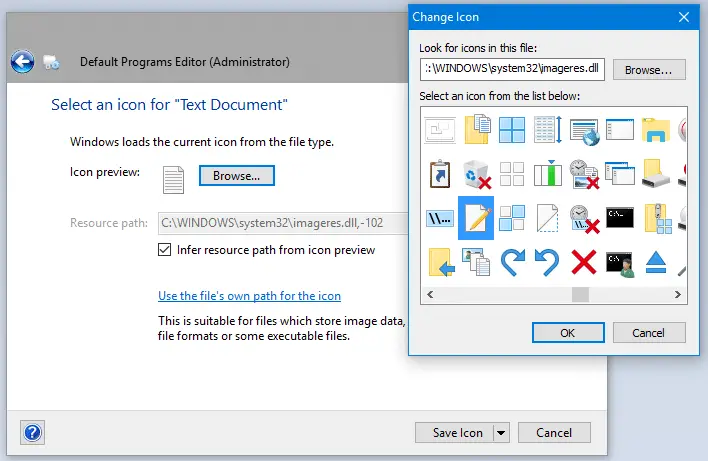
- In the icon picker dialog, browse and locate an icon, or point to a custom .ico file if you have one. The built-in
imageres.dllandshell32.dllfiles contain many icons for you to choose from.
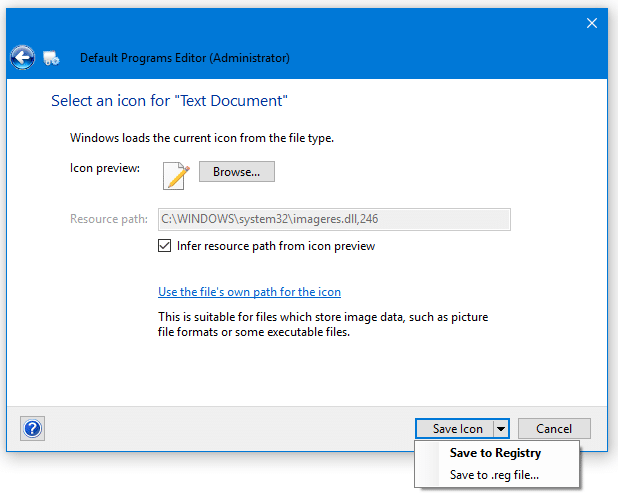
- Click the Save Icon button to save the changes to the registry.
As you can see in the screenshot, you also can save the settings to a file. If you need to apply the changes to several computers, you can output the settings to a .REG file. This can be done by clicking the arrow mark near the Save Icon button and choosing Save to .reg file. You can deploy or apply the .reg file on other computers without having to rerun the utility.
That’s it! The default icon for .txt file type is changed, and the icons should refresh automatically.
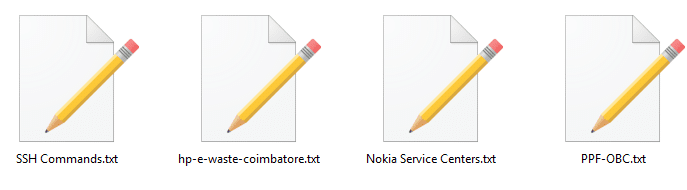
Method 3: Using FileTypesMan
FileTypesMan list of all file extensions and types registered on your computer. For each file type, the following information is displayed: Type Name, Description, MIME Type, Perceived Type, Flags, Browser Flags, and more. FileTypesMan also allows you to edit the properties and flags of each file type easily and allows you to add, edit, and remove actions in a file type. This utility works in all Windows versions including, Windows 10.
Screenshots
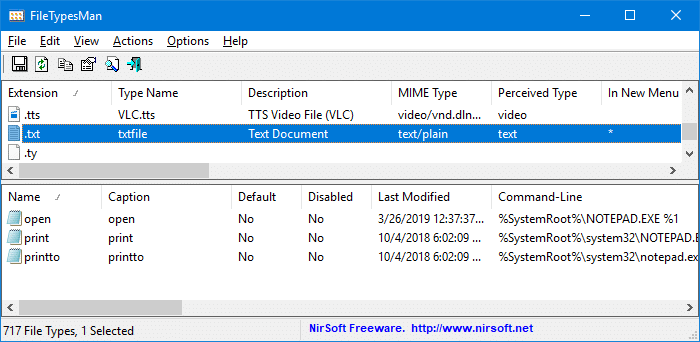
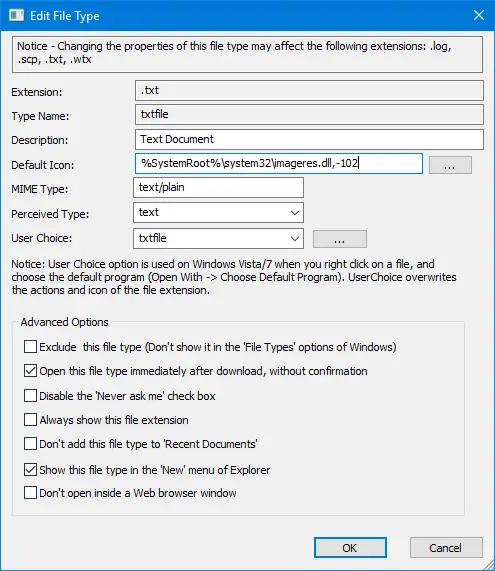
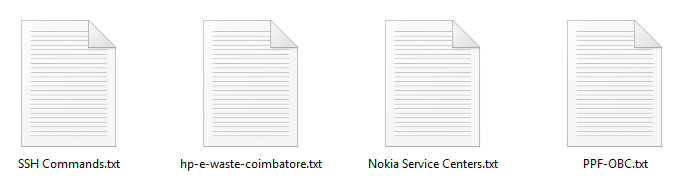
%SystemRoot%\system32\imageres.dll,-102 is the Windows-default icon for .txt files.
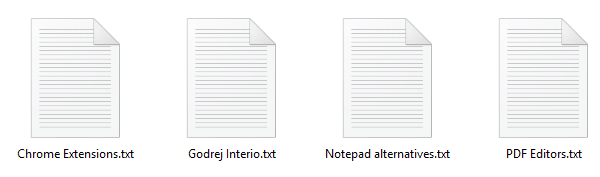
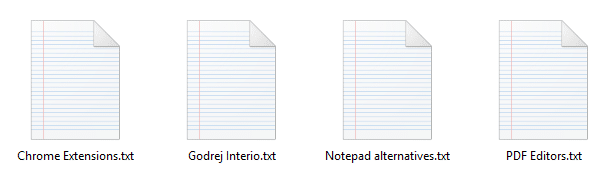
After setting the default icon to %SystemRoot%\system32\imageres.dll,14 via the icon picker dialog, here is how it shows up:
Change the icon for Unknown and Extensionless files
File types that are not registered with the system and files with no extension are assigned a generic icon from shell32.dll,0 by default. The unknown or generic icon for unregistered file types and extensionless files can be customized as per your choice so that you don’t have to see the boring icon anymore.
Windows stores the icon setting for unknown file types and extensionless files in this registry key:
HKEY_CLASSES_ROOT\Unknown\DefaultIcon
The (default) or the unnamed value points to the following icon resource by default:
%SystemRoot%\System32\shell32.dll,0
Using the Registry Editor (regedit.exe), you can change the (default) value so that it points to a .ico file that you already have or an icon resource inside a .dll or .exe file by mentioning the file name and resource identifier.
Using the Icon picker (a.k.a. the Change Icon dialog), you can use a relevant icon in shell32.dll, 224 that can be assigned for unregistered and extensionless files. You just need to replace the existing Value data (%SystemRoot%\System32\shell32.dll,0) with %SystemRoot%\System32\shell32.dll,224 using the Registry Editor or using the REG files below.
Log off and login back into your account.
Here is how it looked before:

We’ve changed that to:

Tip: If the icons don’t automatically refresh even after a logoff-logon cycle, you can force a shell icon refresh using the ie4uinit.exe method or using Default Programs.
One small request: If you liked this post, please share this?
One "tiny" share from you would seriously help a lot with the growth of this blog. Some great suggestions:- Pin it!
- Share it to your favorite blog + Facebook, Reddit
- Tweet it!

I found a solution. I’m not sure it will work on any program, but with Notepad++ it does.
– Make a copy of your .exe to the program directory next to the original one.
– Rename it to the filename + extension. e.g.: Notepad++.exe —> Notepad++txt.exe
– Repeat the process for each individual extension you desire.
– Associate your extensions with the created executeables.
– After this, you can set your own icons either via regedit or Default Programs Editor.
FileTypesMan.. Win10.. html, css, js etc… huge thank you
Thanks! The official Microsoft guide (https://learn.microsoft.com/en-us/windows/win32/shell/how-to-assign-a-custom-icon-to-a-file-type?redirectedfrom=MSDN) seemed to be wrong
Hi! I’ve been using the Default Program Editor to change file type icons for many years now and I am happy with it. Except one thing:
I’ve created a reg file to include all the icons I have made, because some program updates reverse my changes; than I have to run the reg file, *and restart the computer in order to see the changes*. My question is: What line should I add below, for example, this
[HKEY_CURRENT_USER\Software\Classes\AppX4ztfk9wxr86nxmzzq47px0nh0e58b8fw\DefaultIcon]
@=”C:\\My Stuff\\My Files\\My Icons\\Icons\\txt.ico,0″
so that the icons change without having to restart the computer?
Hi Eustace,
Try one of the methods in this article to refresh the icons manually.
Wrong icon for file type; how to refresh the icons quickly » Winhelponline:
https://www.winhelponline.com/blog/refresh-icon-cache-windows-7-quickly/
Thanks a lot !
You explain how to have different icons for different audio files (mp3, .wav ), playlist and video files (mp4,mov,avi,mkv…) even if all media files are opened with vlc.
And finally with your explanations IT WAAAAAKS !!
You’re great
Bertrand
Few times, I see such a very precise and accurate document like this. So professional.
but, before getting here, I reviewed tons of garbage.
Stay Well,