Aero Peek is feature which allows you to temporarily view the desktop without having to minimize all the open windows. You can temporarily preview the desktop by moving the mouse pointer over the Show desktop button near the taskbar notification area.
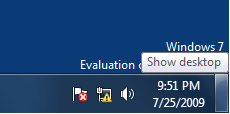
The default hover delay is 1 second. If this time is too short for you, you can delay it furthermore to avoid accidental preview of the desktop. This can be done using a registry edit discussed in this article.
Increase Aero Peek Desktop Preview Mouse Hover Delay
- Launch the Registry Editor (
regedit.exe) - Navigate to the following location:
HKEY_CURRENT_USER\Software\Microsoft\Windows\CurrentVersion\Explorer\Advanced
- Create a new DWORD (32-bit) value named
DesktopLivePreviewHoverTime - Double-click DesktopLivePreviewHoverTime and click Decimal
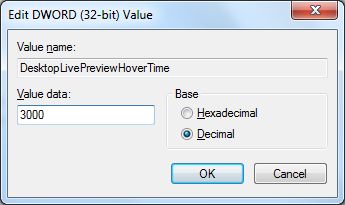
- To increase the hover delay timeout to 3 seconds, type 3000. Type 4000 for 4 seconds and so forth…
- Exit the Registry Editor.
- Logoff and login back.
This increases the mouse hover time for the desktop peek feature.
To disable the Aero Peek Desktop Preview feature (on mouse hover), open Windows 10 Settings, Personalization, Taskbar. Disable the Use Peek to preview the desktop when you move your mouse to the Show desktop button at the end of the taskbar setting.

One small request: If you liked this post, please share this?
One "tiny" share from you would seriously help a lot with the growth of this blog. Some great suggestions:- Pin it!
- Share it to your favorite blog + Facebook, Reddit
- Tweet it!
