 InPrivate Browsing in Internet Explorer 8 helps prevent your browsing history, temporary Internet files, form data, cookies, and usernames and passwords from being retained by the browser, leaving no evidence of your browsing or search history. We covered InPrivate browsing in our previous articles which our readers found useful. Here is an utility which adds Internet Explorer (InPrivate) entry to the Default Programs applet in Windows Vista and Windows 7.
Register Internet Explorer (InPrivate) with Default Programs
Download RegisterIEInPrivate.zip, unzip and run the file RegisterIEInPrivate.exe (requires elevation)
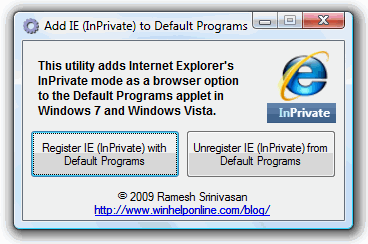
Click Register IE (InPrivate) with Default Programs button.
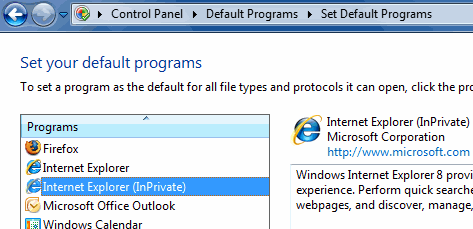
Now you have Internet Explorer (InPrivate) as a separate browser option in Default Programs. Setting this as the default browser would cause URL/HTM/HTML/MHT/MHTML files to open in InPrivate browsing mode by default. (Double-clicking on an URL/HTM/HTML/MHT/MHTML file would launch Internet Explorer in InPrivate browsing mode.)
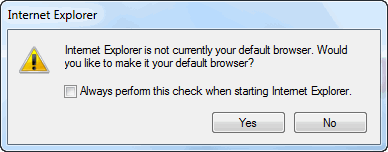
Editor’s note: If Internet Explorer prompts you with the following dialog, uncheck Always perform this check when starting Internet Explorer, and click No. Otherwise, Internet Explorer (normal mode) would takeover as the default browser.
One small request: If you liked this post, please share this?
One "tiny" share from you would seriously help a lot with the growth of this blog. Some great suggestions:- Pin it!
- Share it to your favorite blog + Facebook, Reddit
- Tweet it!

