The Copy To and Move To buttons are actually meant to use in the toolbar/ribbon, but with a small registry edit you can use them from the context menu.
Add Copy To and Move To in the Right-Click Menu
Start Regedit.exe and navigate to:
HKEY_CLASSES_ROOT\AllFilesystemObjects\shellex\ContextMenuHandlers
Create the following subkeys under the above registry key:
{C2FBB631-2971-11d1-A18C-00C04FD75D13}
{C2FBB630-2971-11D1-A18C-00C04FD75D13}
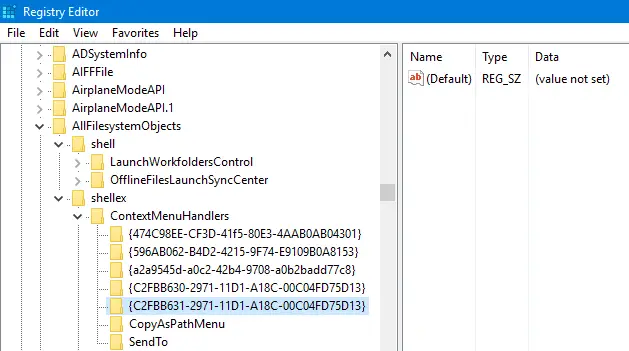
{C2FBB631-2971-11d1-A18C-00C04FD75D13} is Microsoft MoveTo Service.
{C2FBB630-2971-11D1-A18C-00C04FD75D13} is Microsoft CopyTo Service.
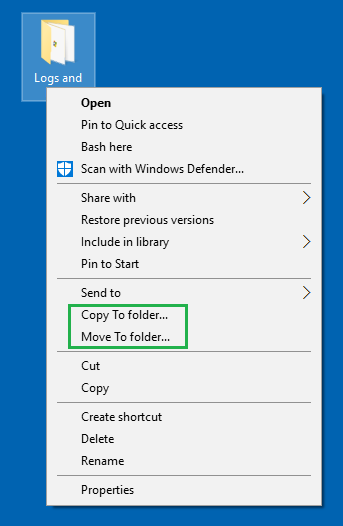
Select a file or folder (or multiple items) in your Desktop or folder window. You should see the “Copy To Folder” and “Move To Folder” options in the right-click menu.
Automate the setting using REG file
Download add_copyto_moveto_context_menu.zip, unzip and run the enclosed REG file.
One small request: If you liked this post, please share this?
One "tiny" share from you would seriously help a lot with the growth of this blog. Some great suggestions:- Pin it!
- Share it to your favorite blog + Facebook, Reddit
- Tweet it!

Can i use the reg file on NON-ENGLISH language Win10 O.S. ? Thanks in advance
@Gianni: The REG file adds only the GUIDs — so it should work in non-English versions as well – the relevant verb/caption would come from the DLL itself.
It worked like a charm! thanks so much for a very useful trick, Ramesh… 🙂
@Gianni: Nice to hear. You’re very welcome 🙂