Archive for August, 2009

How to Disable Explorer Search Box Suggestions in Windows 7

Earlier we saw how to clear the search MRU entries in Windows 7. Are you one of those who find the Search Box suggestion pop-ups annoying, and don’t require this feature? Here is a registry edit which disables the search box suggestions in Windows Explorer.

1. Click Start, type Regedit.exe and press ENTER

2. Navigate to the following branch:

HKEY_CURRENT_USER \ Software \ Policies \ Microsoft \ Windows \ Explorer

Note: The above key may not exist by default, and you may need to create the above branch manually.

3. Create a DWORD value named DisableSearchBoxSuggestions

4. Double-click DisableSearchBoxSuggestions and set its data as 1

5. Exit the Registry Editor.

This setting disables suggesting recent queries for the Search Box and prevents entries into the Search Box from being stored in the registry for future references.

Registry Fix

To automate the above download w7-disable-search-suggest.zip, unzip and run the enclosed REG file. To reverse the changes run the file undo.reg

Using the Group Policy Editor

This is only for Windows 7 editions that include the Group Policy Editor.

1. Launch the Group Policy Editor (gpedit.msc)

2. Navigate to the following branch:

User Configuration | Administrative Templates | Windows Components | Windows Explorer

3. Set Turn off display of recent search entries in the Windows Explorer search box to Enabled

4. Exit the Group Policy Editor.

Note: If you enable this policy, Windows Explorer will not show suggestion pop-ups as users type into the Search Box, and it will not store Search Box entries into the registry for future references. If the user types a property, values that match this property will be shown but no data will be saved in the registry or re-shown on subsequent uses of the search box.

Vize GUI Enhancer for Windows Vista Replaces Non-Vista Icons

Many dialog boxes in Windows Vista include outdated (non-Vista) icons. This clearly is one of the UI aspects that Microsoft has overlooked. This is non-fatal and purely a cosmetic thing, but if you’re a perfectionist and want to replace Windows Vista icons in place of the outdated icons, then take a look at the freeware product named Vize.

Vize is a GUI enhancer for Windows Vista. It replaces most of the non-Vista icons, animations and bitmaps that Microsoft is still overlooking. Vize automates the process of replacing resources in system files, applying the real fit and finish to Windows Vista. If you are not satisfied with the results, you can completely and safely uninstall Vize.

Vize is compatible with any version, any language, and any architecture (both 32-bit x86 and x64) of Windows Vista and Windows Server 2008. [Vize Download URL]

Here are some dialog boxes for you to compare (before and after installing Vize).

And here are the new icons for .reg & .vbs file types.

For a similar utility for Windows XP and Windows Server 2003, check out XPize. For Windows 7, Sevenize will be coming soon.

Windows System Control Center – Launch Pad and Updater for Sysinternals Suite

Both Windows Sysinternals and Nirsoft offer amazing set of tools to tune up and troubleshoot PCs. The combined total of such tiny tools from both the above sites certainly exceeds hundred. Some of the tools in the suite don’t have an automatic update facility, which makes managing them slightly difficult. To alleviate this problem and allow easy organizing and automatic updating of these tools, we have the Windows System Control Center tool from KLS Soft.

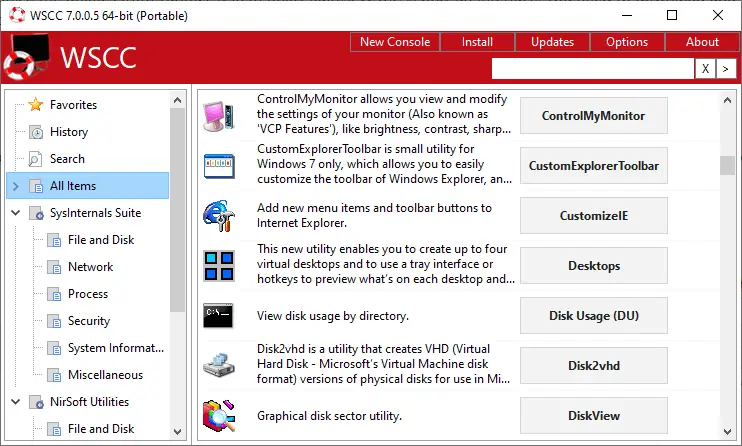
WSCC is a free, portable program that allows you to install, update, execute and organize the utilities from various system utility suites. WSCC is only an interface, you need to download and install the utilities separately. Alternatively, WSCC can use the http protocol to download and run the programs. The included Update Manager can check for newer versions of the utilities already installed and can download and install the missing items.

The current version of WSCC supports the following utility suites:

Many people (especially IT/Helpdesk techs) who use Sysinternals & Nirsoft utilities very frequently, would find Windows System Control Center very useful. This utility is completely portable, which means no installation is required. This utility runs in Windows 2000 / XP / 2003 / Vista / 2008 / 7.

WSCC – Screenshots

[Download Windows System Control Center from KLS Soft.]

How to Remove “Always Use the Selected Program” Option From Open With Dialog

The Open With dialog in Windows allows you to open a file using different programs. Also, you can create or change the file type association by selecting the "Always use the selected program to open this kind of file" checkbox in the Open With dialog. Sometimes, users wrongly associate file types and end up having to fix the associations manually. To prevent this, you can remove the "Always use the selected program to open this kind of file" checkbox so that file type association using Open With dialog is not possible.

1. Launch Regedit.exe and navigate to the following branch:

HKEY_CURRENT_USER \ Software \ Microsoft \ Windows \ CurrentVersion \ Policies \ Explorer

Note: If the above branch does not exist, you need to create it manually.

2. Create a new DWORD value named NoFileAssociate

3. Double-click NoFileAssociate and set its data to 1

4. Exit the Registry Editor.

The above registry change effects the current user account only. To implement the change for all users (machine-wide), create the NoFileAssociate value in the following branch:

HKEY_LOCAL_MACHINE \ Software \ Microsoft \ Windows \ CurrentVersion \ Policies \ Explorer

Additional Information

The above edit when used in Windows 2000/XP, results in a grayed out "Always use the selected program…" checkbox. Whereas in Windows Vista & Windows 7, the checkbox is removed completely.

Windows 7 Is Now Available for MSDN and TechNet Subscribers

The wait is over! As promised, Microsoft has made available the Windows 7 RTM for MSDN and TechNet subscribers on Aug 6 2009. MSDN/TechNet subscribers can download Windows 7 RTM from the subscriber downloads pages (MSDN / TechNet).

File Name: en_windows_7_ultimate_x86_dvd_X15-65921.iso
Date Posted (UTC): 8/6/2009 4:57:23 PM
SHA1: 5395DC4B38F7BDB1E005FF414DEEDFDB16DBF610
ISO/CRC: C1C20F76

File Name: en_windows_7_ultimate_x64_dvd_X15-65922.iso
Date Posted (UTC): 8/6/2009 4:57:23 PM
SHA1: 326327CC2FF9F05379F5058C41BE6BC5E004BAA7
ISO/CRC: 1F1257CA

Windows 7 will be in retail stores and shipping on new PCs starting October 22nd. For more information, see post When will you get Windows 7 RTM? at the Windows 7 Team Blog.