Windows 10 and 11 come with many built-in Store apps that may not be useful to you. As you may have known, PowerShell allows you to uninstall individual apps or all apps using a single command.
If you had used the following command to uninstall all bundled apps in Windows 10 or 11, you should have noticed that the much useful “Windows Store” app (now known as “Microsoft Store”) is one of those removed apps.
Get-AppXPackage | Remove-AppxPackage
Additionally, you may get the following error when opening certain Store apps or running wsreset.exe:
You'll need a new app to open this ms-windows-store link
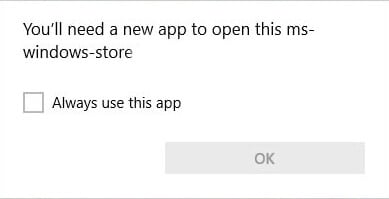
Lately, Windows 11 users have been saying that the Microsoft Store app is missing or non-functional after resetting Windows 11. Without the “Microsoft Store” app, you won’t be able to install or update Store apps.
This post tells you how to get back the Microsoft Store app if it’s missing after a reset or if you’ve uninstalled it accidentally using PowerShell.
Reinstall the Microsoft Store app
Here is how to reinstall Microsoft Store. The 1st method applies if the Microsoft Store app package folder is intact. The 2nd method should be used if the Microsoft Store provisioned app package folder doesn’t exist.
Method 1: Using PowerShell
To restore or reinstall Windows Store, start PowerShell as Administrator. Click Start, and type Powershell. In the search results, right-click “PowerShell” and click Run as administrator.
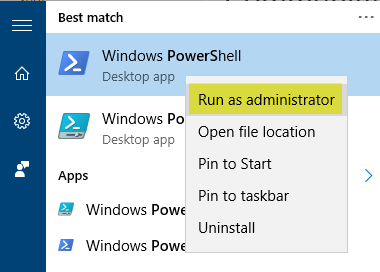
In the PowerShell window, type the following command and press ENTER:
Get-AppxPackage -allusers Microsoft.WindowsStore | Foreach {Add-AppxPackage -DisableDevelopmentMode -Register "$($_.InstallLocation)\AppXManifest.xml"}

That reinstalls the Microsoft Store app.
If you wish to reinstall or restore all the built-in Windows 10/11 apps (including Microsoft Store), use this command:
Get-AppXPackage -allusers | Foreach {Add-AppxPackage -DisableDevelopmentMode -Register "$($_.InstallLocation)\AppXManifest.xml"}
However, for some users, the above commands may throw one of the following errors, and Store does not get reinstated:
Add-AppxPackage : Cannot find path 'C:\AppXManifest.xml' because it does not exist.
At line:1 char:61
+ ...  | Foreach {Add-AppxPackage -DisableDevelopmentMode -Register "$($_.I ...
+                 ~~~~~~~~~~~~~~~~~~~~~~~~~~~~~~~~~~~~~~~~~~~~~~~~~~~~~~~~~
    + CategoryInfo          : ObjectNotFound: (C:\AppXManifest.xml:String) [Add-AppxPackage], ItemNotFoundException
    + FullyQualifiedErrorId : PathNotFound,Microsoft.Windows.Appx.PackageManager.Commands.AddAppxPackageCommand
Add-AppxPackage : Deployment failed with HRESULT: 0x80073CF6, Package could not be registered.
error 0x80070057: While processing the request, the system failed to register the windows.applyDataExtension extension ...
error 0x80070057: Cannot register the request because the following error was encountered during the registration of the windows.applyDataExtension extension: The parameter is incorrect.
An internal error occurred with error 0x80070002.
Package could not be registered. Merge Failure : error 0x80070003 : Cannot register the Microsoft.WindowsStore_2015.23.23.0_x64__8wekyb3d8bbwe package because there was a merge failure.
The above errors if the Microsoft Store package folder is missing (or incomplete) from the C:\Program Files\WindowsApps folder. You’ll need to download the Store installer using Method 2 or Method 3 below.
Method 2: Install Store using Microsoft Store Installer.exe
Visit the following page:
Download and install Microsoft Store app on Windows:
https://apps.microsoft.com/detail/9wzdncrfjbmp?hl=en-US&gl=US
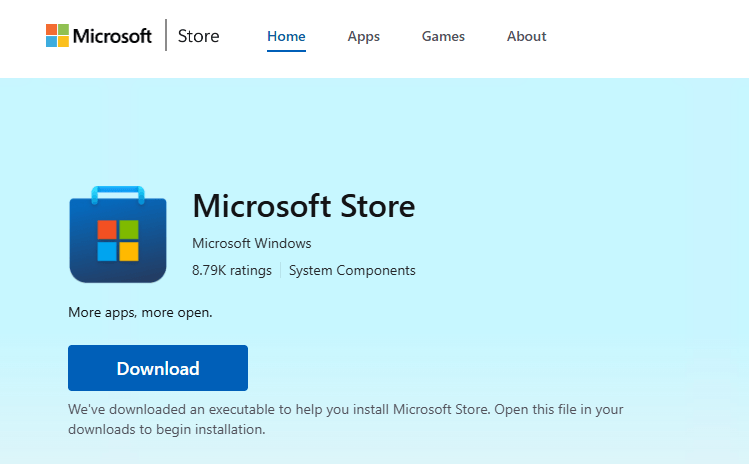
Click the Download button. It downloads Microsoft Store Installer.exe.
Run the app and install latest version of the Microsoft Store app.
If that doesn’t help, proceed to Method 3.
Method 3: Download the Microsoft Store installer (Appx package)
You can download the Microsoft Store app and its dependencies in the form of .Appx and .MsixBundle package or installers from the official Microsoft’s servers. Follow these steps to do so:
- Visit the following website:
https://store.rg-adguard.net/
The above third-party site can generate download links (to app installers) for the chosen app. These are direct download links pointing to the official Microsoft servers.
- On the above page, paste the following link in the URL text box. The following is the Microsoft Store app’s official link.
https://www.microsoft.com/en-us/p/microsoft-store/9wzdncrfjbmp
- Select Retail (or the appropriate branch accordingly), and click the generate button.
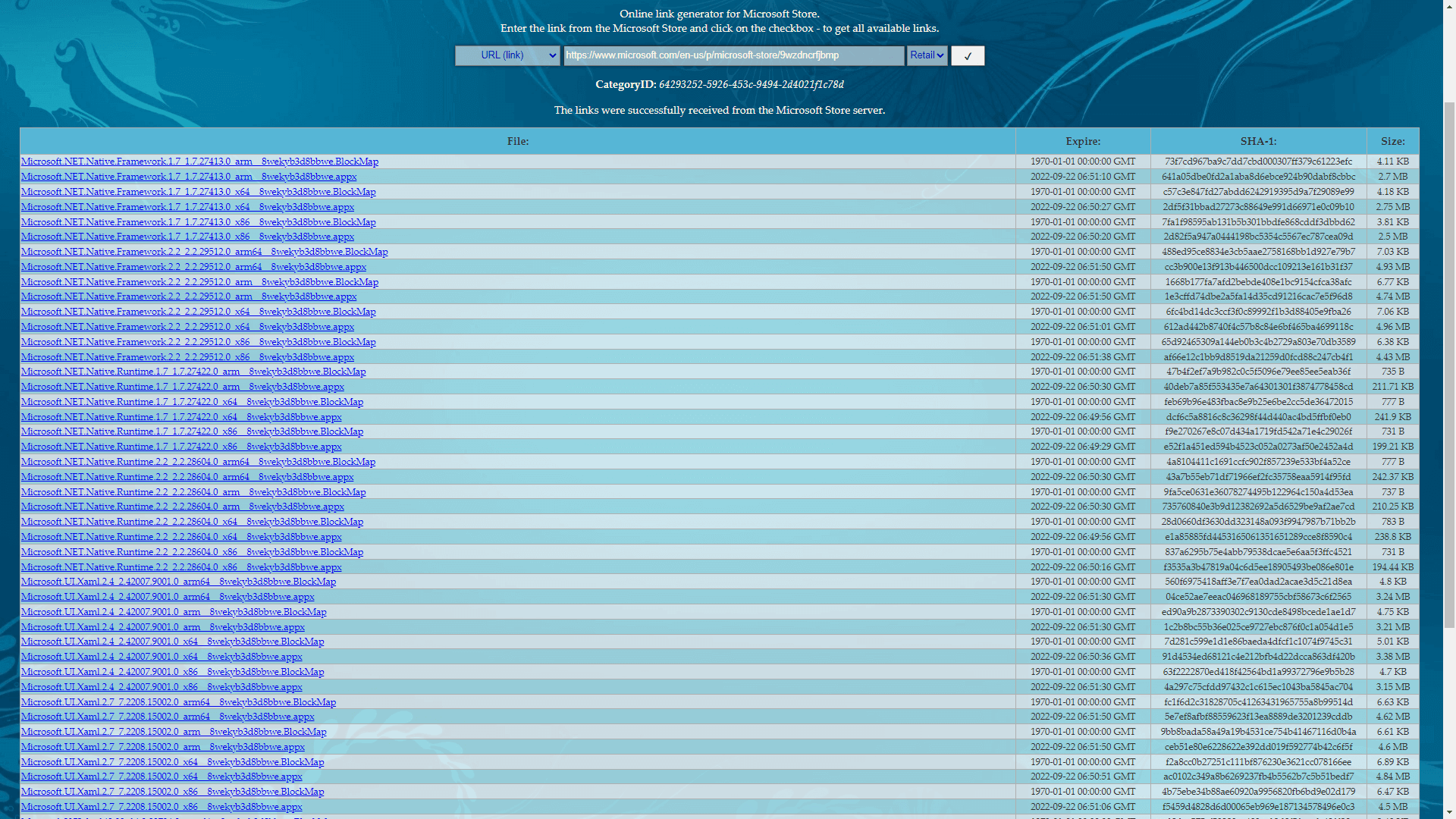
- As the Microsoft Store app depends on .NET Framework, .NET Runtime, Microsoft.UI.Xaml, and VC Libs, download the latest packages of each item listed. Be sure to download the correct ones matching the bitness (x86 vs. x64) of your Windows 10.
- Now, you would have downloaded these five Appx packages — the version numbers will vary according to the build/version of the Microsoft Store app.
Microsoft.NET.Native.Framework.2.2_2.2.29512.0_x64__8wekyb3d8bbwe.Appx
Microsoft.NET.Native.Runtime.1.7_1.7.27422.0_x64__8wekyb3d8bbwe.Appx
Microsoft.UI.Xaml.2.7_7.2208.15002.0_x64__8wekyb3d8bbwe.Appx
Microsoft.VCLibs.140.00_14.0.30704.0_x64__8wekyb3d8bbwe.Appx
Microsoft.WindowsStore_22207.1401.1.0_neutral___8wekyb3d8bbwe.Msixbundle
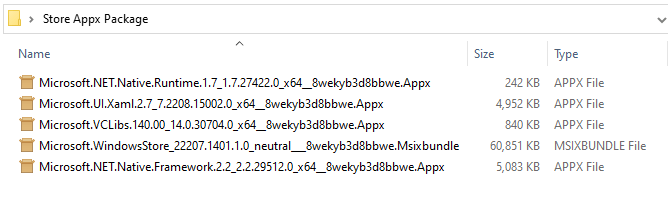
- Run each .appx installer first, as they’re the dependencies of the Microsoft Store.
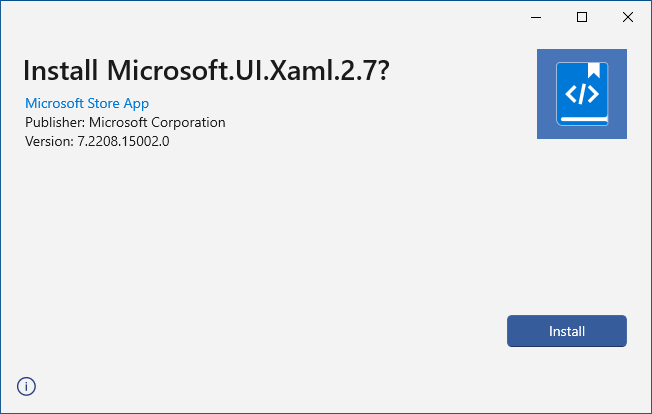
Appx or Msixbundle files don’t run when double-clicked?
If double-clicking on an Appx or Msixbundle file doesn’t start the installer, as an alternative, you can use PowerShell to install each package. The PowerShell command-line syntax is below:
Add-AppxPackage -Path "C:\Path\filename.Appx"
RELATED: For more information, read the article Can’t Install Appx, AppxBundle, and Msixbundle Files in Windows.If you get the error
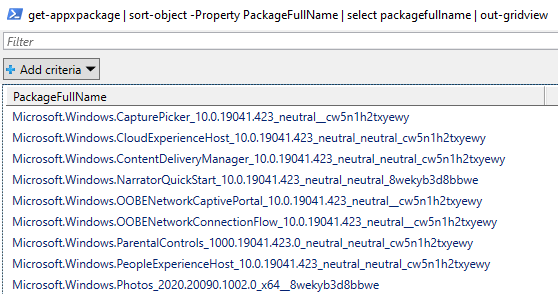
Deployment failed with HRESULT: 0x80073D02, skip the package. It’s most likely because the package or dependency is already installed and currently in use by some other app.Also, you can run the following command to check if an app package is already installed or not:
get-appxpackage | sort-object -Property PackageFullName | select packagefullname | out-gridview
If the package (of the same version) is already installed, you don’t have to install it again.
Getting the error 0x80073D05?
You may receive the following error when installing a package (e.g., VCLibs)
App installation failed with error message: An internal error occurred with error 0x80073D05
The error code
0x80073D05denotes “An error occurred while deleting the package’s previously existing application data.”Restart Windows and try installing the app again. Hopefully, this time around, the installer should be able to clear the application data successfully.
If the same error occurs, this could be due to corrupted files within the app’s folder.
Open the
C:\Users\(Your Username)\AppData\Local\Packagesfolder and try renaming the folder related to the app (e.g.,Microsoft.VCLibs.140.00_8wekyb3d8bbwe) you’re trying to install. If Windows doesn’t let you delete the folder, try moving it to another folder or drive. Or, you may use other methods to delete the stubborn folder. - Finally, run the Microsoft Store installer (.Msixbundle) file and complete the process.
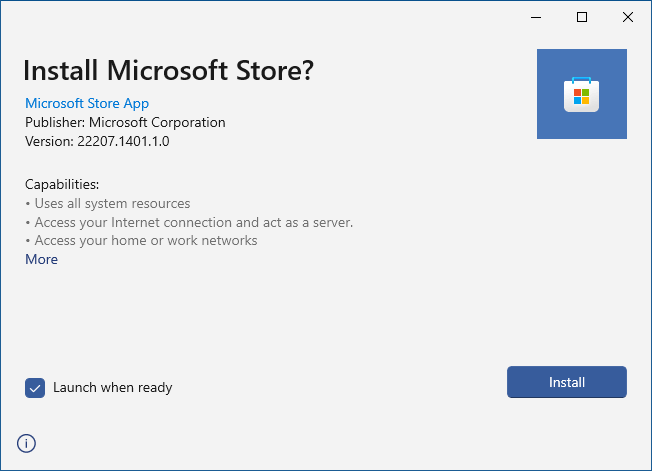
- That’s it. The Microsoft Store app is now reinstated. Open Microsoft Store → Settings to check its version.
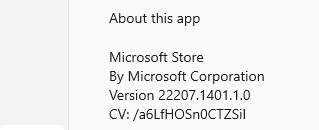
Verify the Microsoft Store app info using PowerShell (Optional)
After installing the Microsoft Store appx package, it would have restored the following folders under the Program Files\WindowsApps folder:
Microsoft.WindowsStore_nnnnn.nnnn.nnn.n_neutral_~_8wekyb3d8bbwe
Microsoft.WindowsStore_nnnnn.nnnn.n.n_x64__8wekyb3d8bbwe
Microsoft.WindowsStore_nnnnn.nnnn.n.n_neutral_split.scale-100_8wekyb3d8bbwe
Optionally, to verify the Microsoft Store app info, open the PowerShell (administrator) window and run the following command:
Get-AppxPackage Microsoft.WindowsStore
Name              : Microsoft.WindowsStore
Publisher         : CN=Microsoft Corporation, O=Microsoft Corporation, L=Redmond, S=Washington, C=US
Architecture      : X64
ResourceId        :
Version           : 22207.1401.1.0
PackageFullName   : Microsoft.WindowsStore_22207.1401.1.0_x64__8wekyb3d8bbwe
InstallLocation   : C:\Program Files\WindowsApps\Microsoft.WindowsStore_22207.1401.1.0_x64__8wekyb3d8bbwe
IsFramework       : False
PackageFamilyName : Microsoft.WindowsStore_8wekyb3d8bbwe
PublisherId       : 8wekyb3d8bbwe
IsResourcePackage : False
IsBundle          : False
IsDevelopmentMode : False
NonRemovable      : False
Dependencies      : {Microsoft.UI.Xaml.2.7_7.2208.15002.0_x64__8wekyb3d8bbwe,
                    Microsoft.NET.Native.Framework.2.2_2.2.29512.0_x64__8wekyb3d8bbwe,
                    Microsoft.NET.Native.Runtime.2.2_2.2.28604.0_x64__8wekyb3d8bbwe,
                    Microsoft.VCLibs.140.00_14.0.30704.0_x64__8wekyb3d8bbwe}
IsPartiallyStaged : False
SignatureKind     : Store
Status            : Ok
You’ll see that the Microsoft Store app is fully installed along with its dependencies.
This article applies to Windows 10 and Windows 11.
One small request: If you liked this post, please share this?
One "tiny" share from you would seriously help a lot with the growth of this blog. Some great suggestions:- Pin it!
- Share it to your favorite blog + Facebook, Reddit
- Tweet it!

Thanks Ramesh I re-installed Windows Store successfully with your code.
@Ramesh, I never write comments on post whether it helps me or not, but this I had to. Thank you so much man. Keep up the good work.
thank you so much it solved my problem thanks alot.
Thank you so much!
I never write comments, but this time i was so happy that i found solution for my problem. You are a great man, thank you sir!
Unfortunately, I have un-installed my windows store apps, don’t know how to re-installed it. After searching on the internet I stuck this website and read your article about re-installed windows store using Powershell, I tried it and finally I succeed. Thank you, Ramesh, for your wonderful stuff.
the best Thanks for this post the only one that fix my store and. I try several using Powershell…. again thank you.
Hi, Thanks for the help but when I use the code it says that the shell experience host is still open and running. So what should I do?
Thanks,
Lanre
Thanks man, simple and functional sollution, that helped to fix annoying 0x803FB005 error.
Thank you, have my store back!
That’ll teach me to uninstall stuff. Thanks for your help 🙂
First powershell script worked like a charm. Thanks
Thank you , this worked for me
Get-AppxPackage -allusers Microsoft.WindowsStore | Foreach {Add-AppxPackage -DisableDevelopmentMode -Register “$($_.InstallLocation)\AppXManifest.xml”}
I came here because that didn’t work for me – Ramesh’s suggestions did though.
thank you so muchh
this helped
Best restore on the web!!
thanks, this powershell command worked after i lost the app trying to reset it.
Windows store and MS apps not launching. All of a sudden. Tried everything, including this. Not worked.
thank you so much that was helpful
powershell command works like a charm.
Thank you soooo much for this. I tried so many things before this. I am extremely grateful.
Typed in command as instructed, nothing happened. No error message and still have remaining apps. Not really all that pc savvy, not going to bother trying anything else.
wow ,i got it very helpful and fixed my problem .thank you very much for your solution .
I never comment on websites, but can i say: You’re the hero of my day? Whole day work fixed in 2 seconds.
None of the above worked for me but…did actually did:
Everywhere you find people telling you that you can’t reinstall the Windows Store..well..you can! Download the package below as a .zip file and run ‘Add-Store.cmd’ as administrator. Disable your antivirus before you do because this script will try to alter your configuration and behave like a intrusion on your system.
https://github.com/kkkgo/LTSB-Add-MicrosoftStore
Thanks me later..
God bless you bro, finally got ms store back up and running 🙂
God bless you bro! Finally got MS Store back up and running! /,,/,
Legit 11/10
Woww… Made my day… Thanks a lot bro… You are Champ… Cheers.
You are the freaken man! Been beating my head on this for weeks. Site after site shows the same powershell command that didn’t work
Thanks so much. I thought I was going to have to reinstall Windows. Your advice save me so much time.
Holy hell. You’re the bomb. I’ve been around the world and back trying to find a solution on this. Many thanks.
GOD BLESS YOU. YOU RE DA REAL HERO MAN
You are the man! Thanks a lot!
Man…
You the best!
You’re my hero. Spent hours trying to fix this.
IT WORKS!
GRAAAAAAAAAAAAANDEEEEEEEEEEEEE BOLUDO!
GRANDE!
@Perry van Dijk
You’re the ONE
Thanks alot my masta c[_][_]D Cheers
Nothing helped me besides this method, you download basically over a trick a offline installable version. Seem to be much higher rights – https://forums.mydigitallife.net/threads/unsolved-trying-to-install-windows-store-hresult-0x80073d04.80836/#post-1568578
event better than Microsoft support! ha! thanks!
thank u sooooo much
u r the bessstttt
Thank you so much! This worked!! You are awesome 🙂
Ihave already use powershell to reinstall and restore Windows Store in windows 10 pro several times to get back windows store that I accidentally remove until now it doesn’t work my windows store still missing and I don’t know how to get back…I need someone shows me step by step to teach me or someone can use teamviewer to settle my problem.
Hi,
Awesome script…. I used it to remove app but now the icon on window 10 shows p~microsoft.. how do i remove
Fantastic – the very first step fixed all of the problems I was having with the Store and my Windows app. Thanks so much for the article.
Thank you very much.. Your code worked.
God bless your soul. This worked after a lot of research
thanks dear,
This trick is working.
Wow that worked instantly thanks for the help.
I cannot thank you enough, this fixed my computer.
it did not work for me, in the end when i was trying to instill them it showed me this a nd i do not know what does it mean
App installation failed with error message: error 0x80073D02: Unable to install because the following apps need to be closed Microsoft.DesktopAppInstaller_1.0.32912.0_x64__8wekyb3d8bbwe
Thnak u soooooo much i have my store back thanks a lot
I got it installed, but nothing happens when I open it. Only shows the logo and then closes. Help?
MANY THANKS ! Method 2 worked well for me.
i am thankful that i found this post… solved my most awaited problem. none of the other codes or stuff worked but this one worked.. thank you
but how to download the appx installer when i dont have microsoft store?
How do I get ?(Microsoft.WindowsStore_12010.1001.313.0_neutral___8wekyb3d8bbwe.AppxBundle)
It’s one of the items listed on store.rg-adguard.net. The screenshot in this article doesn’t show that file.
Ramesh,
Thank you so much for sharing this. I used Method 2: Download the Microsoft Store installer (Appx package) and I have my MStore back. Now i was able to download some of the apps that i lost like ms photo.
I attempted to follow your instructions, but encountered the same issue: App installation failed with error message: error 0x80073D02: Unable to install because the following apps need to be closed Microsoft.DesktopAppInstaller_1.0.32912.0_x64__8wekyb3d8bbwe. Then I tried bypassing it (as you suggested above) and run the Store appx bundle. This was the message I received:
App installation failed with error message: An internal error occurred with error 0x80073D05. See http://go.microsoft.com/fwlink/?LinkId=235160 for help diagnosing app deployment issues. (0x80073d05)
Do you have any thoughts about how I can fix this so I get my Store back?
@Wade: Alternatively, you can install the appx packages using PowerShell. The command-line syntax is as follows:
Install each package in that way.
Note: This article has now been updated to address the
0x80073D05error.Tried a lot of solutions found all around the net, no one worked!
until i have found this one, thank you!!
Glad that helped. Thanks for the feedback, Mike.
thank you so much! I was trying to find a post for 2 years and I finally found the one that actually works! again thank you so much!!! you made me very happy!!!!!
Hi ! i have a problem with my win store its not updating my apps i dont know whats wrong or how i can fix this error code 0x80070005 !!
It worked for me just downloading the windows store bundle, I figure the rest was already up to date.
Finally a post that works! Thank you.
Perfect! It works! Thank you
Hello,
I really appreciate helping me, the first command solved all my problems; which was:
Right click was not working on TaskBar
Windows Store wouldn’t open
Yeah! Thanks a lot!
This tutorial helped me to recover from borken Store. (I don’t know how this could happen).
Get-AppxPackage *store* gave me Status: Modified, NeedsRemediation for Microsoft.WindowsStore (other *Store* packages and dependencies seemed to be OK).
And I noticed I have no Microsoft.WindowsStore folder in “c:\Program Files\WindowsApps”.
Other tutorials advising “reinstallation” of Store via:
Add-AppxPackage -register “C:\Program Files\WindowsApps\Microsoft.WindowsStore_12011.1001.1.0_x64__8wekyb3d8bbwe” -DisableDevelopmentMode
did not work for me (probably because Microsoft.WindowsStore folders with AppxManifest.xml were missing)
Thus I’ve deleted Microsoft.WindowsStore package first:
Get-AppxPackage Microsoft.WindowsStore | Remove-AppxPackage
Then I used Method 2 described here (fortunately, I have to fiddle only with Microsoft.WindowsStore_12011.1001.113.0_neutral___8wekyb3d8bbwe.AppxBundle, other dependencies were OK.
Worked like clockwork ninja!
Thank you, thank you, thank you a billion times.
Thank you.
I almost thought I was doomed as installing x86 versions of the packages would return me an error on the Microsoft Store install saying it was only meant to install devices of the class: “Windows.Xbox”
After I figured out I was downloading 32bit packages for my 64bit OS it went smooth as silk.
Thanks!
I cannot install any app either manually, because MS Store took AppInstaller with it on its fall…
AppxBundle, Appx, and EAppx files cannot be opened on my pc, MicrosoftDesktopAppIntaller pops up for a sec and says “Windows cannot access the specified device, path or file, You may not have the appropriate permission to access this item”. Shall I delete WindowsApps folder or registry?????????????????????????????
so thnks .bro the best tutorial
Finally!!! Thank you for this. I’ve been beating my head against the wall with this issue for wayyyy longer than I’d like to admit.
The only tutorial on the entire world wide web that truly works! TUSM man.
I removed all Windows apps for an experiment to move Program Files and x86 from C: drive. I then tried to return them, but Windows Store was not found. I tried to copy them back and use Powershell to restore them with 10 different guides, I then tried re-installing Windows 10 twice, with Reset this PC, but Microsoft Store was nowhere to be found, I tried to copy the files from “clean” PC, but I still get it working (it was complaining about the manifesto).
This guide fixed it. For some reason, the 2.2 versions didn’t work, but 1.7 did. I got my Microsoft Store back.
Great !
It works when my IT company has never been able to solve the problem and recommended a return of the computer for a full reinstall of Microsoft Office !
omg thank you so much. ive tried every other page i could find and couldnt get it installed, mine was missing completely. this is the only thing that has worked for me.
i got this error help lease. tryes method 1 and 2 doent work Microsoft.WindowsStore_12010.1001.313.0_neutral___8wekyb3d8bbwe.AppxBundle failed. (0x80070005)
WOW! it worked for me. Although I had to download the Microsoft UI.Xaml appx and install before the Windows Store because I saw the error message which says missing dependency.
THANKS MUCH! I got back my Store, reinstalled my Groove Music and Mail app!
God bless!
Man! Thank you so much! This was so helpful.
Thank you so much… I see all topics online but no one can help me and your suggestion is solved my problem thank you once again…
Having gone through all that, the Store now launches with a blank window that imediately disappears. Any idea on how to fix this? It may have something to do with Intel Graphic Experience, which seems to be missing
Thanks! it worked. Tried many other things without success. Don’t comment normally, but you’ve earned it 🙂
Man you rock!!! I’ve been struggling with this for HOURS!!
Thaaannnkkk you sooo much. I landed here after a sleepless night of searching fix here and there. Finally, this worked. Keep doing this great work. Thanks a lot again.
Thanks for this. Tried everything but you method two worked.
For others, read carefully and do all the steps
Thank you so much!
Hi Yes so i tried using the second method since the first method wasnt working somehow
it came up with the error (App installation failed with error message: error 0xC0020036: windows.licensing failed to start ClipSvc. Try again and contact the package publisher if the problem persists. (0xc0020036)) what do i do, how do i fix this
@Lucius: Restoring the missing
ClipSvcservice seems to fix the error0xC0020036. Check out this Microsoft Answers page:https://answers.microsoft.com/en-us/windows/forum/all/windows-apps-not-working/81de4593-59cb-41fc-aea9-259591f96cf5?auth=1
Thank you so much! The second method with manually installing each of the 4 necessary packages did the trick for me. I couldn’t find any way to get the microsoft store back, and this saves me from having to buy a new computer or reinstalling all of windows (and losing all my apps)
Thank you again! Super helpful article -one of a kind. Just aren’t that many articles like this one on the internet
-Jeff
Hey you guys, Great work! That’s so awesome. It’s work. Thank you so much.
Thank you very much, what a helpful threat!
I’m getting this when trying to install the appxbundle:
App installation failed with error message: error 0xC002001B: windows.licensing failed to update critical data for Microsoft.WindowsStore_12107.1001.15.0_x64__8wekyb3d8bbwe. Try again and contact the package publisher if the problem persists. (0xc002001b)
If you have Windows KB 5011831 or 5013942 installed, then they can cause this 0xC002001B error. If you look at your service CLIPSVC, you will probably see that it won’t start, either. If this is your issue, MS has released an out-of-band fix to fix this: https://support.microsoft.com/en-us/topic/may-19-2022-kb5015020-os-builds-19042-1708-out-of-band-9b5bd38a-ab3c-4ada-96b0-b754134fcd2a
The powershell one isn’t working for me, it gets stuck on ‘[o ]’ on the progress bar. But then I try your second one, and the download links on https://store.rg-adguard.net/ don’t work! How do I fix it? Nothing happens when I click the download links, when I middle-click them the tab closes instantly, and nothing works!
thanks, you are awesome, none of the oficial sources helped, it was hard but it felt awesome
I followed the method 2 and worked successfully. Thanks!
This was amazing. Thank you so much man. You’re great.
Thank you so much. You just saved me so much time. Without you I would have had to reinstall everything to get it back
Thank you, thank you so much! I cannot express how happy I am! Great man
Almost worked. Except we’re missing the Add-AppPackagex component.
Also, this is a brand new PC as of 4 days ago with all updates installed, and somehow the store is missing, and cannot be installed.
Thank you, I started to lose hope about this…your method worked, and the…khmmm…”lovely” Microsoft Store found its way back onto my PC, so I could finally download the game I have purchased the day before. Many thanks again man!
Me too same problem here. All apps gone, store gone since last windows update
Thank you thank you thank you I scoured the internet for weeks and they either said reinstall with power shell or reset pc this was the online one that actually worked cause you showed how to install the appx package and how to install it in power shell since I don’t have the store I didn’t have the package installer either I seriously cannot thank you enough
Oh my God, method 2 actually working! I can use my Windows Store again! Thank you so much for this. :’)
Still? 04/18/22
I have a strange issue with the store. The computer got replaced by a new one within our domain. All links to the windows apps and store are gone for a domain user. I tried to reinstall the store following your guide. The get-appxpackage shows that the store should be ok. But under PackageUserInformation only the local admin and the domain admin are shown. The user in question is missing.
Thank you very much. I finally fixed my ms store thanks to your post! I couldn’t install the store directly clicking on the bundle file, because it said that it was using restricted resources and can’t install. I was able to install it through powershell – add-appxpackage “fullbundlepath”
Thank you!
OMG GOD BLESS YOU!! I have been trying to fix my MS store forever. Ran across an issue where it appears that the app is never connecting to the internet, it’s constantly saying page cannot be loaded and telling me to refresh. That led me to try and Uninstall it to begin with after repair/reset didn’t work, which created this mess of the missing files in my WindowsApps folder. Yours was the only post I found that knew exactly how to tackle it. Thanks for the awesome instructions.
And I’m glad I read some comments, because my problem was exactly like Soroosh’s up there and I see you hit him with another genius link to solve the OG problem so I don’t end up creating this issue all over again. Thanks a lot, Windows Wizard, you’re a lifesaver!
@Courtney: Thank you for the kind feedback. I’m very glad the article has fixed your issue. ?
It really works !!!!!!!!! After a very long days I spent time finding ways !!! Thanks a lotttttttt
Many thanks this was the only solution that worked for me!!!
I used these steps to manually install Microsoft Store by downloading the appx files and MSIXbundle. This is after reinstalls, permissions checking, deleting folders in WindowsApps, reinstalling everything these steps finally got my MS store to work.
Thanks
Thank you so much. It worked. Had to install all the packages with powershell as you described.
Awesome! do not forget wsreset.exe 😉
you would think that should work but it only gave me errors. using the full download and install method I got it working though!
Thanks broo you are awesome, btw how can im download video from website like netflix or disney plus hotstar, please make tutorial for this. Thanks again <3
this really helpful and useful for me when i using a custom build windows that doesnt have uwp app
This is still relevant in 2023! Windows 11 fully updated had no store installed. even did a full wipe reinstall XD
ran through your steps and only got some errors which you addressed and voila, MS store now works!
Excellent work friend!
You da man Ramesh
When I’m trying to install Msixbundle by PowerShell, but I’m getting HRESULT: 0x80073D04 error.
First 2024 comment. Method 2 worked for me on Windows 10 Pro.
Additional notes in my case:
When downloading in Edge you may have to click Keep next to your downloads and click the additional pop-ups making sure you really want to save the potentially dangerous files.
I could not install them from the Downloads folder, probably user error. I placed them in C:\temp and they installed fine from PowerShell.
When I got to the WindowsStore msixbundle installation it failed on a dependency. I needed to go back and also install:
Microsoft.VCLibs.140.00.UWPDesktop…
Which was not listed above. This was on a desktop PC install, not a mobile device/tablet.
But it was in the store.rg-adguard.net list so it is worth paying attention to that package.
Also of note is that Microsoft.UI.Xaml… is not listed as a dependency for WindowsStore. So I’m not sure if it would have worked without it, as I installed it first.
Finally, above I noticed .NET framework and .NET runtime are different versions. One commenter mentioned they had a problem with that. I didn’t install any 1.7. Both my framework and runtime were the 2.2 versions and it worked fine.
Exelente! Pude instalar Microsoft Store perfectamente ! Muchas Gracias!
I installed de Microsoft Store with this method! Amazing!
Thanks!