Using the Problem Steps Recorder Tool in Windows 7

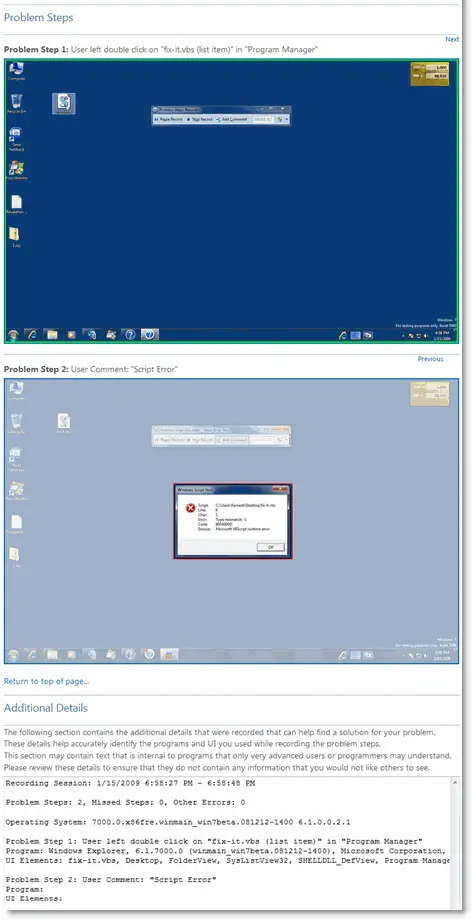
Problem Steps Recorder (PSR) in Windows 7 is a great little tool to record the steps to reproduce a problem in the computer. The captured data is stored in a MHTML document which is enclosed in a zip file. You can send the zip file to someone else who can help you fix the problem.

Recording Problem Steps

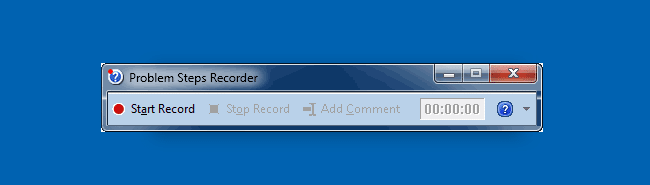
Click Start, type PSR.EXE and press ENTER. This starts the Problem Steps Recorder.

Click the Start Record button and continue the steps to reproduce the problem/error. You can also add comments then and there, by clicking the Add Comment button. Once done, click the Stop Record button. Mention the output file name and save the file.

Sample Report
Settings

You can change the following settings for Problem Steps Recorder:

Output Location To make it easier to find the files you save, click the Browse button to set a default location for the Problem Steps Recorder files.
Enable screen capture If you don’t want to capture the screen shots along with the click information, select No. This might be a consideration if you are taking screen shots of a program that contains personal information, such as bank statements, and you are sharing the screen shots with someone else.
Number of recent screen captures to store While the default is 25 screens, you can increase or decrease the number of screen shots. Problem Steps Recorder only records the default number of screen shots. For example, if you took 30 screen shots during a recording but only had 25 screen shots as the default, you would be missing the first five screen shots. In this case, you would want to increase the number of default screen shots.

Related Posts


Email SubscriptionPrefer an E-mail subscription?

Enter your email address:

Delivered by FeedBurner

10 Comments

  1. Damian
    said this on Thursday, February 11th 2010 8:35 am

    I hear what you guys are saying. I’m an Engineer at an Accounting Firm, and I find it’s impossible to get my users to send me screen shots or the like.

    One thing you should consider is combining the power of the PSR with VBScript or PowerShell. I have a script built that starts the PSR in record mode, captures the output to a local ZIP file, and then when the user closes the PSR, it automatically emails the result to the Help Desk. This is a great way to eliminate “I dont remember what the error was” from the list of user excuses, eliminates the need for “print screens” to capture the error, and is accurate data when passing an incident up the support chain.

  2. said this on Wednesday, December 2nd 2009 1:02 pm

    [...] by hand or trying to walk someone through it over the phone, Windows 7 has a nifty tool called the Problem Steps Recorder you can use. Click Start, type PSR.EXE and press ENTER. This starts the Problem Steps [...]

  3. vignesh
    said this on Tuesday, November 17th 2009 12:00 pm

    PSR concept is really a new tech for all users. My friend wants to install application software in his systems. On that time it is been so useful to guide him. PSR is really an good gift for all.

  4. ashish
    said this on Thursday, October 8th 2009 1:00 am

    it’s a great tool, I must say….great job !!!

  5. marsha
    said this on Monday, July 20th 2009 10:33 am

    Isn’t this the same recorder we used to have in Windows 3.1?

    What’s new about this tool?

  6. Mitch
    said this on Tuesday, February 3rd 2009 12:42 am

    @Brett What do you suggest? A bug free OS? Impossible. Software is made by humans and therefore has problems. It would be impossible to create an operating system which has can never crash and naive to assume it should be. Beyond that simple assumption, it is also for third party applications, which are not created by microsoft. It is better to try and help the developers to fix the bug (by providing detailed explanations) than to just whine about errors. (And if you think windows is alone in bug reporting, check out the avalible options for linux and os x (gdb, ltrace)

  7. Andy
    said this on Thursday, January 29th 2009 3:51 pm

    This is amazing. Problems are not always the fault of the O/S… it is quite often “user-error” (and/or bad UI design). This will be an invaluable tool for developers that have to use “customers” as their “testers”. It is a simple application to run, so the customers can easily use it to produce documents containing a step they might have missed–or something else they might have done incorrectly while trying to use an app. Pretty cool.

  8. Tony
    said this on Monday, January 19th 2009 2:26 pm

    This tool looks like it will be invaluable. So long as you can get users to run it, rather than just complaining and saying ‘I don’t know anything about computers, can you come and look at it’ only to find they were clicking the wrong button.

    Maybe Microsoft could include it as a more automatic feature. Like their stack trace reports they send themselves, a ‘black box recorder’ style app for enterprise would be good. Ie. It could be running always, keeping the last few minutes actions, then if a crash occurs, allows you to send it to a support system. Or if it is not a crash, but just a problem, an icon could be clicked in the bar at the bottom and the report created from that.

    Actively getting someone to use it will be an issue.

  9. said this on Friday, January 16th 2009 9:33 am

    Hi Brett, Using PSR one can record problem steps in third-party apps as well. I’ve been waiting for such a tool for a long time.

  10. Brett
    said this on Thursday, January 15th 2009 10:38 pm

    If Windows didn’t have so many problems we wouldn’t need a problem step recorder. I think it is sad that in the latest OS from M$ they are expecting that you be troubleshooting problems they built in a recorder so that you can keep track of the problems. What happens if the problem step recorder has a problem. If there something that records the steps to reproduce the problems with the problem step recorder?

Leave a Reply