The System File Checker (sfc.exe) is a useful tool that lets you scan the integrity of Windows system files and repair corrupt or missing system files. Numerous cases have been resolved by running the sfc.exe /scannow command.
However, there are situations wherein a corrupt or missing system file prevents Windows from booting normally or prevents Command Prompt and console programs like Sfc.exe from being launched. In such cases, Sfc.exe can be run offline via the Windows Recovery Environment (Windows RE) in all versions of Windows, including Windows 11.
Run the System File Checker (Sfc.exe) Offline
Step 1: Booting into Windows Recovery Environment
Instructions for Windows 8, 10, and 11
- Right-click Start, click Shut down or sign out, press and hold the Shift key and click Restart. In Windows 10, you can also open Settings (WinKey + i), click Update and Security, click Recovery, and click the Restart Now button under Advanced startup.
If Windows doesn’t start, then boot the system using the installation media or Recovery drive to access the Recovery Environment. In the Windows setup page that appears when booting using the Windows installation media, click Next and click Repair your computer.
- Click Troubleshoot
.png)
- Click Advanced options
.png)
- Click Command Prompt
.png)
- Use the BCDEDIT command to find the drive letter for your Windows installation, as seen from Windows RE.
.png)
More information here.If Windows is installed in theC:\drive, then it’s usuallyD:\when seen from Windows RE. But it’s better to check it out usingBCDEDIT. The drive letter of the Windows/system volume is displayed next to “osdevice“.(Now, proceed to Step 2 of the tutorial…)
Instructions for Windows Vista and 7
- Configure the boot order in the BIOS, so the first boot device is your CD/DVD drive.
- Insert the Windows 7/Vista Setup DVD and restart the computer.
Alternatively, you may use the Windows 7/Vista System Repair Disc if you have one.
- When prompted, press a key to boot from the DVD.
- In the “Install Windows” screen, click Repair your computer.
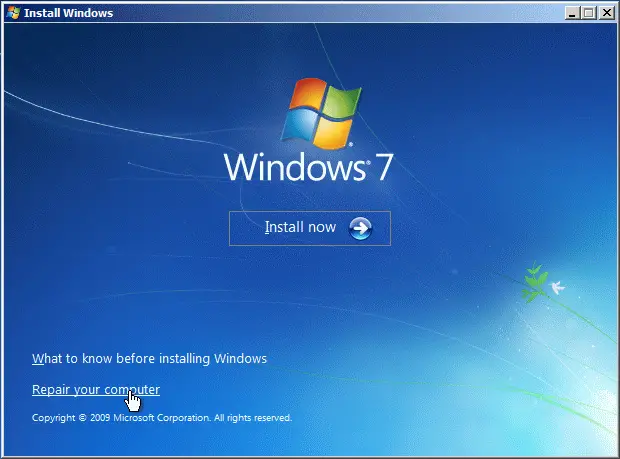
- Select your Windows installation, and click Next.
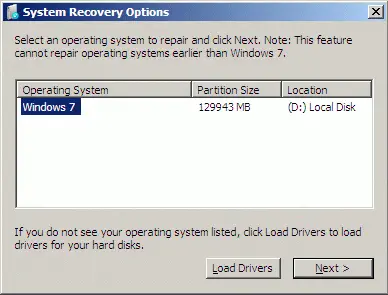 Make a note of the drive letter of your Windows 7 installation, as seen from Windows RE. This is the drive letter you want to reference when running Sfc.exe offline.
 - Click Command Prompt
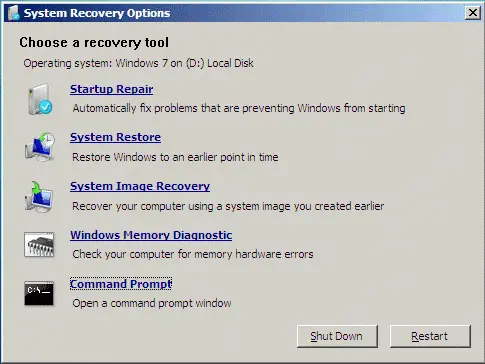
Step 2: Running the System File Checker Offline
To scan the integrity and repair a specific file, use this command:
sfc /scanfile=d:\windows\system32\zipfldr.dll /offbootdir=d:\ /offwindir=d:\windows
The above command scans the file zipfldr.dll and replaces it if required.
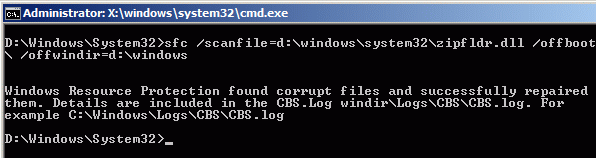
To scan the integrity of all system files and repair them, run this command:
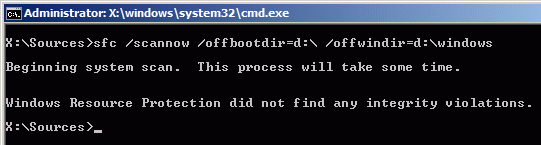
sfc /scannow /offbootdir=d:\ /offwindir=d:\windows
Important: To specify an offline log file, use the /offlogfile argument also.
(Thanks to Scott Petrack for the offline log file tip.)
Example:
sfc /scannow /offbootdir=d:\ /offwindir=d:\windows /offlogfile=d:\sfcoffline.txt
In this example, there weren’t any integrity violations. If there were any, they would be displayed on the screen and logged in the offline log file you specified (d:\sfcoffline.txt) above.
One small request: If you liked this post, please share this?
One "tiny" share from you would seriously help a lot with the growth of this blog. Some great suggestions:- Pin it!
- Share it to your favorite blog + Facebook, Reddit
- Tweet it!

Does this use the install disc to copy the files from if the hd has no uncorrupted versions? That is what I am wanting as opposed to a repair install when there are just one or two bad files.
after checking many sites and trying dozens of suggestions, this command saved my corrupted Windows 7 laptop: “sfc /scannow /offbootdir=d:\ /offwindir=d:\windows”
THANK YOU!!
“Windows resource protection could not start the repair service”
The installation media is the same which was used to install this in the first place. The drive letters have been checked. I have not misspelled anything. Chkdsk runs and all is well.
Is it still possible to do an “in-place”/”over-the-top” repair install on Win 10 as with 7?
If possible, please reply here but also to my email address provided?
PLEASE consider editing your tutorial to make a very important improvement: add the “/OFFLOGFILE” option to your first offline example command, and add a sentence of explanation THERE about the essential importance of doing this.
I have some sort of corruption problem, and when I ran sfc, it told me that that I would have to run it at the next system boot. I dutifully did this, but only very fleetingly caught some sort of “fatal error” which flashed on my screen at boot time — it simply didn’t stay up long enough for me to see what happened. Of course I tried a second time, but it just was too fast.
So then I learned about offline sfc. Doing this required me to make an Installation usb, but that’s life.
So then, having now run sfc THREE TIMES, downloaded the 5GB iso and rufus to make an installation USB, I run sfc a fourth time…. only to get the final status “windows Resource Protection found corrupt files but was unable to fix some of them. For online repairs…. For offline repairs, details are included in the log file provided by the OFFLOGFILE flag.”
This calm long note does not really convey just how annoyed I am. I now know that my plan to run Arch Linux as my primary os and reduce my exposure to Windows was a sound one. However many hours I might waste as a result of such a change, it is likely to be fewer hours than I am wasting by sticking with Windows.
In any case, you mention laconically that “for some reason”, there is no offline log by default. Just incredible, really. No one sane would go through the trouble of an offline sfc /scannow unless s/he had some reason to, so even if things are perfect s/he would normally like to see a log. That’s windows failing. YOU can help by making CERTAIN that your users KNOW they MUST explicitly ask for an offline log.
If you’re wondering why I bother YOU with this suggestion, please know that your blog was simply the first one to appear on my google search about this issue. I was hoping to find whatever “gotcha” I am going to find next, after what will be “sfc /scannow….” number 5.
At least I am quite certain that I won’t ever need this command once I restore the current system. At least not if I can help it.