Summary: This post explains how to successfully run NTBackup on Windows 10 and restore data from a .BKF file easily!
There are many users who have got backups done using the NTBackup Tool (also known as “Windows Backup Utility”) in earlier versions of Windows. After upgrading to Windows 10, they find that the NTBackup tool doesn’t exist on Windows 10. Also, Microsoft has taken down the Windows NT Backup Restore Utility (KB974674) from their servers.
Even if you have the NTBackup.msi setup package in hand, installing it and running ntbackup.exe may cause the following errors in Windows 10.
ntbackup.exe - Entry Point Not Found

The procedure entry point SetCatalogState could not be located in the dynamic link library C:\Windows\SysWOW64\ntbackup.exe.
The program can't start because NTMSAPI.dll is missing from your computer. Try reinstalling the program to fix this problem.
The ordinal 3 could not be located in the dynamic link library VSSAPI.DLL.
The good old NTBackup utility runs perfectly fine on Windows 10 if the supporting DLLs (below) are available in the same folder where NTBackup.exe is present. The three DLL files are:
- ntmsapi.dll
- vssapi.dll
- Query.dll
Windows 10 already includes an updated copy of Query.dll, but it doesn’t have the function or entry point named SetCatalogState in it. So, we need to use the Windows 7, Windows 8, or Windows 8.1 version of Query.dll (32-bit) module. The Windows 7/8/8.1 version of the file has the SetCatalogState entry point.
How to Restore NTBackup BKF File in Windows 10
Follow these steps to run the NTBackup tool in Windows 10 and extract the contents of a .BKF file:
- Download ntbackup.zip and extract the contents to a folder — e.g.,
D:\NTBackup. TheD:\NTBackupfolder should have the following files now: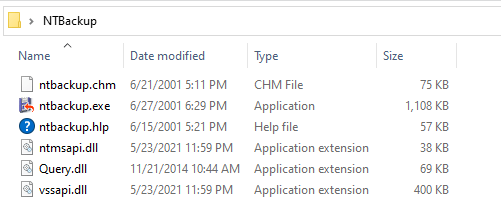
ntbackup.chm - SHA1: e6954cac72e4732d4e0d331df80cc947551c739a
ntbackup.exe - SHA1: 9904bbce6d19b343e879a4d6d02fbe978624265b
ntbackup.hlp - SHA1: 016cb814d9a91575f24668f14c0d2b934b1cd6d1
ntmsapi.dll - SHA1: df897f116f23a1424879d4c44cd064ca27d549e4
Query.dll - SHA1: fc6371f8992b85cec0c782f02a60cad3d5790d21
vssapi.dll - SHA1: 8d597a3765bda18396df0c0e8337e1f33a16c3b6
- Double-click
ntbackup.exeto run it. NTBackup will indicate that the Removable Storage service (removed in Windows Vista & higher) is not running. Never mind. This is required for tape backups. Click OK.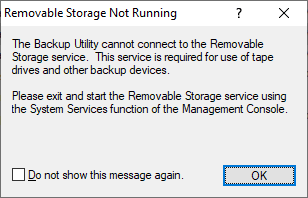
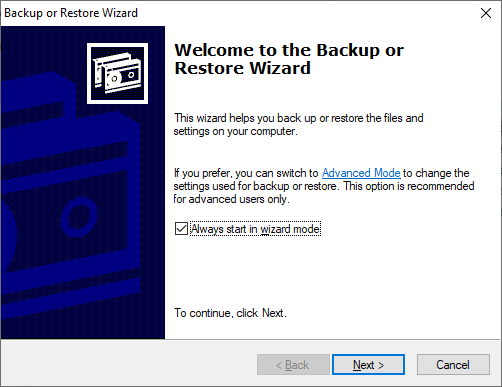
- In the Welcome to Backup or Restore Wizard page, click Next.
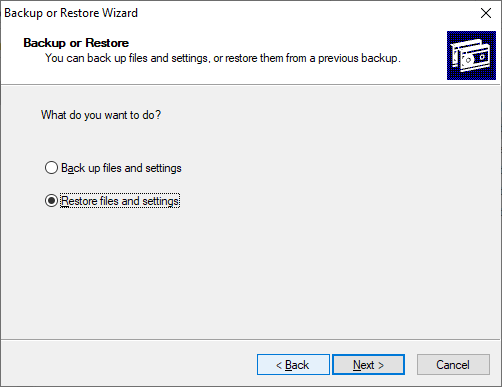
- Select “Restore files and settings”, and click Next.
- Click Browse. Locate the .BKF file that you want to restore, and click OK.
- Expand the catalog, select the files/folders you want to restore, and click Next.
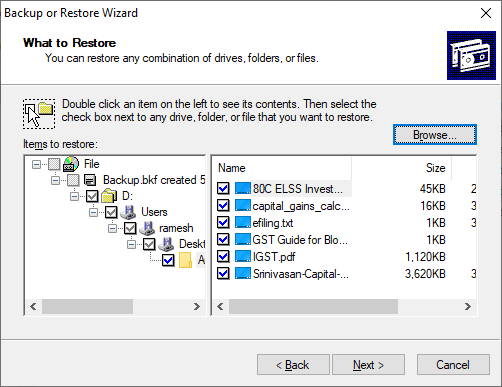
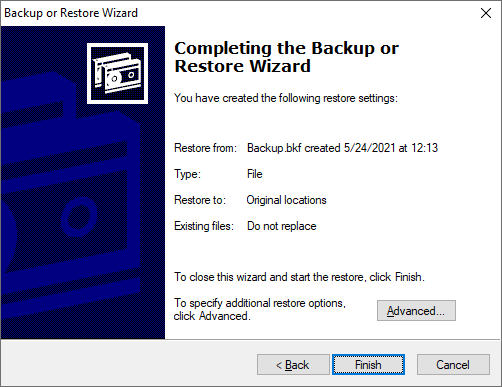
- By default, NTBackup restores the files to the original location. If you need to choose an alternate path or configure advanced restore settings, click Advanced.
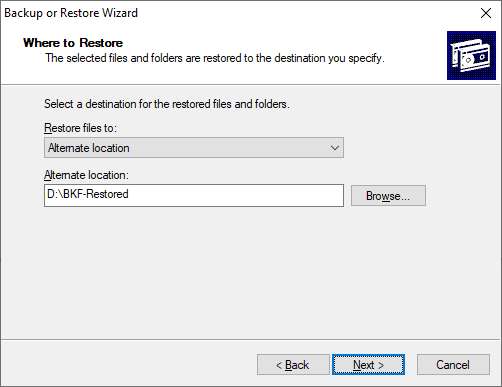
- Mention the directory path where you want to restore the files.
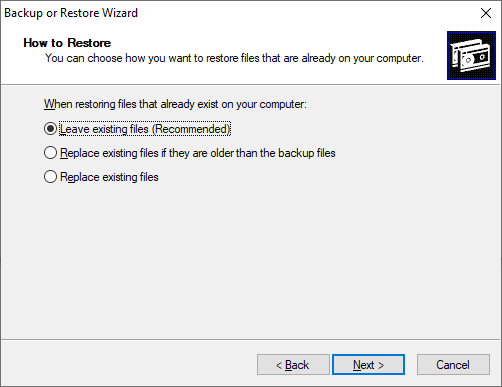
- You can choose one of the three options in this dialog:
- Leave existing files (Recommended)
- Replace existing files if they are older than the backup files
- Replace existing files
- Select the recommended option and click Next.
- On the Advanced Restore Options page, if you don’t want to restore the security settings, uncheck the option.
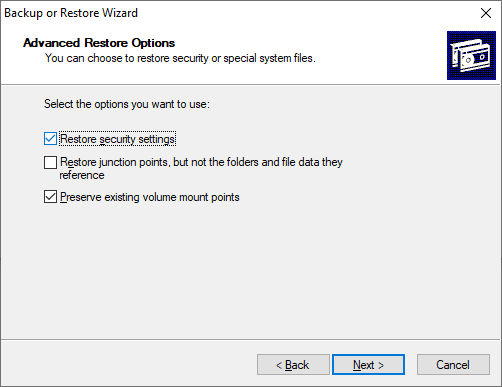
Restore security settings: Restores the access control lists (ACLs) and ownership data on files backed up from an NTFS volume.
Restore junction points, but not the folders and file data they reference: Required for restoring data on mounted drives. Junction points are physical locations that point to the mount point located on another hard disk. If you do not select this check box, the junction points are restored as common folders, and data pointing to these points becomes inaccessible.
Preserve existing volume mount points: Restores empty NTFS folders to which you have mounted volumes.
- Click Next.
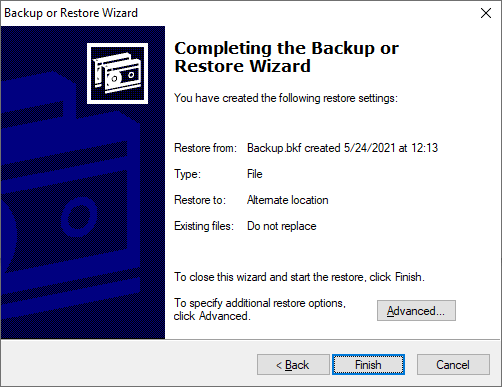
- Click Finish when you see the “Completing the Backup or Restore Wizard”
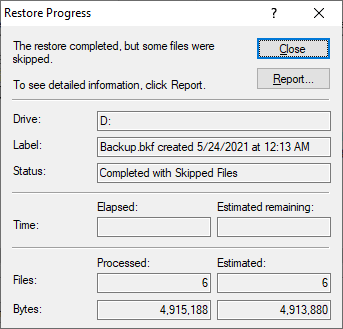
- You’ll see the Restore Progress window. Once the restore is complete, click on the Report… button to know the detailed status.
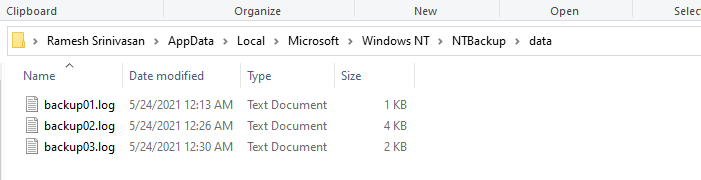
 The reports are also stored in the following folder:
C:\Users\%username%\AppData\Local\Microsoft\Windows NT\NTBackup\data
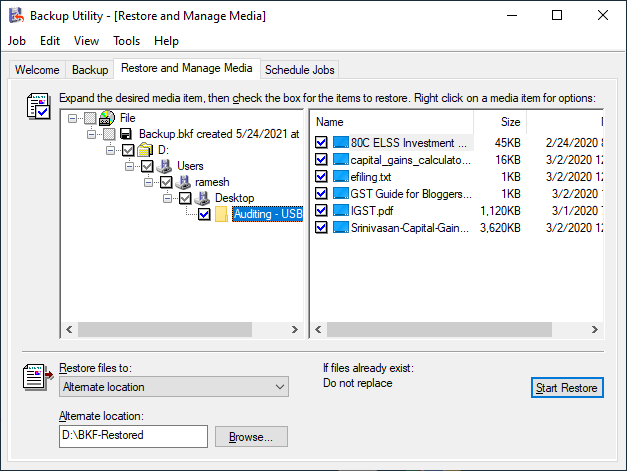
Here’s how the Advanced mode (versus “Wizard mode”) looks like. It presents a unified dialog where you can select the required tab (backup, restore, schedule) and select the output location.
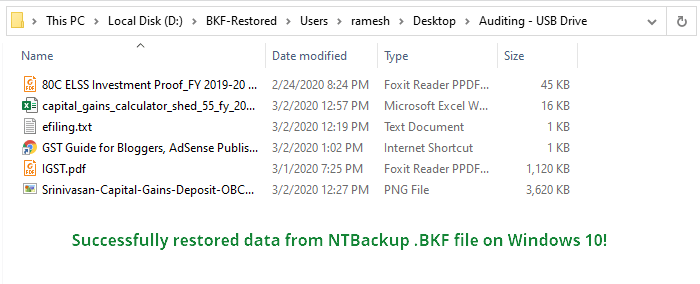
Whew! You’ve now restored the contents of an NTBackup .BKF file in Windows 10.
Issues running NTBackup? Run in compatibility mode
Some users have indicated that they had to use compatibility mode to successfully run ntbackup.exe on their Windows 10 computers. To enable the compatibility mode, right-click ntbackup.exe and click Properties.
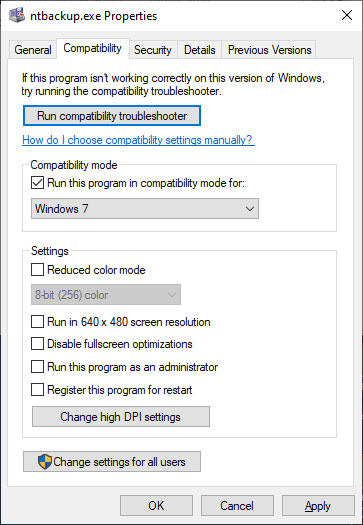
In the Compatibility tab, select Windows XP Service Pack 3, Windows 7 or Windows 8 from the drop-down list, and click OK.
Alternately, you may use your old Windows 7 DVD or ISO and run NTBackup on a virtual environment like Hyper-V or Oracle VM VirtualBox (Free). Once done, you should be able to run NTBackup or the NTBackup Restore tool from the virtual environment running Windows 7 or Vista, on a host computer running Windows 10. Your data inside the .BKF file(s) can be easily recovered.
[This article has been rewritten on May 24, 2021. Tested (and works perfectly) on Windows 10 version 21H1 build 19043.985.]
One small request: If you liked this post, please share this?
One "tiny" share from you would seriously help a lot with the growth of this blog. Some great suggestions:- Pin it!
- Share it to your favorite blog + Facebook, Reddit
- Tweet it!

Isn’t that the truth! I may make my living in the Microsoft world, but having experienced “real” servers before getting dragged into toyland — I have to say Microsoft STILL does not make a real server…
…but they have been headed in the right direction, and I will say what we have today is at least somewhat close to standard features on the real servers outside toyland.
Thanks Ramesh! This is genius!
Thank you, this worked great. Running Windows 10 and I was able to access several old .bkf files.
2/4/2023
Still works well for Win 10
Thanks!
Thanks,man. Year is 2023 and it still rules!
Thank you. You help me very much.
FINALLY ! worked using these steps I will now move everything to 7zip instead of .bkf
“Backup file contains unrecognized data and cannot be used.”
Thanks a heap!
Thank you so much, this saved me a ton of headaches. I had windows backups from 2006
you saved me big time, I could hug you right now !