Perform a System Restore Rollback on a Non-Bootable Windows XP Computer
Has your Windows XP system become unbootable after making some configuration changes, and you want to perform a System Restore rollback to a previous date? Windows Vista has the Startup Repair feature using which you can restore the system to an earlier restore point. But no such feature exists in Windows XP. After searching around the internet, I came across a great tool to recover Windows 2000/XP/Server 2003 PCs.
Microsoft Diagnostics and Recovery Toolset
Microsoft Diagnostics and Recovery Toolset (MSDaRT) from Microsoft provides powerful tools to help administrators recover PCs that have become unusable, and easily identify root causes of system issues. This toolset is part of the Microsoft Desktop Optimization Pack.
30 day evaluation of MSDaRT is available from the following link:
Download details: Microsoft Diagnostics and Recovery Toolset (MSDaRT50Eval.msi - 64.2 MB)
Microsoft DaRT includes the following tools:
- Emergency Repair Disk (ERD) Commander
- ERD Commander Boot Media Wizard
- ERD Help
- Chkdsk
- Command Line
- ERD Explorer
- File Search
- Notepad
- Unzip
- Windows Shell
- Crash Analyzer Wizard
- Disk Commander Wizard
- Disk Wipe
- ERD Registry Editor
- ERD System Restore Wizard
- File Restore
- Hotfix Uninstall Wizard
- Locksmith Wizard
- Solution Wizard
- System File Repair Wizard
- Autoruns
- Disk Management
- Event Viewer
- Services and Drivers
- System Information
- File Sharing
- Map Network Drive
- TCP/IP Configuration
The ERD System Restore Wizard can be used to restore a system that cannot be started to a previous restore point.
Note: All of the utilities provided with ERD Commander, except ERD System Restore Wizard, are compatible with Windows 2000, Windows XP, and Windows Server 2003. ERD System Restore Wizard is compatible only with Windows XP. Do not use the ERD Commander Boot CD in Windows Vista systems.
Limitations of ERD System Restore Wizard: [Quoted from MSDaRT Release Notes] The ERD System Restore Wizard does not perform a complete System Restore operation as the Windows System Restore of Windows XP SP2. The ERD System Restore Wizard does NOT restore the following information:
- ACL changes on files and folders support
- SAM Password hashes
- Attribute changes
- Alternate data streams
Therefore, once the Windows XP SP2 system is back online, it is recommended that you execute a Windows System Restore from a restore point of your choice. The ERD System Restore Wizard should be used to perform the bare minimum of actions that will enable a Windows XP system to start.
Note that the ERD System Restore Wizard is only supported on Windows XP SP2. Windows Server 2003 does not implement the Windows System Restore.
Editor’s note: ERD System Restore Wizard worked just fine when used in a Windows XP SP3 system.
System Restore rollback using ERD Commander
Using another computer, create a Boot CD for ERD Commander. Follow these steps:
1. Download and install MSDaRT
2. Read the MSDaRT CHM Help file, Release Notes (recommended) and the License agreement. The help file and release notes are available in the Microsoft Diagnostics and Recovery Toolset folder under the Program Files folder.
3. If you don’t already have a third-party CD Recording software to burn ISO image to CD, then download the free ISO Recorder PowerToy.
4. After installing the ISO Recorder PowerToy, open the following folder
5. Right-click the file erd50.iso and click Copy image to CD

6. Follow the onscreen instructions and burn the ISO to a CD. This is the ERD Commander Boot CD
7. Insert the ERD Commander Boot CD into the drive and restart the system
8. Boot the computer using ERD Commander Boot CD. You may have to set the boot order in the BIOS first.
9. From the ERD Commander menu (Start menu) that is displayed, click System Tools, and then click System Restore.

10. Click Next when you see the Welcome to the ERD System Restore Wizard screen

11. Select Roll back to an existing restore point created by Windows. ERD System Restore Wizard only performs a partial rollback. (For more information, see paragraph "Limitations of ERD System Restore Wizard" above.)

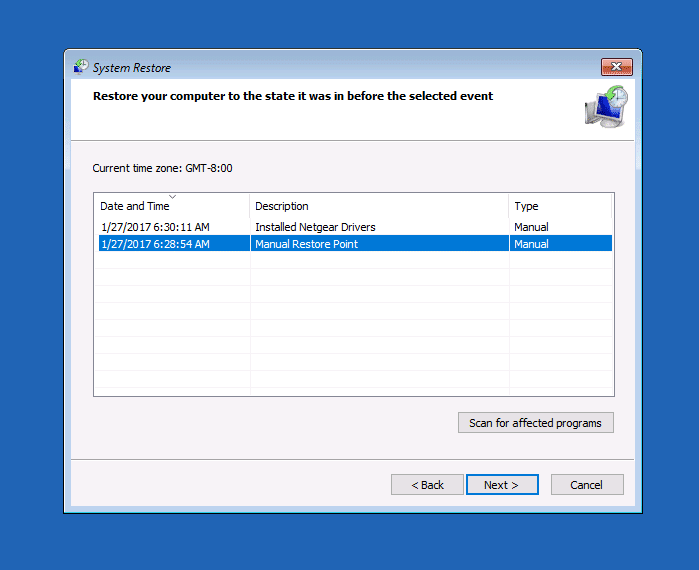
12. Select the date, and pick a Restore Point from the list.

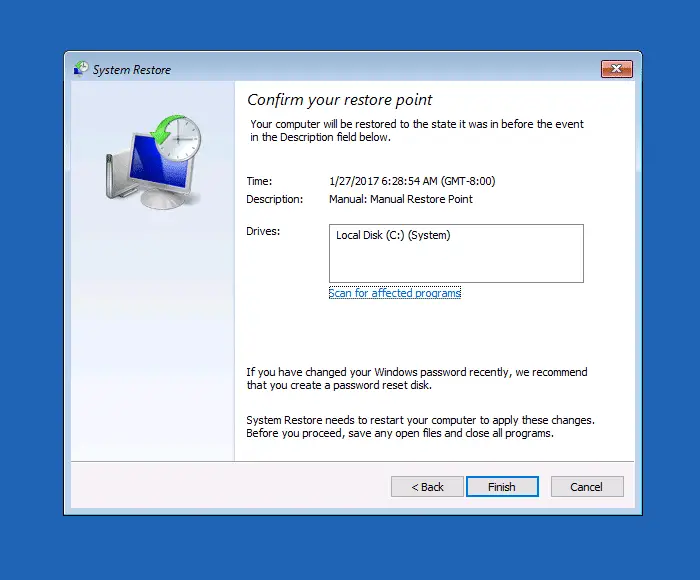
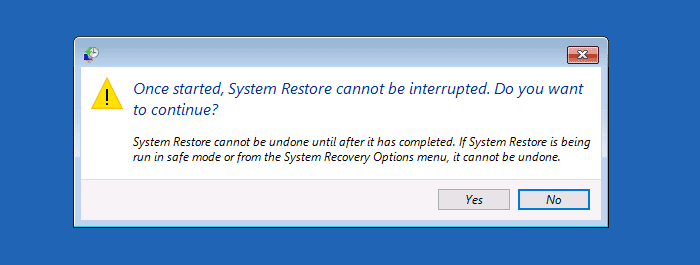
13. Click Yes to perform System Restore rollback.

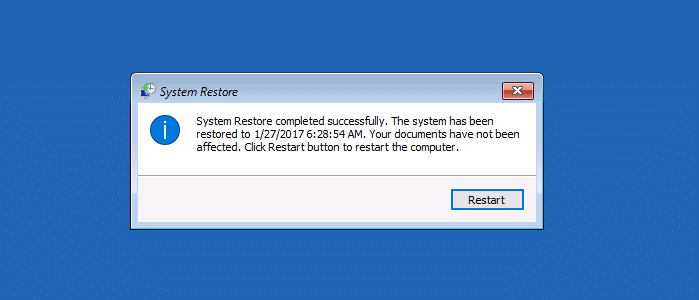
14. To view the change log (optional), click the View Details button. This opens a log file using Notepad, which contains the list of changes made to the registry and the file system. To close the dialog, click Finish. The system will restart to complete the System Restore rollback operation.

More Information
When creating the ERD Commander Boot CD, you can add additional files (such as Scripts, stand-alone executables etc). For more information about this option, and to learn about other great tools included in ERD Commander, read the MSDaRT Help (.chm) file. Another excellent tool in this suite is the Crash Analyzer Wizard, using which you can debug crash dump files.
See also
How to edit the registry offline using BartPE boot CD?
Copyright © 2008 Ramesh Srinivasan. All rights reserved.
RELATED POSTS
- Reset Lost Windows XP Administrator Password Using ERD Commander
- Using the AVG False Positive User32.Dll Fix/Restore Tool
- How to Create a BartPE Bootable CD Using PE Builder
- Display a Warning When Users Try to Modify .Lnk Association in Vista
- Restore the Missing userinit.exe File
- Restore Point Creation Disabled by Group Policy
- Default Programs List Is Completely Empty
- Fix for System Restore Error 0×8007007B in Windows Vista
- Restore Missing Windows Media Player to the Set Default Programs List in Windows Vista
- Script to Backup the Services Configuration (Startup Type) in Windows XP/2003/Vista


Like this site? Make sure you
November 3rd, 2008 at 2:41 am
well, when I boot using the DaRT CD it says the evaluation period hasfinished, and i can’t do nothing =/
October 19th, 2008 at 3:34 pm
This looks great, and I thought was the solution to my problem, but I can’t make the computer boot from the CD. I checked that the CD works in my laptop. I’ve tried to change the boot order through the F2 and F12 menus but to no avail. Any suggestions?
October 17th, 2008 at 12:13 pm
[...] DaRT is available here (MSDaRT50Eval.msi - 64.2 MB). We’ve covered MS DaRT earlier in article Perform a System Restore rollback on a non-bootable Windows XP computer. Follow steps 1-7 in that article to create a ERD Commander Boot [...]