Ever wondered why there is a lock icon overlay appearing for some of your files and folders, as in the image below:
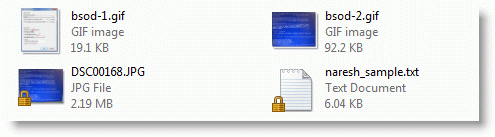
And for some folders:

I had a reader ask about this recently. Upon searching the web I found the explanation I needed, from Raymond Chen’s blog. The lock (padlock) overlay icon appears for files/folders which are private, but located under a non-private directory. Per Raymond Chen [MS]:
A private item is an item where the only user account with access is you.¹ You create one of these, for example, by going to the sharing wizard and saying Share with: Nobody. To avoid clutter, the overlay is shown only when there is a transition from non-private to private. (Otherwise you’d have a lock overlay on everything in your Documents folder, for example.)
¹Even though you are the only user account, there can still be access granted to groups and non-user accounts such as the Administrators group and the SYSTEM account.
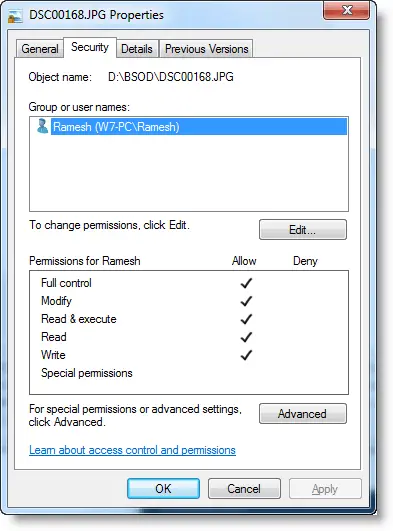
Checking the properties of a file with padlock symbol and viewing the Security tab, it looks like this:
Tip: Quickly Make a File or Folder Private in Windows 7
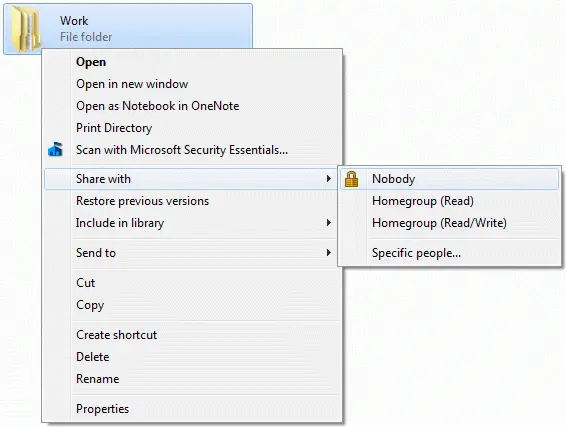
If you quickly want to make a file or folder private, right-click on a file/folder, click Share with and choose Nobody. This displays that file or folder with padlock symbol, if they’re not already contained in a private folder.
Check out our other articles on Icon Overlays.
One small request: If you liked this post, please share this?
One "tiny" share from you would seriously help a lot with the growth of this blog. Some great suggestions:- Pin it!
- Share it to your favorite blog + Facebook, Reddit
- Tweet it!
