 Windows Vista included some hidden (a.k.a extended) context menu options which are seen only if you use the SHIFT key when right-clicking on a file or folder. These hidden context menu options are retained in Windows 7 as well, with some other options added.
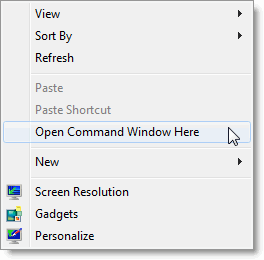
Pressing SHIFT + Right-click in an empty area on the Desktop shows the extended menu option Open Command Window Here.
Desktop
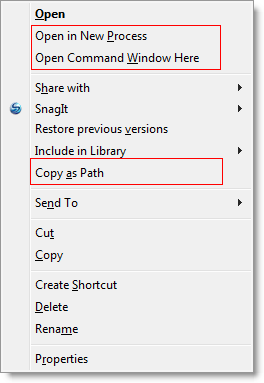
Folders / Directories
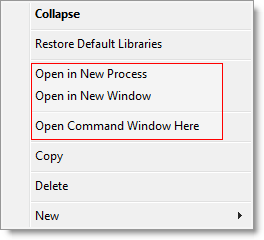
Navigation Pane in Windows Explorer
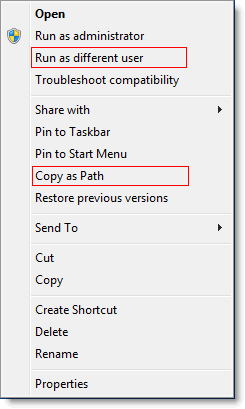
Executable (.exe) file
Shortcuts (.lnk) file
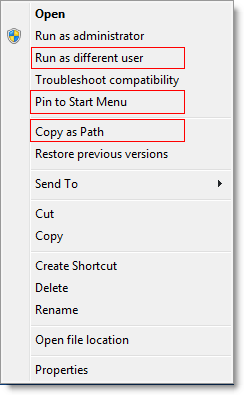
*Note that the Open in New Window and Open in New Process options may also appear in other areas of the Windows Explorer shell in Windows 7.
Start menu
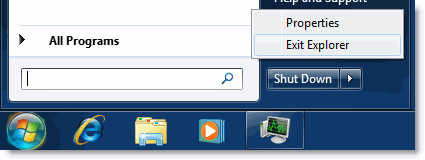
Click the Start Orb, press and hold the CTRL and SHIFT keys and right-click on an empty area in the Start menu. You’ll see the hidden GUI option named Exit Explorer. Note that this option was carried forward from Windows Vista to Windows 7.
One small request: If you liked this post, please share this?
One "tiny" share from you would seriously help a lot with the growth of this blog. Some great suggestions:- Pin it!
- Share it to your favorite blog + Facebook, Reddit
- Tweet it!

Comments are closed.