Computer manufacturers usually include their OEM brand info and logo in the System Properties applet when preinstalling Windows. This article tells you how to modify or add OEM information to the System Properties window in all versions of Windows, including Windows 10.
In Windows 10, the OEM information is shown in the modern Settings app (“About your PC” page) as well.
How to Add OEM Information in Windows
To add OEM information and OEM logo in Windows, follow these steps:
- Launch the Registry Editor by running
regedit.exe - Navigate to the following registry branch:
HKEY_LOCAL_MACHINE\SOFTWARE\Microsoft\Windows\CurrentVersion\OEMInformation
(If the OEMInformation key is missing, you’ll need to create one manually.)
- Create these string values (REG_SZ) and add the corresponding data as per the table below:
Value name Data Value type Logo <Path to your logo file>* REG_SZ Manufacturer <System manufacturer name> REG_SZ Model <System Model number> REG_SZ SupportHours <Support hours> REG_SZ SupportPhone <OEM Support Phone number> REG_SZ SupportURL <OEM Support URL> REG_SZ * Note: The logo should be a BMP file with the dimension of 120×120. Logos larger than 120×120 pixels are scaled to 120×120.
- Exit Registry Editor.
I’ve customized the support information page by populating it with sample entries.
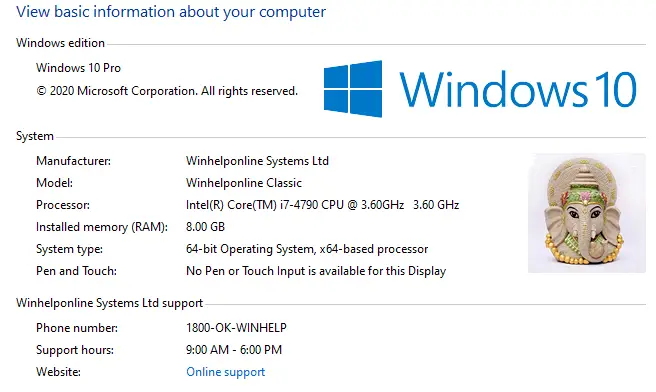
Note: Since the Windows 10 v20H2 update, the above interface is hidden. Pressing the Winkey + Pause-break would take you to the modern Settings page instead. Microsoft is gradually porting items from the classic Control Panel to the Settings user interface. However, you can access the classic System panel by running this shell command from the Run dialog.
shell:::{bb06c0e4-d293-4f75-8a90-cb05b6477eee}
And here are the related registry entries:
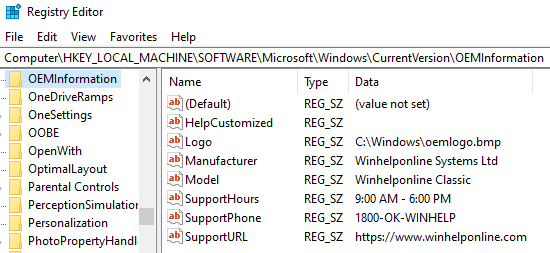
Windows 10 – System Settings Page
In Windows 10, the OEM information would be displayed in the classic System information applet and the modern System Settings → About page. And this is how it appears on Settings → System → About.
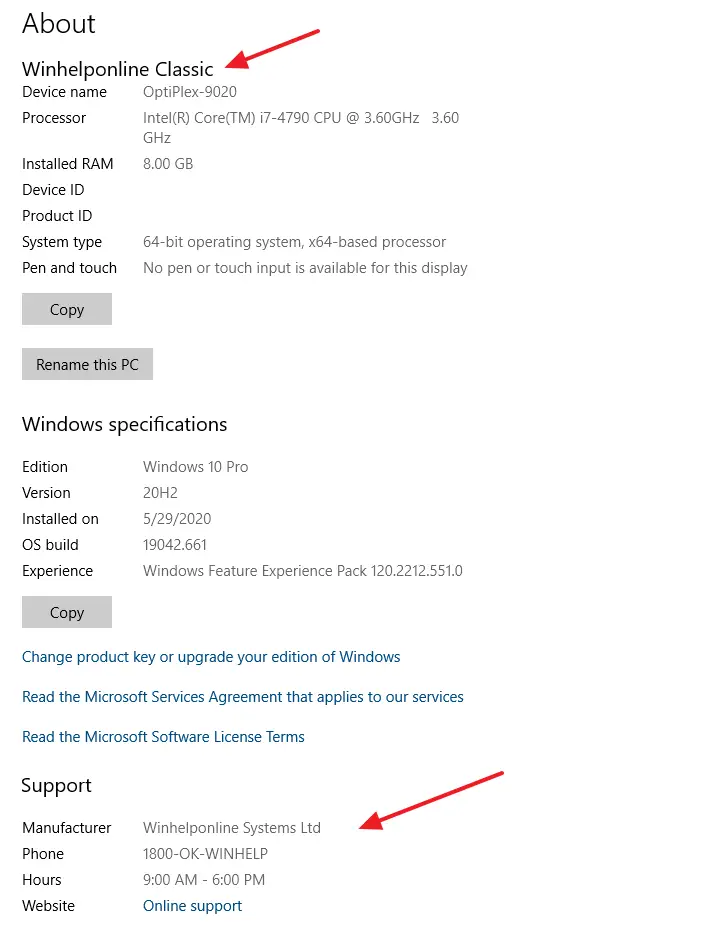
On Dell systems, the “Manufacturer” name reads Dell , and the “Online Support” hyperlink leads to www.dell.com/support/home. Under Device Specifications, it shows the model name of the Dell device. Clicking on the support URL will open the link in Microsoft Edge.
OEM Info Template – Registry File
Here’s a sample .reg file if you want to automate the setting.
Windows Registry Editor Version 5.00

[HKEY_LOCAL_MACHINE\SOFTWARE\Microsoft\Windows\CurrentVersion\OEMInformation]
"Model"="Vostro 3470"
"Logo"="c:\\windows\\system32\\oem\\SystemLogo.bmp"
"HelpCustomized"=dword:00000001
"Manufacturer"="Dell"
"SupportURL"="http://www.dell.com/support/home"
However, since the Windows 10 Anniversary Update (version 1607), the OEM logo has been deprecated and not displayed on the Settings page. This logo appears in the classic system information or Performance Information and Tools Control Panel.
One small request: If you liked this post, please share this?
One "tiny" share from you would seriously help a lot with the growth of this blog. Some great suggestions:- Pin it!
- Share it to your favorite blog + Facebook, Reddit
- Tweet it!

This tricks not work on windows 10 pro v. 20H2,
Only display under the support, manufacturer
So please reply with solve this. This is the humble request.
Thanking you.
Can you please avoid use of “amp” pages?, couse it made very weird pages on móvil browsers…
So I know this is an ancient thread, but, I’m gonna give it a shot anyway.
This changes the settings in Windows via regedit, as we all can tell. However, if you wipe and reinstall windows it changes back to the original settings. Somehow these settings are burned into the motherboard. I have an Asus Rampage Motherboard that don’t have any of these items set because it’s a custom build. When I reinstall Windows, my settings are blank again. On the other hand, I have an HP, Dell and some other brand computers built by the manufacturer, when I change these settings in regedit of course it works, however if I reinstall Windows, it goes back to thew original settings of Dell, HP, etc. I’m trying to figure out how to set these settings in the actual computer (motherboard) not just in the OS.