If you accidentally delete a file or folder, you can restore a shadow copy of that file or folder using the Previous Versions feature in Windows Vista and higher. Shadow Copy, a useful innovation included first in Windows Vista, automatically creates point-in-time copies of files as you work, so you can quickly and easily retrieve versions of a document you may have accidentally deleted.
Recover deleted files using Previous Versions
Open the folder that contained the file or folder that was deleted. Then right-click on an empty area on the folder and click Restore previous versions.
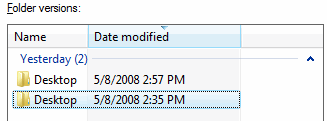
Double-click a previous version of the folder that contains the file or folder you want to restore. You need to choose the appropriate version from the list by looking at the date and timestamp.
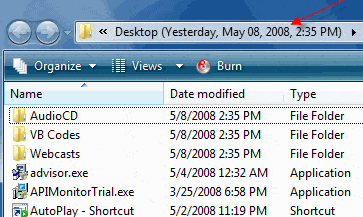
Select the file or folder that you want to restore, and drag it to the Desktop or any other folder.
Note: The Previous versions option is not available in certain versions of Windows Vista and Windows 7. Although shadow copies are created from time to time in all editions, the Previews versions GUI option is available only in certain editions of Windows.
ShadowExplorer Utility
For all versions of Windows Vista, you may use the free utility ShadowExplorer to access the Shadow Copy set. ShadowExplorer is a utility that allows you to browse the shadow copies created by the Windows Volume Shadow Copy Service. It’s especially thought for users of the home editions, who don’t have access to the shadow copies by default, but it’s also useful for users of the other editions.
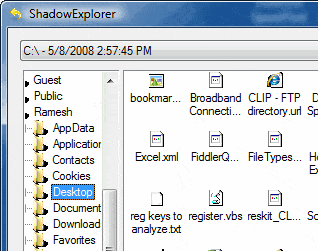
Simply select the Shadow Copy set from the drop-down box at the top, and then browse the folders using the navigation pane on the left. Right-click on a file or folder that you want to recover, and click Export. Select a destination folder where you want to copy the file. You may find this utility easier than using the built-in Previous versions GUI option to recover a deleted file or folder.
You can download ShadowExplorer from http://www.shadowexplorer.com
System Restore Explorer
There is yet another useful tool named System Restore Explorer, which helps you recover files (backed up by Volume Shadow/System Restore.) using the same method. In addition, the System Restore Explorer helps you delete individual restore points, making use of the SRRemoveRestorePoint System Restore function introduced first in Windows Vista.
System Restore Explorer

https://www.nicbedford.uk/software/systemrestoreexplorer/
https://www.winhelponline.com/blog/selectively-delete-system-restore-points/
System Restore Explorer presents this screen where you can choose an earlier System Restore / VSS snapshot and choose Mount.
Note: You can even delete individual system restore points / VSS snapshots using System Restore Explorer.
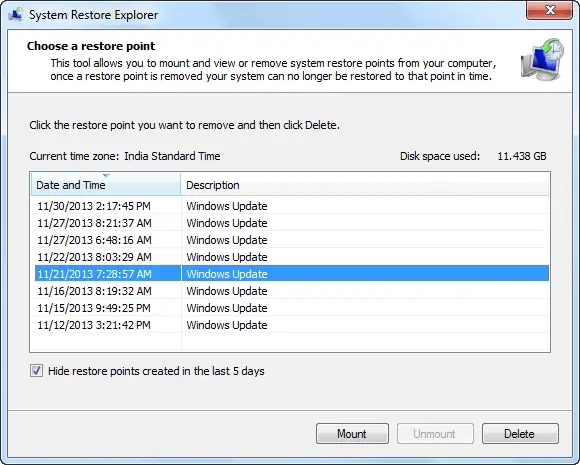
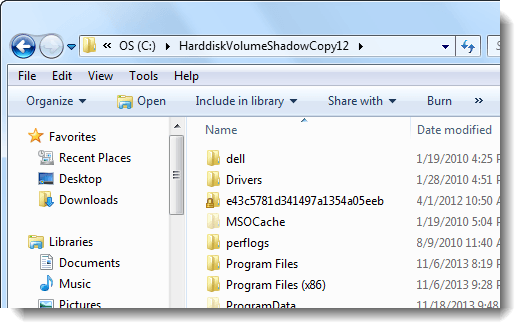
Simply browse to the appropriate folder and recover files by copying it to a location outside the snapshot.
Shadow Copy for External Drives
You can also enable Shadow Copy for any external volume that is connected to your computer, using these steps:
- Open Control Panel, System and Maintenance, System. Click System protection. Select the checkbox for the external drive that you want to protect with Shadow Copy, and then click OK.
IMPORTANT: Shadow Copies are in no way a replacement for regular backups. Shadow Copies are stored in the hard drive and in the event of a hard drive failure, you may be unable to access the Shadow Copy set. Using a specialized backup and restore software, and backing up the data to an external hard drive would be more reliable.
One small request: If you liked this post, please share this?
One "tiny" share from you would seriously help a lot with the growth of this blog. Some great suggestions:- Pin it!
- Share it to your favorite blog + Facebook, Reddit
- Tweet it!
