- Home
- Windows Vista
- Windows Mail
- How to clear the email auto-complete entries in Windows Mail
How to clear the email auto-complete entries in Windows Mail
- Ramesh Srinivasan
- November 6, 2007
- Windows Mail
Question
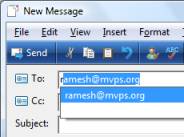
When I start typing a To: address, Windows Mail provides a list of all previously used addresses. But some of the addresses (which are not in my address book) I don't want there any more. How can I now get rid of those entries that I no longer want?
Answer
Windows Mail stores the list of recently used mail addresses in the following registry location:
HKEY_CURRENT_USER \ Software \ Microsoft \ Windows Mail \ Recently Used Addresses
Each mail address is stored in a separate binary value (value names start with a, b, c ... and so forth), in the right pane of the above key.
Deleting a particular entry
Click Start, type regedit.exe and press {ENTER}. In the Registry Editor window, navigate to the above registry key. To delete a particular mail address, you need to double-click each binary value to see the mail address (as in the figure below:)

Once you spot the correct entry, right-click on the corresponding value and choose Delete
Deleting all the email auto-complete entries
To clear all the email auto-complete entries, you may delete the Recently Used Addresses key itself. Use these steps:
Click Start, type the following command and press {ENTER}
cmd /k reg delete "HKCU\Software\Microsoft\Windows Mail\Recently Used Addresses" /f
Type EXIT to close the Command Prompt window.
 If
you enjoyed this post, make sure you
subscribe to our RSS feed! We feature Tips, Troubleshooting
information, Scripts and Utilities for Microsoft Windows Operating Systems!
If
you enjoyed this post, make sure you
subscribe to our RSS feed! We feature Tips, Troubleshooting
information, Scripts and Utilities for Microsoft Windows Operating Systems! Prefer
an E-mail subscription?
Prefer
an E-mail subscription?
