- Home
- Windows Vista
- Customize
- Adding a custom picture to the list of user account pictures
Adding a custom picture to the list of user account pictures
- Ramesh Srinivasan
- October 19, 2007
- Windows Vista
Summary
I just got a new computer with Windows Vista pre-installed. In XP, I used to be able to add custom .bmp pictures to the Default Pictures folder (C:\Documents and Settings\All Users\Application Data\Microsoft\User Account Pictures\Default Pictures) and then they would show in the choices when selecting a user account picture. Where are the picture files stored in Vista?
This article tells you how to add your custom pictures to the list of user account pictures in Windows Vista.
Adding custom pictures to the list
The default user account pictures are stored in the following location:
C:\ProgramData\Microsoft\User Account Pictures\Default Pictures
You can add your custom pictures to the above location so that the user accounts applet lists them automatically. Ensure that the dimension of the picture is 128x128 pixels, and it's a Bitmap image (.bmp).
If you find a picture on the internet that you want to use for your account, save the picture locally and crop the image (to 128x128 px) using IrfanView or any other image editor of your choice.
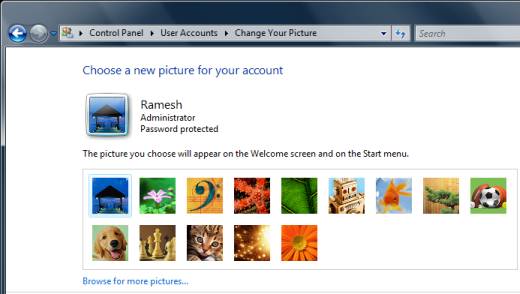
Pictures #1 and 2 in the above graphic were added by me after cropping them using IrfanView.
 If you enjoyed this post, make sure you
subscribe to our RSS feed!
We feature Tips, Troubleshooting information, Scripts and Utilities for Microsoft Windows Operating Systems!
If you enjoyed this post, make sure you
subscribe to our RSS feed!
We feature Tips, Troubleshooting information, Scripts and Utilities for Microsoft Windows Operating Systems! Prefer an E-mail subscription?