Summary: Windows 10’s File Explorer stalls saying “Working on it…” during the folder type automatic discovery process. And in earlier versions of Windows, Windows may sometimes assign incorrect template for folders if the content discovery or sniffing goes wrong or the folder view settings in the registry are messed up.Read more
Month: April 2008
How to Copy Address of a Internet Shortcut (.URL) via Right-click Menu
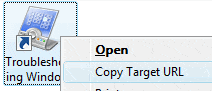
The Copy as Path command in the right-click menu is an extremely useful one to quickly copy the full path of a file or folder to clipboard. Similarly, for internet shortcut (.url) files, here is a script that lets you copy the web address (URL) of a internet shortcut, via the right-click menu.
After following the steps in this article, you’ll see a Copy Target URL context menu option when you right-click on an Internet Shortcut (.URL) file. Clicking this option copies the shortcut’s Web address to the Windows clipboard.Read more
Exit and Restart Explorer.exe Cleanly in Windows 7 and Vista
To restart Explorer to test a registry setting without a reboot, we usually terminate the Explorer shell (explorer.exe) using Task Manager. The Task Manager method is like forcibly killing the process instead of terminating it cleanly.
Jeff, a Software Design Engineer at Microsoft, posted a great tip on how to cleanly start and stop explorer.exe in Windows XP.
Quote:
If you are running Windows XP and want a cmd prompt with no strange environment variables set, do the following: Ctrl + Shift+Esc → File → Ctrl + New Task (Run…)
This will open a cmd window with only the basics. This is useful if you have killed Explorer and need to restart it. Explorer will keep the environment of the cmd window that started it.
If you want to cleanly shutdown Explorer without having it automatically restart: Start → Shutdown → Ctrl + Alt + Shift + Cancel.
Although the above method (originally written for Windows XP) would work for the Classic Start menu in Windows Vista and Windows 7, not everyone uses the Classic Start menu.
This article tells you how to exit explorer in Windows Vista and Windows 7 using the New Start menu.
Add “Open with Notepad” to the Right-click Menu for all file types
There are situations where you need to open plain-text files having an unknown or unregistered file extension using Notepad. By default, no file association exists for extension-less files and files with unknown extension in Windows. So, to open those files, you use the Open With option and select Notepad from the list.
And, it becomes even more difficult if Notepad is not readily available in the “Open with” sub-menu, in which case you need to browse to select Notepad.exe in the Windows folder every time. Adding the Open with Notepad option in the context menu (for all files) makes the job easy. It would save you a couple of mouse clicks every time.Read more
How to Enable Thumbnail and Previews for .NEF files in Windows
Windows does not generate thumbnail previews for .NEF (Nikon RAW image) file type by default. Also, the Windows Photo Viewer or Windows Live Photo Gallery can’t open .NEF files due to no native support.
By installing a Codec from Nikon, you can add thumbnail and preview support for .NEF files in Windows.Read more
[Fix] VBScript Files Open With Notepad
When you try to run a VBScript by double-clicking it, the script may open in Notepad. This happens if the user has set Notepad as the default (instead of wscript.exe) program for .vbs files, using Open with or through any other methods.. [Fix] VBScript Files Open With Notepad Running VBScript manually To run the script, … Read more
Fix: Thumbnails Not Showing up in File Explorer
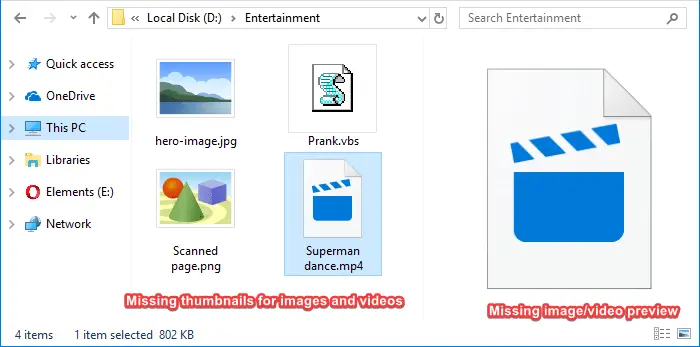
Are your image files showing up with a generic mountain and lake scene instead of the miniature or thumbnail display in File Explorer? And video files may show up with a generic icon/thumbnail.
This article tells you how to enable thumbnails in File Explorer on Windows 10/11 and earlier.Read more
Know which devices can wake up your PC from Sleep mode
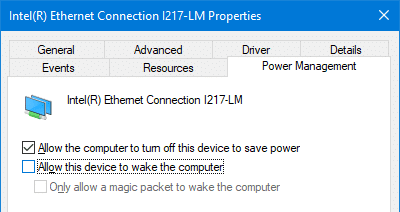
Is your PC waking up automatically when in Sleep mode, and wondering which device is waking the system up? Here is a command which gets the list of devices that are configured to wake the computer up.