When you open Windows Explorer in Windows 7, it opens the Libraries folder by default. You can change the default startup folder using the Windows Explorer shortcut properties, as you did in earlier versions of Windows. Note that you cannot change the default start folder if you’re using WinKey + E to launch Explorer.
In Windows 7, right-clicking on the Windows Explorer Taskbar icon will show the Jump Lists. To access the shortcut properties, hold the SHIFT key down, right-click on the shortcut and choose Properties. Rest of the procedure is the same as in other versions of Windows.
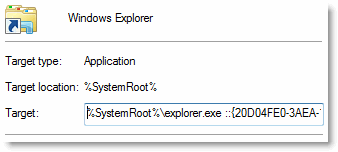
To change the startup folder to (My) Computer, use this target path:
Where the GUID {20D04FE0-3AEA-1069-A2D8-08002B30309D} represents the My Computer folder.
For Documents folder, use this target path:
You may also suffix the full path instead of using GUID. For example,
Bookmark this Page!
BlinkList | del.icio.us | Digg it | Furl | reddit | Spurl | StumbleUpon |
Related Posts
- How to Customize the Library Icons in Windows 7
- Fix Error “Documents.library-Ms Is No Longer Working” In Windows 7
- Restore Missing “Mozilla Firefox” Entry to Set Program Access and Defaults in Windows XP
- Internet Explorer Does Not Open Links to Audio or Video Files
- Customize the Icons in the Start Menu
- IconViewer: View Icons Within DLL Files via the Properties Sheet
- Restore Missing Windows Media Player to the Set Default Programs List in Windows Vista
- Fix: MP3 Files Are Saved With Incorrect File Extension When Downloaded
- Automation Error When Starting the OpenWithAdd Utility
- Restore Extended Tiles View Option to Sync Center in Windows Vista
If you enjoyed this post, make sure you subscribe to our RSS feed! We feature Tips, Troubleshooting information, Scripts and Utilities for Microsoft Windows Operating Systems!
Prefer an E-mail subscription?

› 
Hey guys,
i made a simple tool to automate this for you, and Also WinKey + E works when you use the tool to set the default folder.
http://www.filefront.com/14681029/Windows7ExplorerPathChangerSetup.zip/
Thanks, works great! I have no desire to go to my Libraries, My Computer is much better for me.
I’ve set mine up to start in my user folder /n,::{59031a47-3f72-44a7-89c5-5595fe6b30ee} if you use just C:\User\{username} it starts all the way inside the c: drive not desktop – username a list of all GUIDs can be found in the registry under HKEY_LOCAL_MACHINE\SOFTWARE\Microsoft\Windows\CurrentVersion\Explorer\Desktop\NameSpace
It works, but much slower than when I just run explorer and it opens libraries.
thanks so much! you are the only one who has posted this correctly.
other sites are posting both codes together:
/root, ::{20D04FE0-3AEA-1069-A2D8-08002B30309D}
where root makes it open my computer, but any drives open in a new window
{20D04FE0-3AEA-1069-A2D8-08002B30309D} makes it open a regular my computer window, that opens drives in the same window.
Thank you!!
Many thanks. Just working on Win7RC and that was the first thing that was actually bugging me. (Next to get rid of any ‘homegroup’ stuff)
THANKS A LOT…
Thanks a bunch, I was looking for this.
Unfortunately, the shift-right-click trick appears to work only when there are no active instances of the application associated with the shortcut. Otherwise, the result is a Restore/Move/Size/Minimize/Maximize menu. If you have, say, a long copy operation going so that Explorer is already running, you are locked out of being able to access the shortcut for the entire duration (even if you have the folder properties set to allow Explorer to launch a separate process for each folder). In fact, this is what is blocking me from changing the Explorer default folder right now.
Great tip – thanks very much (also didn’t know that right click and shift acted as the former right click behavior – thanks!).