 When you open Windows Explorer in Windows 7, it opens the Libraries folder by default. You can change the default startup folder using the Windows Explorer shortcut properties, as you did in earlier versions of Windows.
In Windows 7, right-clicking on the Windows Explorer Taskbar icon will show the Jump Lists. To access the shortcut properties, hold the Shift key down, right-click on the shortcut and choose Properties. The rest of the procedure is the same as in other versions of Windows.
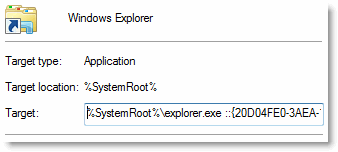
To change the startup folder to (My) Computer, use this target path:
explorer.exe ::{20D04FE0-3AEA-1069-A2D8-08002B30309D}
Where the GUID {20D04FE0-3AEA-1069-A2D8-08002B30309D} represents the My Computer folder.
For the Documents folder, use this target path:
explorer.exe ::{450D8FBA-AD25-11D0-98A8-0800361B1103}
You may also suffix the full path instead of using GUID. For example,
explorer.exe D:\Scripts
 Note that the above methods create a new explorer.exe instance every time you use it. An alternate method to accomplish the task would be using AutoHotKey, as mentioned in the article How to Change WinKey + E Shortcut Target.
One small request: If you liked this post, please share this?
One "tiny" share from you would seriously help a lot with the growth of this blog. Some great suggestions:- Pin it!
- Share it to your favorite blog + Facebook, Reddit
- Tweet it!


If holding shift doesnt work, try unpinning explorer from taskbar, creating a new shortcut on desktop with the above path(s) and pinning that shortcut to the taskbar. You can safely delete the shortcut afterwards.
This allows you to customize the Win+E keystroke: http://lifehacker.com/5300059/make-win%252Be-open-the-folder-of-your-choice
Read what it says, then click on “For more, check out how to turn any action into a keyboard shortcut”.
dano : This solution is indeed simple, but it still creates a new process everytime you open Explorer… Is there a workaround that doesn’t create a new process?
It is much simple than that.
Simply change %SystemRoot%\explorer.exe by C:\ or D:\MyFolder.
This has the advantage that it does not create another Explorer process.
Cheers
Note that you CAN change the default start folder if you’re using WinKey + E to launch Explorer. Just go to RegEdit – HKEY_CLASSES_ROOT\Folder\shell\open\command and change (Default) value to: %SystemRoot%\Explorer.exe ::{20D04FE0-3AEA-1069-A2D8-08002B30309D}
If you want to start from My Computer.