Batch files (.BAT) and Windows NT Command Script (.CMD) files run in console window when double-clicked. This means that the Command Prompt window will be visible until the .BAT or .CMD file execution is complete.
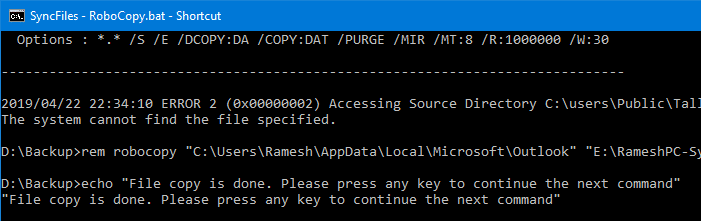
To make .BAT or .CMD file execution less intrusive, you can configure it to run minimized. Or if the .BAT or .CMD file does not require user input during run time, you can launch it in invisible mode using a Script.
The built-in Task Scheduler in Windows is capable of launching programs in hidden mode. If you don’t want to proceed via the Task Scheduler route, check out the options discussed in this article.

Running .BAT or .CMD files in minimized mode
To run a batch file in a minimized window state, follow these steps:
- Create a shortcut to the .BAT or .CMD file. To do so, right click on the file, click Send To, Desktop (create shortcut)
- Right click on the shortcut and choose Properties
- In the Run: drop down, choose Minimized
- Click OK
- Double-click the shortcut to run the batch file in a minimized window state.
Running .BAT or .CMD files hidden (invisible mode) Using Script
Windows Script Host’s Run Method allows you run a program or script in invisible mode. Here is a sample Windows script code that launches a batch file named syncfiles.bat invisibly.
Reference: Run Method. Setting intWindowStyle parameter to 0 hides the window.
Let’s say we have a file named syncfiles.bat in C:\Batch Files directory. Let’s launch it in hidden mode using Windows Scripting.
- Copy the following lines to Notepad.
Set WshShell = CreateObject("WScript.Shell")
WshShell.Run chr(34) & "C:\Batch Files\syncfiles.bat" & Chr(34), 0
Set WshShell = Nothing
Note: Replace the batch file name/path accordingly in the script according to your requirement.
- Save the file with .VBS extension, say
launch_bat.vbs - Edit the .BAT file name and path accordingly, and save the file.
- Double-click to run the launch_bat.vbs file, which in-turn launches the batch file
syncfiles.batinvisibly.
RELATED: How to Automatically Elevate a Batch file to Run it as Administrator? -and- VBScripts and UAC elevation (Run as administrator)
Running .BAT or .CMD files hidden (invisible mode) Using NirCmd
NirCmd is a multipurpose command-line automation utility from the third-party vendor Nirsoft. We’ve covered NirCmd many times in the past on our site.
We can use NirCmd to run a program, script or batch file in hidden mode.
Download NirCmd and extract the file to your Windows directory.
From the Run dialog or Command Prompt, use the following syntax to launch a batch file or program in hidden mode:
nircmd exec hide [path to batch file]
Example:
nircmd exec hide "c:\batch files\syncfiles.bat"
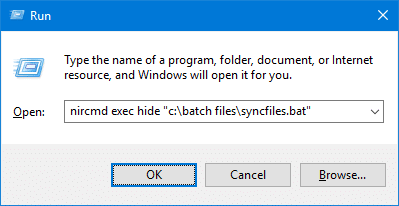
If you need to run the batch file elevated (as administrator), use the following command instead:
nircmd elevatecmd exec hide c:\batch files\syncfiles.bat
(NirCmd Command Reference – exec)
That’s it! If you know any other method to run a batch or CMD file in hidden mode, let us know.
One small request: If you liked this post, please share this?
One "tiny" share from you would seriously help a lot with the growth of this blog. Some great suggestions:- Pin it!
- Share it to your favorite blog + Facebook, Reddit
- Tweet it!


AutoHotkey can run things hidden too…
Run, somebat.bat, , Hide
…or…
Run, %1%, , Hide
…put the 2nd example in RunHidden.ahk…then add a Run Hidden option to the .bat right-click menu…
Windows Registry Editor Version 5.00
[HKEY_CLASSES_ROOT\batfile\Shell\RunHidden]
@=”Run &Hidden”
[HKEY_CLASSES_ROOT\batfile\Shell\RunHidden\Command]
@=”\”C:\\Program Files\\AutoHotkey\\AutoHotkey.exe\” \”C:\\Program Files\\AutoHotkey\\RunHidden.ahk\” \”%1\” %*”
…I didn’t test that, but I hope you get the idea anyway…also I don’t know if this blog supports…
[code]test[/code]
…tags…so I didn’t use them…& no preview…
You can use the Arguments property to pass command line parameters:
WshShell.Run chr(34) & “C:\Batch Files\syncfiles.bat” & Chr(34) & WScript.Arguments(0), 0
I found it useful to verify the command string before putting it into the script:
WScript.Echo chr(34) & “C:\Batch Files\syncfiles.bat” & Chr(34) & WScript.Arguments(0)
Hope that helps!
Thank you! Worked great, I was using a .cmd script to run every 5 minutes and it was rather annoying that the command prompt window would pop up every 5 minutes to run it. The VBS you gave made it run completely invisible now. Thanks again.
Like the script, Thanks a bunch
Wow another gr8 script thanks
working perfect . Tnk s
is there a way to make the script run our .bat file as administrator?
The minimizing the execution of the shortcut does not work in Windows 7 — shortcuts for .BAT files are not editable in the way described.
The VBS approach works just fine, however.
Thanks for that neat way of running a repetitive script inthe background.
Great trick, thanks a lot!
Lovely, that made my day 🙂
Thanks for great tips.
Invisible batchjobs, Sweeet!!
Thanks ! I was looking just for this! Spot on!
SWEET! Just what i was trying to do. I have batch jobs that run every minute and it’s annoying to have them pop up all the freakin time. Thanks so much!
Thanks for the invisible batch job
Thanks a lot buddy. Simple and clean workaround to have batches kind of run like a background process.
works perfectly ~~~ ^_^ Thanks a lot
Neat and perfect. Thanks a lot!!
Thanks 😉 Very effective!
Three lines makes a difference!
Thanks a lot!
This isn’t working for me on Windows server 2008… the Command Window is still opening.
Any ideas?!
EDIT: I am trying to run the .bat file via the VBS in invisible mode.
This is fantastic! Thank you very much!
Next, to figure out how to pass the location and name of the .bat to be run, into the vbs script…then I could have 1 invisible.vbs script that executes the desired .bat file.
What a superb script and simple too. Thank you!
I have a ping in my .bat to add a delay. This suppresses the first cmd from the ping but not the second.
Awesome buddy……AWESOME…..I was looking fr it all around….and Here You GO…thanks again…
does not work at all, the bat file is still visible
Works perfectly, thank you very much!!
Thanks for this, but I’m calling the bat file from an XML file that also includes parameters to be passed to it.
How can I pass parameters to the bat file is I’m calling the VBS file instead?
Awesome Script dude! can I ask you? what the meaning of chr(34) ?
thank you so much…i’ve been searching for almost 1 week now it’s done
Marvellous, I used to run java jar files without showing comand screen.
Thank you so much.
Marvellous! It is really helped us in WebLogic server to run in the background. it is almost equalent to Unix & and nohup.
Useless explanation. What does “Copy the lines above to Notepad and save the file with .VBS extension.” mean???????
What lines? I have a simple .bat file that I want to run “hidden”. This explanation looks really encouraging till I find an unexplainable statement like that.
OK – I guess I’m just stupid.
Even after doing this,it still shows the cmd window.
Is there any way I can get it to shutdown when the batch file it runs crashes?
Awesome script bro…….. great work.
Awesome application!!! Would love the ability to copy and paste the GUID rather than have t export the .XML, rename that file and then do it again. Even better would be a data dump to a notepad or excel for rapid reference of the GUID.
Wow! So this is what batch files are all about. This will really come in handy. I’ve already setup a MongoDB batch file to run invisibly and it is a delightful experience.
wow, so simple
thankful to you
this method works.. thanks Farrukh..
Very nice!!!
So, how do I find and stop it if needed?
Tah muchly. I did the invisible script thing and it worked fine.
The only thing was when run via scheduled task the wshell complained that it could not find c:\windows\system32\ …where vbs script is the vbs script we just created.
I had to place the vbs script in the c:\windows\system32 folder. Works fine
Is there a way to STOP the batch file from running?
Testing posting a comment
how do i close it once it is started on invisible?
how do i run invisible bat-file via task scheduler? vbs file is not working with scheduler.
I like the .vbs hack .