When you start the System Restore utility (rstrui.exe), the message System Restore has been turned off by your system administrator. To turn on System Restore, contact your system administrator.” appears.
Also when you open System Properties and select the System Protection tab, the Create button may be grayed out, and the following message is displayed.
Restore point creation disabled by Group Policy
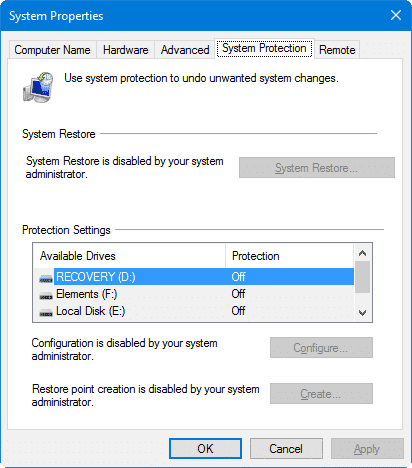
This happens if the Turn off Configuration and Turn off System Restore Policies are enabled in your system, either using Group Policy or through registry edit. For standalone Windows client systems, use these steps to remove the System Restore Policies.
Using the Group Policy Editor (for Pro Editions of Windows)
If your edition of Windows includes the Group Policy Editor snap-in (gpedit.msc), follow these steps:
1. Click Start, type gpedit.msc and press ENTER
2. Go to the following branch:
Computer Configuration | Administrative Templates | System | System Restore
3. Double-click Turn off Configuration and set it to Not configured.
4. Double-click Turn off System Restore and set it to Not configured.
Important: If the above settings are already set to Not configured, set them to Enabled and click Apply. Then revert back the setting to Not configured, and click Apply, OK. This clears the equivalent registry-based Policies if applied earlier.
4. Exit the Group Policy Editor.
Using the Registry Editor
1. Start the Registry Editor (regedit.exe)
2. Navigate to the following key:
HKEY_LOCAL_MACHINE\Software\Policies\Microsoft\Windows NT\SystemRestore
3. In the right-pane, delete the values named DisableSR and DisableConfig
4. Exit the Registry Editor.
One small request: If you liked this post, please share this?
One "tiny" share from you would seriously help a lot with the growth of this blog. Some great suggestions:- Pin it!
- Share it to your favorite blog + Facebook, Reddit
- Tweet it!

Thanx a lot. It works like a bomb. Eventually I can create new restore points again.
Well Done
Rocky