Summary: Double-clicking .exe or .lnk (shortcut) files may open Notepad or any other application, displaying junk characters.
Did you accidentally use the Default Programs or Open With dialog to associate .exe file types with an application like Notepad? This causes every program to open in that chosen application. Unfortunately, Windows provides no option to reset the .exe file associations. You need to fix the association settings using a .reg file or script.
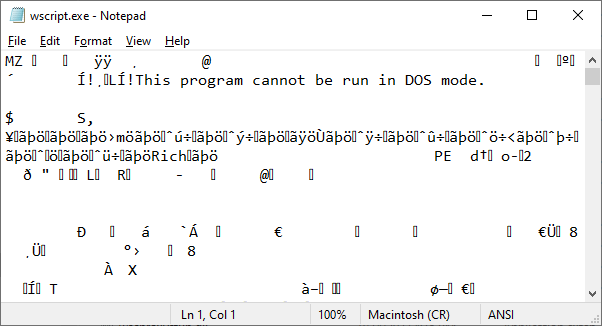
After incorrectly associating .exe files using Notepad, Notepad opens every time when a .exe file is double-clicked. Here is an example:
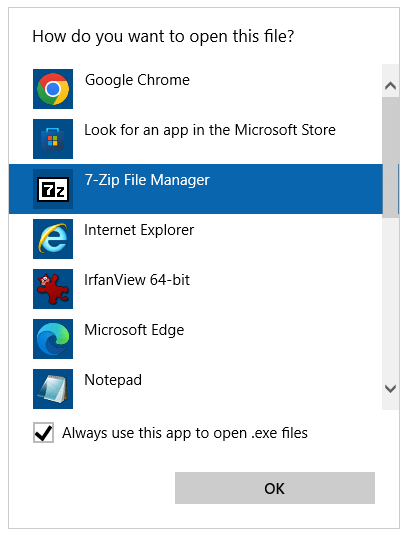
Or you may see the “Open with” dialog when you run a program (.exe file).
Resolution
To fix the .exe file association issue, delete the UserChoice registry key. This has to be done using a REG file or a script, as trying to launch regedit.exe directly would cause the same problem. Follow these steps:
1) Run exefix_cu.reg
- Right-click exefix_cu.reg and choose “Save Link as” in your browser, and download the file to Desktop.
- Right-click on the REG file and choose Merge. The .REG file clears the following key, which shouldn’t exist for .exe files.
HKEY_CURRENT_USER\Software\Microsoft\Windows\CurrentVersion\Explorer\FileExts\.exe\UserChoice
When you use the Open With dialog to associate .exe files with another application, it stores the settings in the above registry key under a value named Progid. The Progid data will contain the application’s exe file name (Applications\Notepad.exe, Applications\iexplore.exe, or a Programmatic Identifier such as txtfile, jpegfile, etc).
2) Run exefix.reg
If the above fix doesn’t help, download exefix.reg and run it. Note that this fix requires admin privileges to work, as it rectifies the .exe file association settings globally.
I hope the information helped you fix .exe file association problem in Windows.
Related article: How to Remove a File Association Using the Registry Editor?
One small request: If you liked this post, please share this?
One "tiny" share from you would seriously help a lot with the growth of this blog. Some great suggestions:- Pin it!
- Share it to your favorite blog + Facebook, Reddit
- Tweet it!


sir, you are a life saving super ninja. and for that, i thank you.
Thank you very very much! 🙂
Only problem is that there is still the notepad logo for everything :/
Buddy thank you so much, i have spent the last 4 hours trying to fix this! You just saved me around $10,000,00 in lost clients that was due to this stupid vista bug, now i can continue with my work and meet my deadline.
Thanks again buddy best wishes for you. Keep doing what your doing. 🙂
Hey, Angelo, you save, like yourself said, $10,000… So you must donate some dolars to the autor, don’t you?
Thank you for saving my computer! 🙂
Deu certo, obrigado! (portuguese)
Thank you, my problem is resolved
Quase que precisei formatar meu pc, mas vocês me salvaram. 😀 (portuguese)
awesome!I was one step away from throwing my fairly new computer out of my 2nd story window.been dealing w/ it for 2 days
Thanks a lot. You’re the best. Please, is there any other thing i can know about my system? This problem really made me look like a dummy… I need web references please where i can learn other new stuff. Thanks.
U r a gift of god.. awesome
Thank you, I have been many places and been offered to buy many fixes and this took 3 min and now i am completely fixed! Thank you so much 🙂
DUDE YOU ROCK, I tried a couple other ways from other sites & all they did was drive me out of my freakin mind. I tried it it your way and in like 2 minutes it was completly fixed. Thanx Again, I can unload my gun now, I apparantly wont be needing it.
Wow that really helped. I thought I was screwed but hey, you saved me 😀
WOW! This helped so much. You sir have my eternal thanks. I thought I was completely screwed.
OMG! YOU’RE MY SAVIOR! My nephew played with my dekstop and screwed my .exe files and that’s ALL what a computer is all about. Good thing I was able to open an internet browser and had an access with this very useful article! MUCH THANKS!
WOW Thanks a LOT!!!!
You Saved me…..!!!
Thank you so much!
Also saved me from a big trouble.
So nice. It helped me. Thanks
Holy cow! I was about to have a heart attack! When everything got defaulted to Windows media center microchips were about to be exposed. The shortcuts still say IE explorer but I can live with that…everything works fine now. Thank you!
Wow thanks so much! I accidently got it on word and this saved me!
THANK YOU SO VERY MUCH!! Two Days Ago, I Installed IE9, and it apparently went and associated ALL of my .EXE Files to Internet Explorer. Of Course, None of my Diag/fixit Tools (ccleaner, Regedit, etc) would run because they are all .exe’s. FINALLY in Desperation, I searched google and found your Blog Entry. YOU saved me from having to do a full blown factory restore and then spending days rebuilding everything … I am SO Grateful!
Finally, i found a solution, it’s work 100%… thank you very much…
Super Thankful worked brilliantly
Worked perfectly with LNK files too. Thank you so much!
Hi its Joseph again. Ive done everything you did, and I pressed merge. Now what do I do? I dont think it did ANYTHING. Please help!
wow !! its working..thanks alottt
how do you do this: You need to delete the UserChoice key above using a REG file or a script. Download exefix_cu.reg, and save it to Desktop. Right-click on the REG file and choose Merge.
Did not work for me. Why???
BRAVISSIMO! it worked perfectly!
Thanks a lot , finally i fix the problem by this (exefix_cu.reg) for my Windows7 Editio Integrale !
all what i do just download it and after just click on it and ok, ok, ok……. SOLUTION!
thaaaaaaaaaaaaaaaaaaaaaaaaaaaaaaaaaaaaaanx
I have a laptop with Windows XP Pro SP3. Will this fix work there, too?
Many kind regards,
Timothy Smith
P.S. If it does, you are an angel in disguise…
You sir are awesome
It took me two hours to find an answers thank you very much
bravo.. u r the best!! my problem fixed. !! thx.
wow thaaaaaaaaaaank you i was on the edge of crying and you saved me you are divine thanks you saved my life \
you rockkkkkkkkkkkkkkkkkkkkkkkkkk!!!!!!!!
its a miracle for me to find this help much helpful.I was so desperate to surf on the internet to find the solution then im glad its come..i was almost deciding to reinstall the OS ,and thanks ive never came to that point!
wonderfulllllll…. you guys are marvelous, people say Good of you from a Distance. you wont go unrewarded thank you so much and God Bless
waaaaaaaaaaaaaaaaaaah..
im so thankfull for youu,,
Thanks a lot ! you are marvelous.
It works for me. Thanks a lot. you are my savior.
I downloaded the .reg file and did r-click Merge, and refreshed the icons, but nothing changed. I still have most of my desktop shortcuts with the same icon and opening the same program.
The first half of the post seems to be saying there’s more I need to do (reset the .exe files manually?) but I don’t know how to do this. Please help!
Thanks a lot winhelponline!!! it worked like magic! it is so nice of you to post such helps & tricks. great job!!! keep it up!!!
muuhhhaaaaaaa i loved it, super thx a lottttttttttttttttttttttttttt
Wow, this worked like a charm, THANK YOU!! It was a little tricky to download the file, since I couldn’t open any browser with Notepad (ugh). So I created the .reg file on another Windows device using Notepad (my nemesis!), transferred that to my Kindle, then copied from the Kindle to the Windows 7 desktop on the sick machine. Right click to Merge… let it do it’s thing. Restarted the device, held my breath (for a what seemed like an eternity), and all is well. Whew! Much appreciated!
exefix_cu.reg doesnt download, it goes from another webpage!
Help!
save that page and remove “.txt” in it
I tried it .
but it shows that .reg files is successfully added .
then nothing happens .
plz help me (anyone above)
Whew!! Thank you.
Thanks a lot bra… but there is still that notepad logo in each program…
Well Thank you very much …
I need help doing this. You lose me after you say save that file to the desktop
How do you know and find the “actual file extension?”
duuuuude !!! you rock!! this totally worked, i’m bak in business
I was able to open regedit.exe from a DOS window & followed your steps. Worked like a champ, thank you, thank you, thank you so very, very much. It’s BS Windows 7 “Open With, Browse” has the box (always use this program…) greyed out, thus setting you up for these kind of problems. Thank you very much Windows, NOT!!!
Restarted pc just now, so far so good, all software logo/icon had returned to how it was. No(as I checked so far) data lost, all fine. Thank you again!
Hi Barry,
Thanks for your response to my windows media problem.
Unfortunately it all came to nothing.
I went through the steps as suggested, but all my computer desktop items still remain as previously stated “when opened the only offering is to play music from the library”!!!
Does anybody else have any suggestions, as to how I might solve the problem??
Any assistance would be greatly appreciated.
Thanks, regards.
Bob.
Thank you this worked for me, you’re a star… Happy new year… many thanks
my computer regedit open with default program it not let to open the regedit progeam
thanks a lot!! it worked.. 😀
Excellent tip! I had .xlsx files opening in windows explorer, and the default programs tool in the control panel doesn’t list that file type, so luckily I found this tip!
You saved me. Thank you soooo much!!
So thankful for this!
Why is there no download dialog box when I click on the download link provided? It only opens a page with these on:
“Windows Registry Editor Version 5.00
[-HKEY_CURRENT_USER\Software\Microsoft\Windows\CurrentVersion\Explorer\FileExts\.exe\UserChoice]”
@Art: Right-click on the link and choose “save target as” (or equivalent option) in your browser.
Man!!! I had this problem in the last year and now I fixed it!!
Thank you very much!!!
I have this problem but I can’t open IE. I am typing this on my phone.
JUst did this because I am using Windows in a foregin language. Don’t know why the association got redirected, but thanks so much for this quick fix!!
It actually worked! Thank you!!! 🙂
Thank you so much man , i really appreciate your help 🙂
Thank you so much! My laptop is working again! My situation was especially nasty, as I accidentally set file exlporer to open .exe, so I was finally able to copy the registry editor to a USB and luckily file explorer still worked so I was able to open it.
This totally worked for my little guys laptop. He is a very happy boy. Thank you so much for the help……
Ahhhh! I think we fixed it!!! File Associations were all messed up! My kid decided to mess with the webcam on my laptop & somehow changed the Open With to Windows Photo Viewer….somehow it defaulted EVERYTHING to opening with that. I have been going nuts!
Totally worked! Thanks
Thanks so much! Double clicking any .exe was opening a cmd window.
Deleting FileExts/.exe/UserChoice fixed it.
How can we do this if we cannot open it or any browser to download this reg file?
This was owesome, never knew there was a way out of the .exe association. Thnks a bunch.
Thanks. Thought i would have to junk my old machine.
this is life saver .keep up the good work and thanks a lot.
Sir, Three Salutes to you. Thank you very much for this wonderful medicine to my laptop.
This sounds like it would work. Unfortunately, when i click on exefix_cu.reg to download, it opens in notepad, so I cannot download.
@Lawrence: Right-click on the link and choose “Save target as” (or equivalent option) in your browser.