DriveImage XML is a freeware drive image program that lets you backup, restore, and copy hard disk partitions easily. However, restoring a DriveImage XML image from a previous backup to the system drive isn’t possible when Windows is running. Attempting to do so causes the error “Target partition must not be the system drive,” and the restore operation doesn’t start.
In this situation, you can connect the hard disk as a slave to another PC. Install DriveImage XML and restore the drive image from a previous backup. Alternatively, you can use one of the following tools to restore the image offline:
- Using WinPE boot media. Instructions at
https://www.runtime.org/peb.htm(or) - Using Runtime Live Knoppix boot media. Instructions at
https://www.runtime.org/data-recovery-live-cd.htm
The Runtime Live Knoppix disk didn’t work out on my computer for some reason. So, I used the WinPE boot media and have included the screenshots below.
 Editor’s note (May 2021): DriveImage XML sports an outdated UI, and the software seems to be buggy, especially when used on Windows 10 devices. I prefer Macrium Reflect (
free) or Acronis True Image for my image/backup purposes.
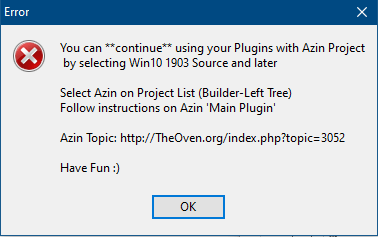
If you prefer the Windows PE boot media method for Windows 10 devices, use a Windows 10 ISO earlier than v1903. Else the WinPE boot media creator throws the following error:
Secondly, the offline image restore operation didn’t work well on GPT disks. As per some users on SuperUser, the disks need to be converted to MBR for the DriveImage XML restore operation to work. If not, the following error may pop up:
Unable to retrieve drive layout

Operation unsuccessful.
Restore a DriveImage XML Backup Using Windows PE Boot Media
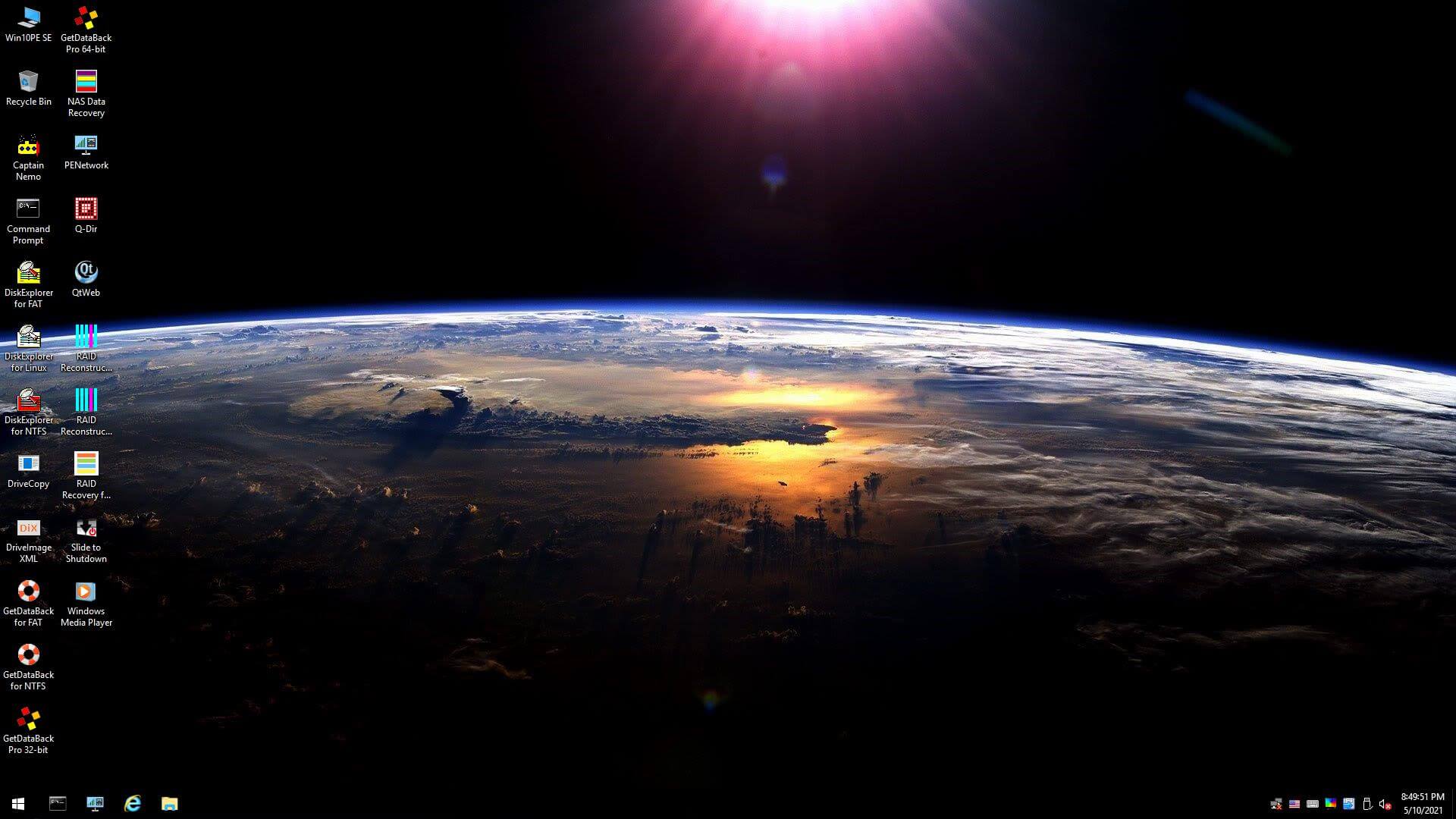
After creating the Windows PE boot media per the Runtime website’s instructions, you’ll see the DriveImage XML icon on the Windows PE desktop.
(Open each image in a new tab to see the original (better resolution) size image.)
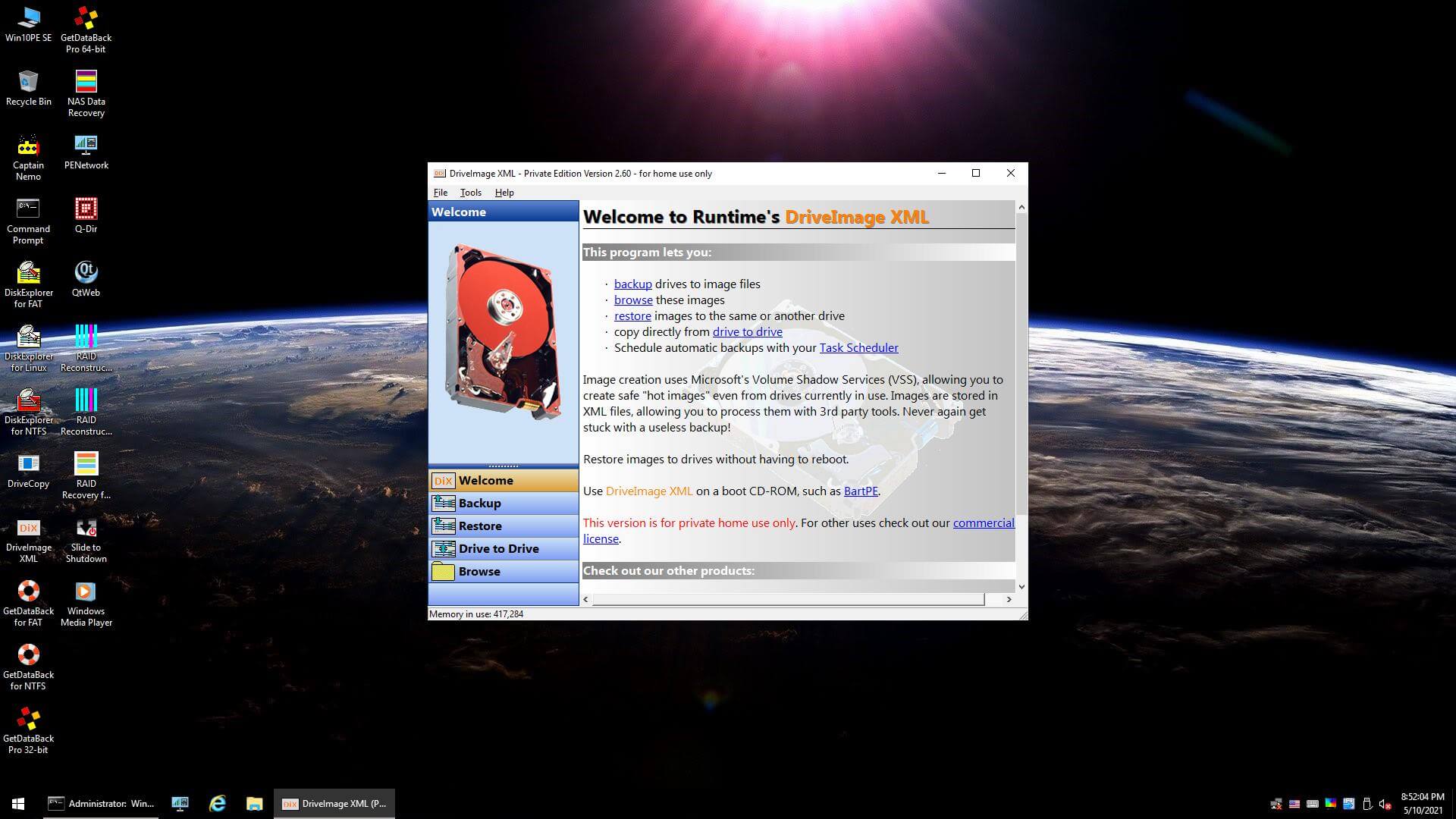
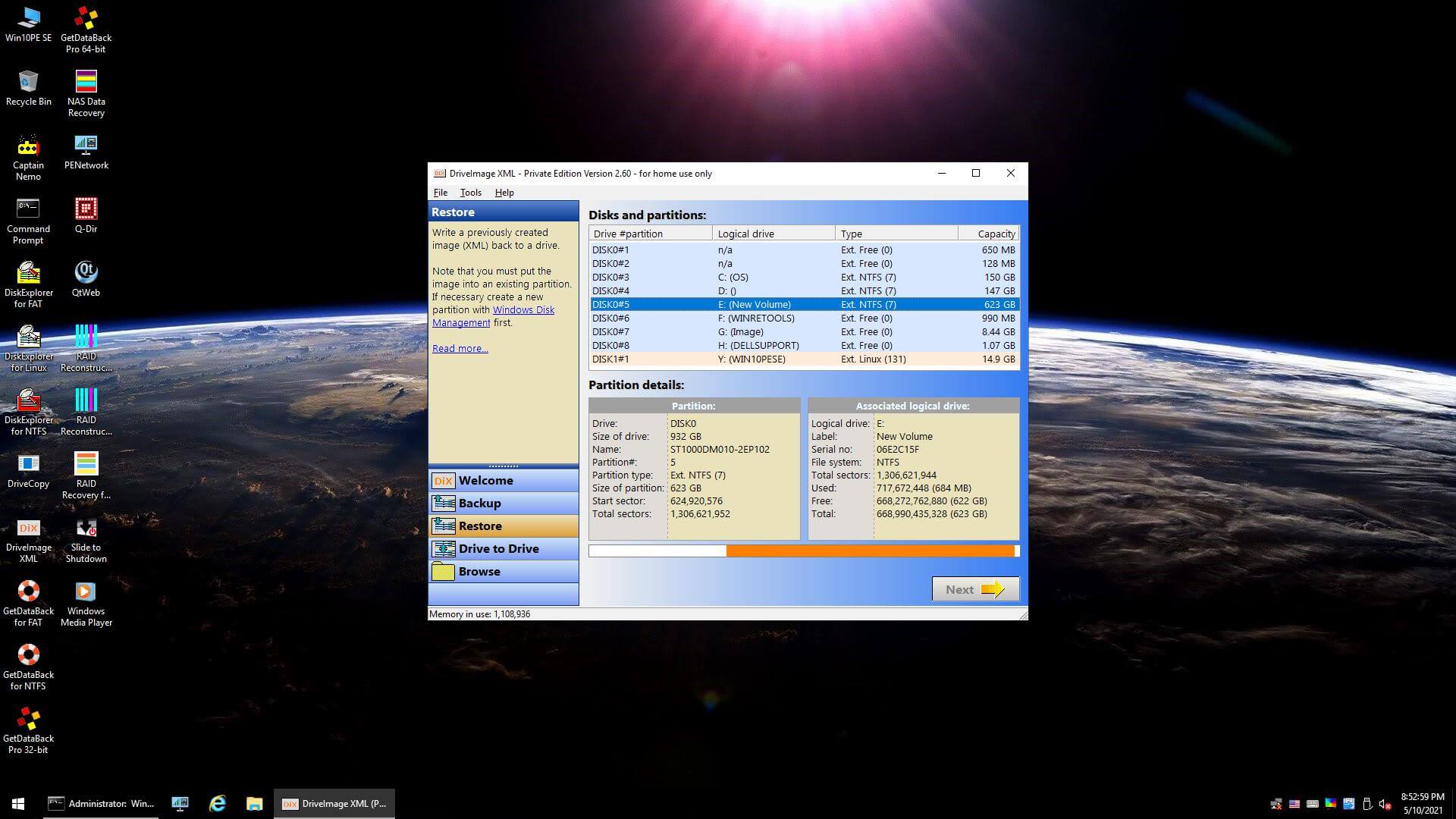
Run DriveImage XML and click Restore. Follow the onscreen instructions and complete the restoration process.
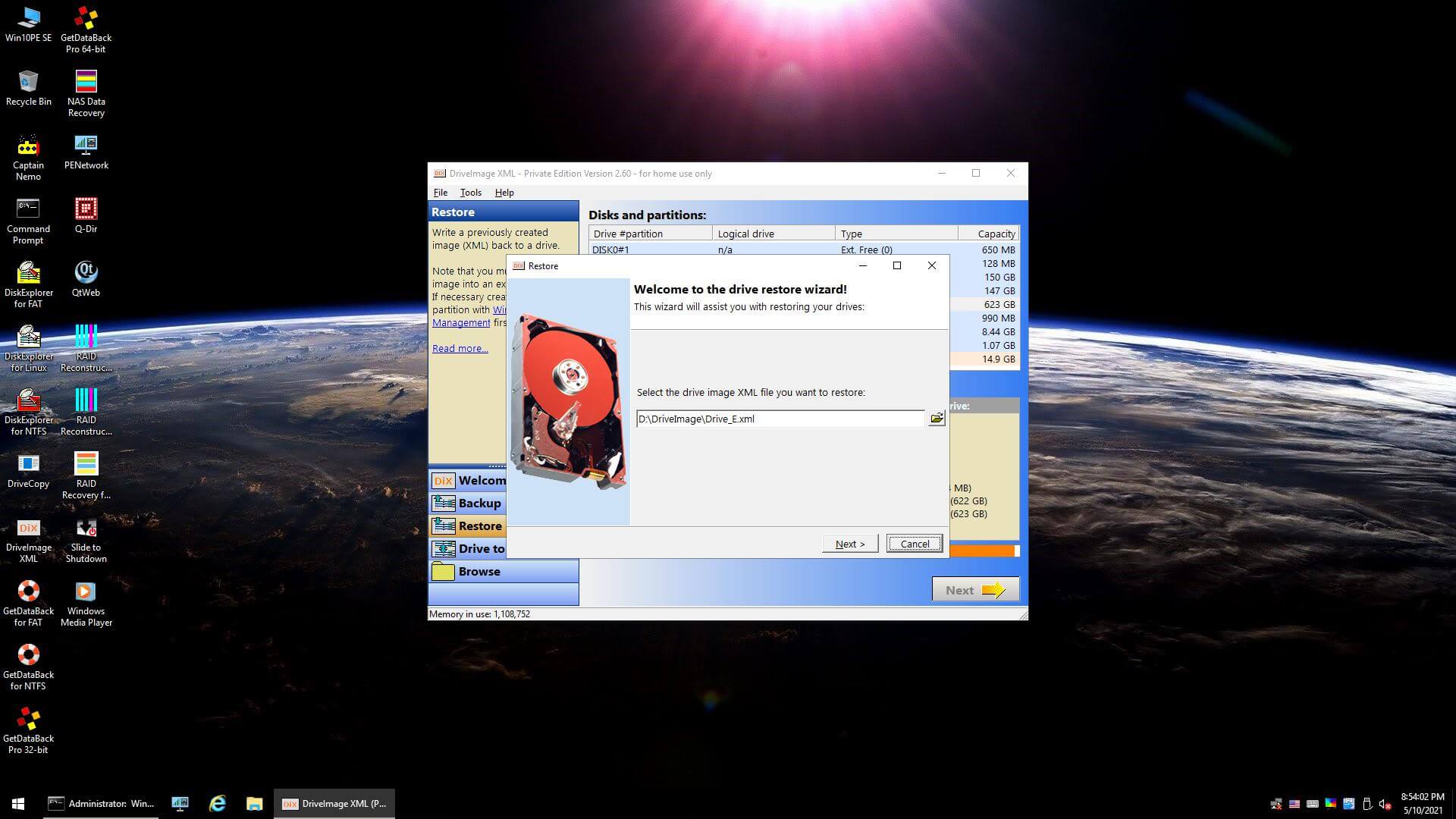
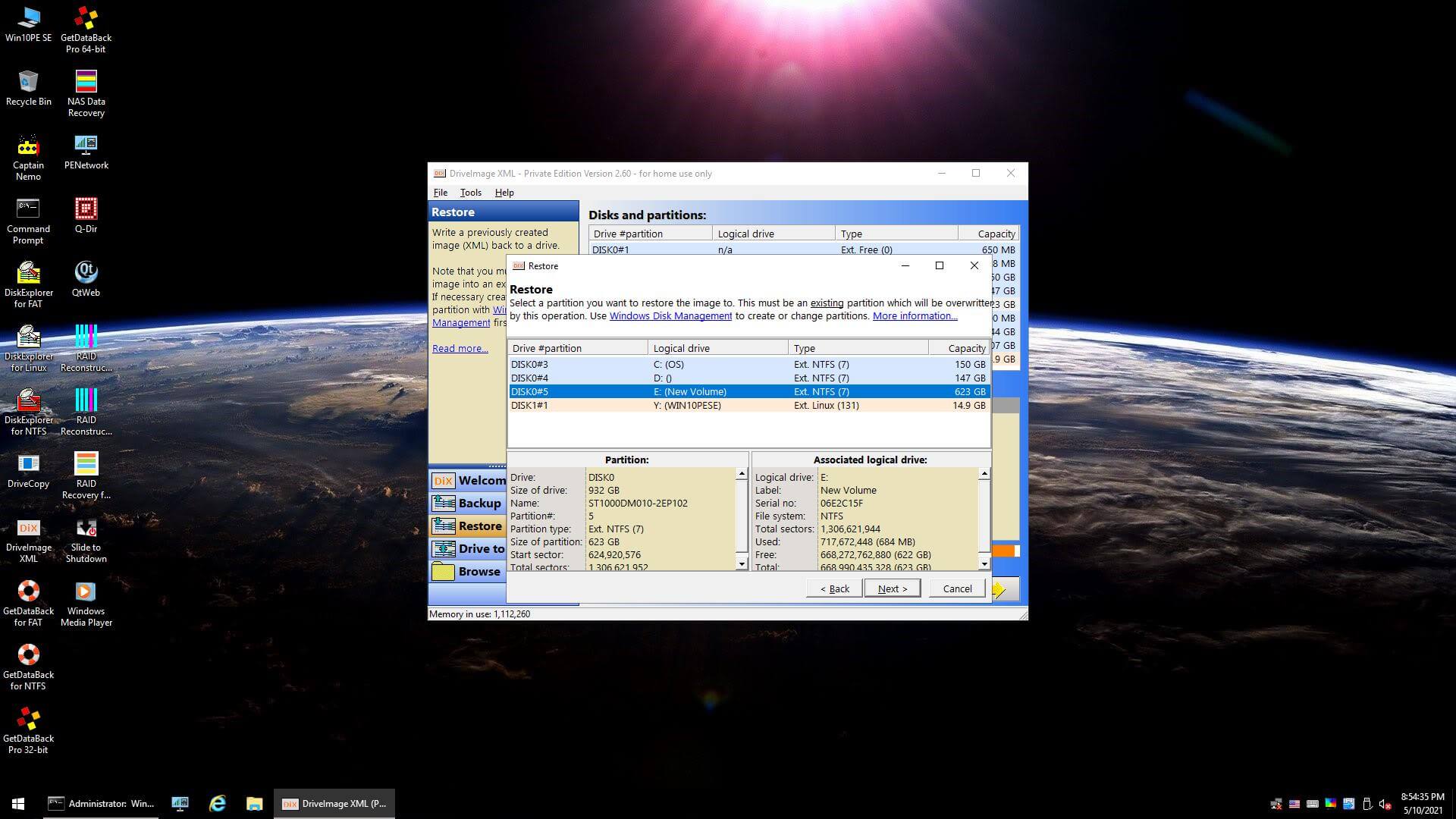
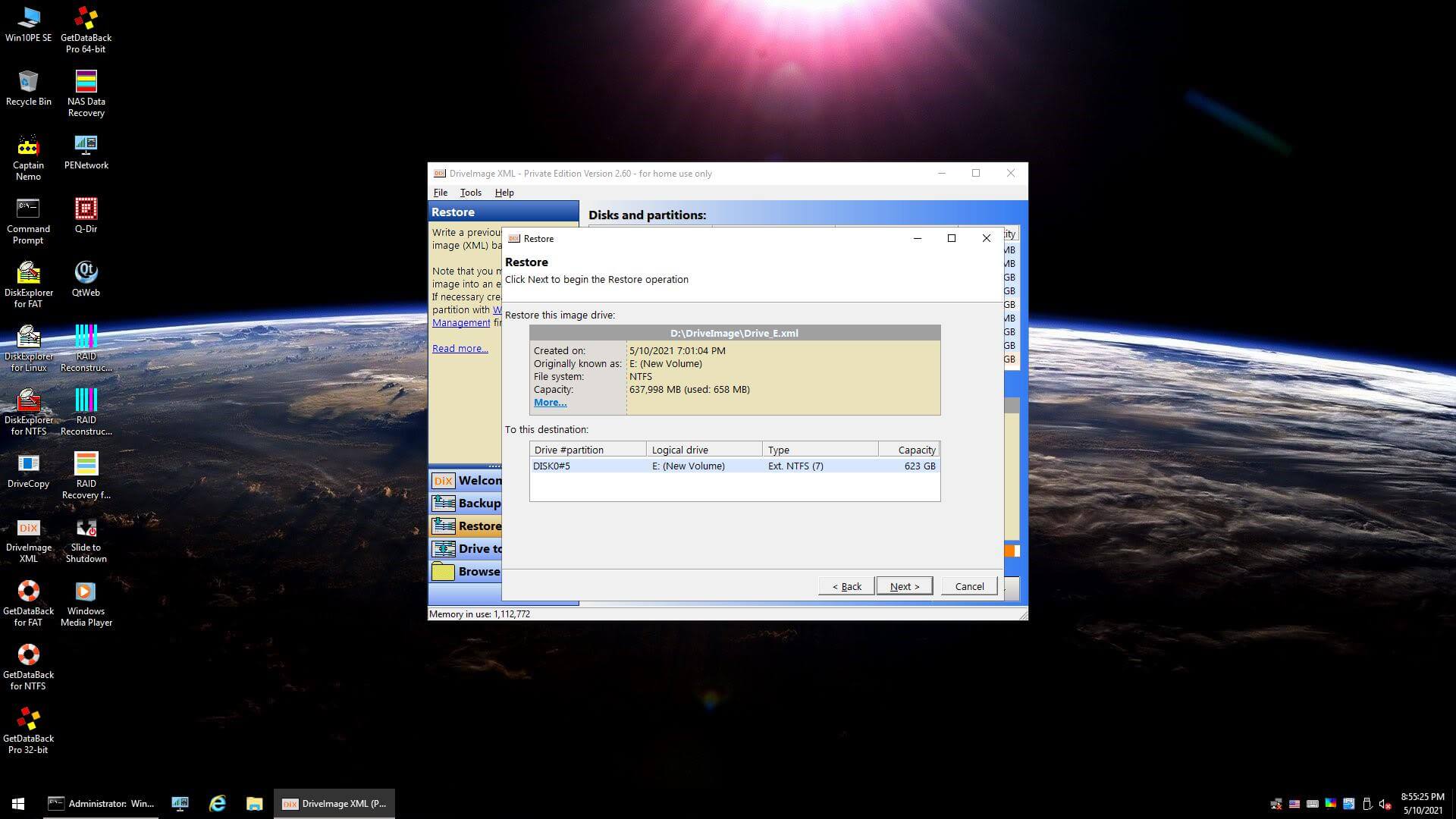
You can also create a Knoppix-Based Runtime Live CD or USB media and restore the drive image offline. The ISO is available from Runtime software, the manufacturer of DriveImage XML. You may give it a try.
Restore a DriveImage XML Backup Using Ultimate Boot CD for Windows
Note: The following is archived information (originally written for Windows 7 and earlier.), and Ultimate Boot CD for Windows is no longer maintained by the author.
In the following section, let’s see how to restore a DriveImage XML backup (stored in one of the hard disk partitions) using UBCD4Win. The advantage of using UBCD4Win is that it is loaded with lots of Plugins by default, including the DriveImage XML Plugin.
- Download and create Ultimate Boot CD for Windows (UBCD4Win) media.
- Insert the UBCD4Win Boot CD into the drive and boot the system from the CD drive. Note that you may need to set the boot order in the BIOS accordingly.
- When the UBCD4Win desktop loads, click the DriveImage XML desktop icon.
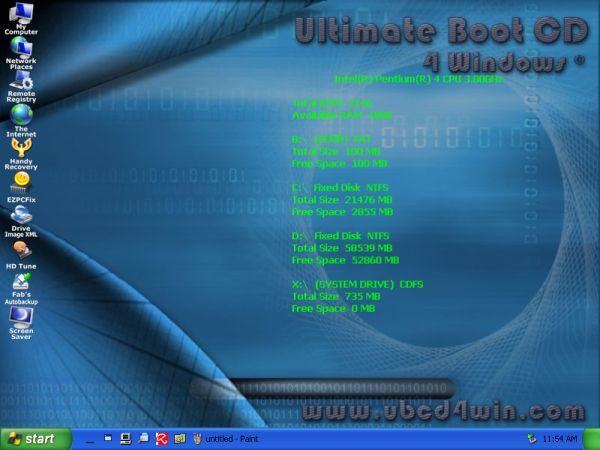
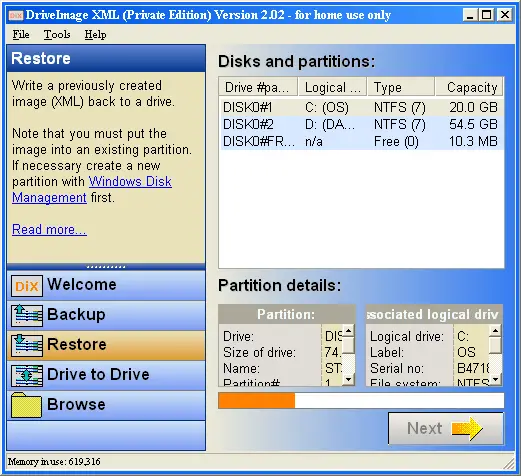
- Click Restore
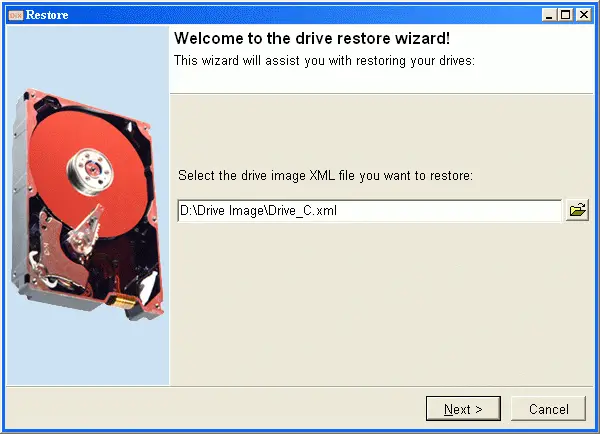
- Locate the drive image XML file. This file is present in the same folder where your previous image backup is located.
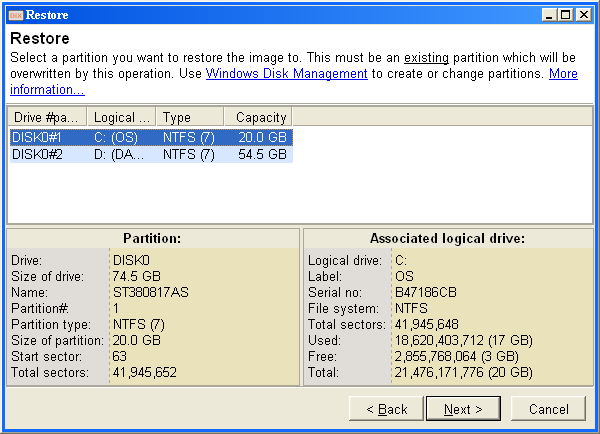
- Select the partition where you want to restore the image to, and click Next.
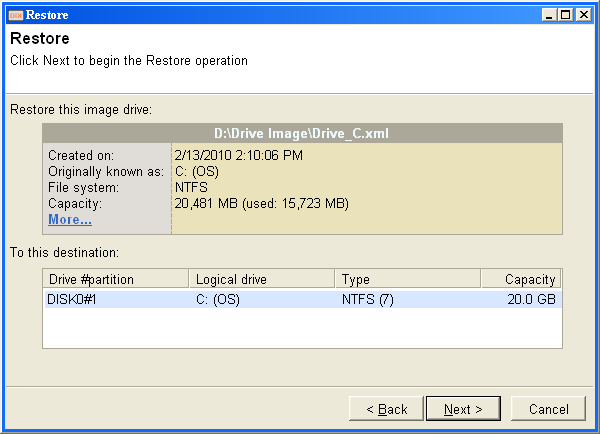
- Read the warning message, input the text string as in the dialog and click OK.
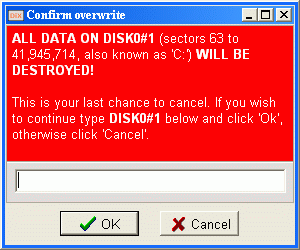
The restore operation starts.
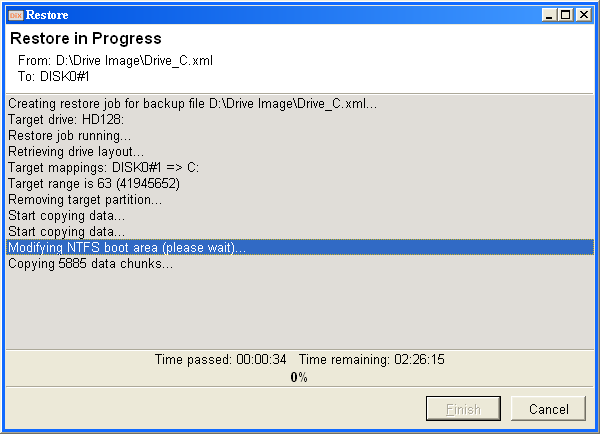
You’ve now successfully restored the previous backup image.
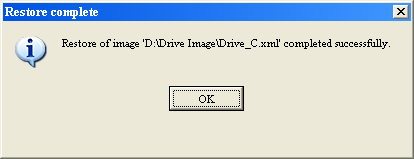
- Click OK and exit DriveImage XML.
- Remove UBCD4Win boot CD from the drive and restart the system.
Closing Words
A decade ago, DriveImage XML was an excellent choice for drive image backups. Not now. As said earlier in this article, DriveImage XML may not be the best tool for image backup purposes. I encountered errors when creating backups and restoring them offline on GPT disks. Macrium Reflect (free) is an excellent image backup tool with more features and a modern user interface. You also can create a Macrium Reflect Rescue media from the menu options.
One small request: If you liked this post, please share this?
One "tiny" share from you would seriously help a lot with the growth of this blog. Some great suggestions:- Pin it!
- Share it to your favorite blog + Facebook, Reddit
- Tweet it!


Useful information.
I had the same issue. So I booted from my Win 7 install disk and let it do a repair install.Took less than a minute and booted fine.
Hello, Thanks for the nice article.
Not sure if your site has a URL issue, but I went to the hyperlink after (UBCD4Win) – “instructions in their site” – and that comes up with a McAfee alert. You might want to check it.
Just an FYI.
There is nothing free about Macrium Reflect.
Was there an old version that was free? Is which version?
@endemion: Unfortunately, the free version has been retired recently. https://www.ghacks.net/2022/11/27/backup-software-macrium-reflect-free-is-being-retired/
Will update the article shortly.