If you have a host application that you don’t want to be pinned to the Windows 7 taskbar, you can do so by adding a registry value in the application registration area. By default Windows prevents the following host processes from being pinned to the taskbar.
- RUNDLL32.EXE
- MSHTA.EXE
- DLLHOST.EXE
- APPLAUNCH.EXE
- HH.EXE
- WINHLP32.EXE
- MMC.EXE
… and other file names defined in the following registry key in string values HostApps, AddRemoveApps and AddRemoveNames
To remove the Pin to Taskbar (and "Pin this program to taskbar") context menu options for a particular application, use these steps:
Click Start, type Regedit.exe and go to the following key:
Create a subkey with the name of the application (say, \clsidview.exe)
Select to the newly created branch:
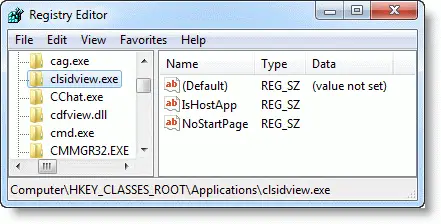
In the right pane, create a String value named IsHostApp
Exit the Registry Editor.
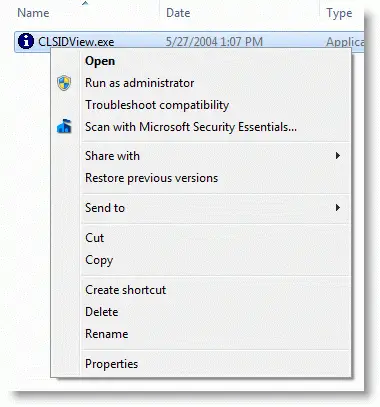
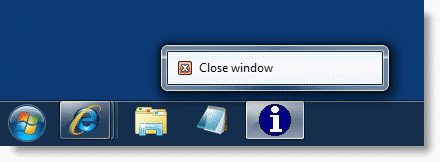
This prevents the application ("clsidview.exe", in this example) from being pinned to the Taskbar. For more information, see topic Registering an Application as a Host Process at MSDN.
Screenshots
One small request: If you liked this post, please share this?
One "tiny" share from you would seriously help a lot with the growth of this blog. Some great suggestions:- Pin it!
- Share it to your favorite blog + Facebook, Reddit
- Tweet it!

