Process Monitor is an excellent troubleshooting tool from Windows Sysinternals that displays the files and registry keys that applications access in real-time. The results can be saved to a log file, which you can send to an expert for analyzing a problem and troubleshooting it.
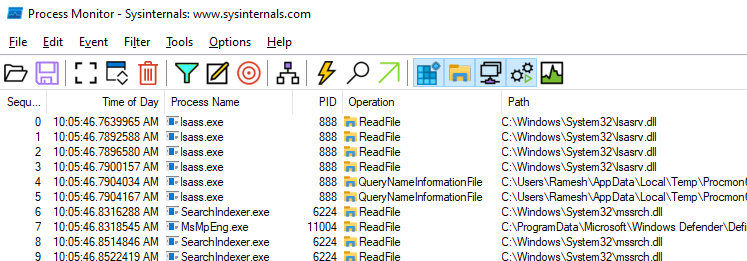
This article tells you how to use Process Monitor to capture registry and file system accesses by applications. You can also save the events to a log file for further analysis.
Tracing Registry and File System Using Process Monitor
Scenario: Let’s assume you’re unable to write to the HOSTS file in Windows, and want to know what’s happening under the hood. Every step in the following article revolves around this sample scenario.
 Note: If a support technician has asked you to save “All Events,” then you don’t need to set the Filtering options. Proceed to “Step 2” in that case.
Step 1: Running Process Monitor & Configuring Filters
- Download Process Monitor from Microsoft.
- Extract the zip file contents to a folder of your choice.
- Run Process Monitor.
- If the Filter dialog doesn’t open automatically, press Ctrl + L to open the Process Monitor Filter dialog.
- Click “Reset” to clear the existing filters.
- Include the processes that you want to track the activity on. For this example, you want to include
Notepad.exein the (Include) Filters.
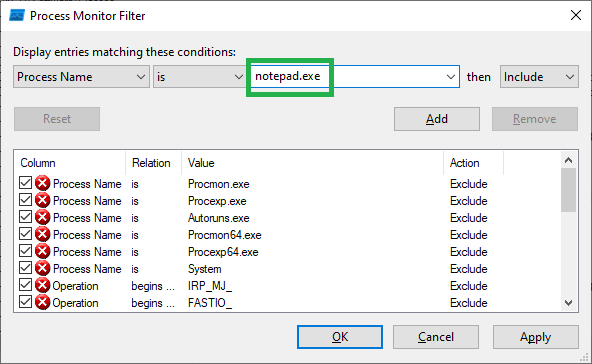
- Click Add, and click OK.
Tip: You can add multiple entries as well, in case you want to track a few more processes along with
Notepad.exe. To keep this example more straightforward, let’s include onlyNotepad.exe. - From the Options menu, click Select Columns.
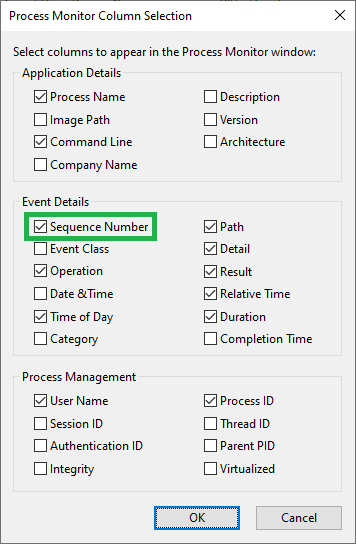
- Under “Event Details,” enable Sequence Number, and click OK.
Step 2: Capturing Events
- Open Notepad.
- Switch to the Process Monitor window.
- Enable the “Capture” mode (if it’s not already ON). You can see the status of the “Capture” mode via the Process Monitor toolbar.
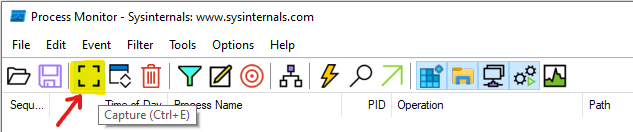 The highlighted button above is the “Capture” button, which is currently disabled. You need to click that button (or press Ctrl + E) to start tracing. You’ll now see the Process Monitor main window capturing registry and file events by processes in real time.
 - Cleanup the existing events list using Ctrl + X key sequence (Important) and start afresh
- Now switch to Notepad and try to reproduce the problem.
To reproduce the problem (for this example), try writing to the HOSTS file (
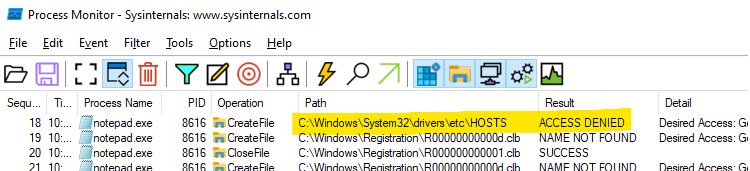
C:\Windows\System32\Drivers\Etc\HOSTS) and saving it. Windows offers to save the file (by showing the Save As dialog) with a different name or in another location.So, what happens under the hood when you save to HOSTS? Process Monitor shows that, exactly.
- Switch to the Process Monitor window, and turn off Capturing (Ctrl + E) as soon as you reproduce the problem.
Important: Reproduce the problem quickly when the trace is On. And turn off capturing as soon as you finish reproducing the problem. This prevents Process Monitor from recording other unneeded data (which makes the analysis more difficult). So it would be best if you did everything as quickly as possible.
Solution: The log file above tells us that Notepad encountered an
ACCESS DENIEDerror when writing to theHOSTSfile. The solution would be to run Notepad elevated (right-click and choose “Run as Administrator”) to write to theHOSTSfile successfully.
Step 3: Saving the Output
- In the Process Monitor window, select the File menu and click Save
- Select Native Process Monitor Format (PML), mention the output file name and Path, and save the file.
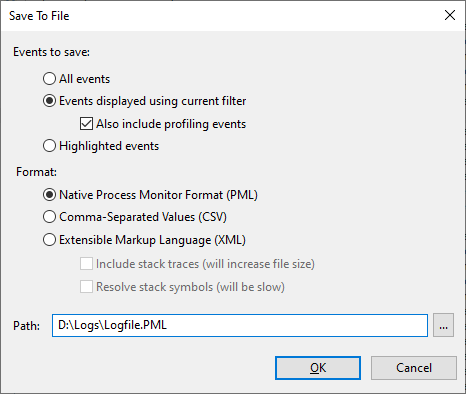 Important: If a support technician has asked you to save “All Events,” select “All Events” and save the file. Otherwise, select “Events displayed using current filter” and save the file.
 - Right-click on the
Logfile.PMLfile, click Send To, and chooseCompressed (zipped) folder. This compresses the file by~90%. Look at the graphic below. You certainly want to zip the log file before sending it to someone.

Editor’s note: I usually suggest my clients save the log with the All events option for a thorough analysis. If you’re going to send me a Process Monitor log, make sure you enable the All Events option when saving the log file. Also, don’t forget the compress (.zip) the log file first.
One small request: If you liked this post, please share this?
One "tiny" share from you would seriously help a lot with the growth of this blog. Some great suggestions:- Pin it!
- Share it to your favorite blog + Facebook, Reddit
- Tweet it!


Thanks for this – it was refreshingly well-written and was useful for me.
Sites like this, written by someone who is able to communicate well are
getting very scarce !
Thanks .. that’s really helpful even for first time user.
How can we run procmon in background, even when user logs out.
I am troubleshooting a issue which occurs once in a week and I cant keep procmon running in my session
Limit size of output file/rollover output file?
thank you very usefull