Windows 10 Creators Update replaces OneNote’s popular screen clipping shortcut: Win + Shift + S. Starting with the Creators Update, this shortcut will be a global hotkey — an Operating System feature. Win + Shift + S will capture a screen region from any application and copy it to clipboard — powered by Snipping Tool’s new "/CLIP" command-line.
See also Screenshot a Portion of the Screen in Windows 10 [Winkey+Shift+S]
This means that you can no longer use this keyboard shortcut to insert a screen clipping into your OneNote pages.
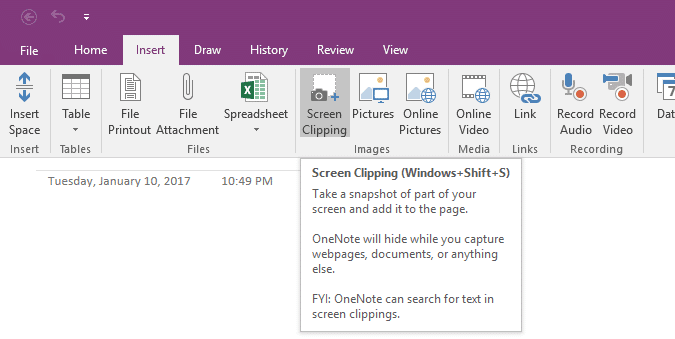
However, there is a workaround. You can assign a different shortcut key combination for screen clipping in OneNote 2016, by editing the registry. For instance, you can instead set Win + Shift + X to do a screen clip.
Change OneNote 2016 Screen Clip Shortcut Key
- Start the Registry Editor (regedit.exe)
- Go to the following location:
HKEY_CURRENT_USER\SOFTWARE\Microsoft\Office\16.0\OneNote\Options\Other
That’s for OneNote 2016, and doesn’t apply to the OneNote modern or UWP app. For earlier versions, use the appropriate branch. Example: “13.0” for version 2013 and so forth.
- Create a DWORD value named
ScreenClippingShortcutKey - Double-click
ScreenClippingShortcutKeyand set its value data accordingly. For Win + Shift + X, set the value data to 58 (hex).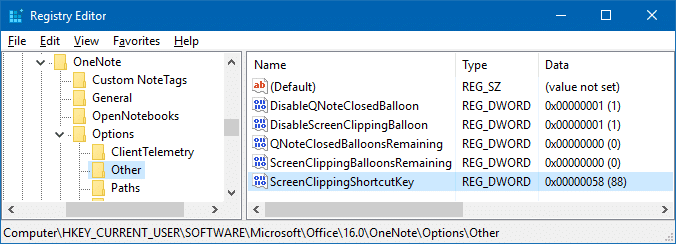 For a different shortcut key combination, set the appropriate hex value. Refer the hex codes chart in this site: List of Virtual Key Codes. The list is posted below for your convenience.
Key Decimal Hex a 65 41 b 66 42 c 67 43 d 68 44 e 69 45 f 70 46 g 71 47 h 72 48 i 73 49 j 74 4A k 75 4B l 76 4C m 77 4D n 78 4E o 79 4F p 80 50 q 81 51 r 82 52 s 83 53 t 84 54 u 85 55 v 86 56 w 87 57 x 88 58 y 89 59 z 90 5A - Exit the Registry Editor.
The above registry edit works in any version of Windows. But it’s especially useful if you’re running Windows 10 Creators Update and higher.
One small request: If you liked this post, please share this?
One "tiny" share from you would seriously help a lot with the growth of this blog. Some great suggestions:- Pin it!
- Share it to your favorite blog + Facebook, Reddit
- Tweet it!

Extremely useful, especially since I have long avoided OneNote’s screen clipping function. It was insufficient in Windows 7. Back then, I used ShareX.
I still do. It has lots of features other than preserving Windows 7’s Aero Glass.
@Fleet Command : Glad to hear. Nowadays I use ShareX (previously was using Greenshot)… it’s amazing. ShareX uses Greenshot’s image editor (opensource?) though.
you are the best it helped me
Great post. Worked perfectly. Thank you!
Very helpful, thanks!
Just checked my registry and I’m seeing no “ScreenClippingShortcutKey” in the folder mentioned….
@KL: “Create a DWORD value named ScreenClippingShortcutKey”
Hi, I tried it, It’s not working!
Windows 10, OneNote 2016
the same experience as me!
How do I drop the ‘shift’ in the Win+Shift+S?
PERFECTO ME FUNCIONO MUY BIEN…..
There is no Other folder under one note in Win 10 OneNote 2016
The screen clipping in my system set on Win+Shift+S but i wanted to change it to Win+Shift+X but it doesn’t work to change.
Thanks for these very clear instructions. Tried this solution. Win+Shift+X currently has no effect. Thought?
make sure, that you do NOT make the new DWORD with spaces in the end, ‘ScreenClippingShortcutKey’ not ‘ScreenClippingShortcutKey ‘
That can happen, if you just copy paste it from webpage.
unfortunately in actual W10Home it does not work :/
checked, there is no space in key name, restarted, but nothing changed :/
times ago it works on more machines
plls help, you can also send to email
thank you in advance
Thanks for information.
Work!/But dont forget reboot OneNote
I try to thanks