The Windows Task Manager does not list the creation time and date of running processes. To get this info, you may use one of these methods.
Process Explorer
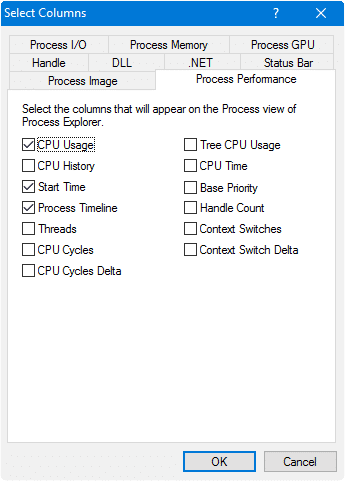
Process Explorer is an excellent tool from Microsoft Sysinternals which shows a list of the currently active processes, along with many other important details. To view the process creation time, click the View menu in Process Explorer, and click Select Columns… In the Process Performance tab, place a checkmark near the option Start Time, and click OK. Process Timeline column may be useful, as well.
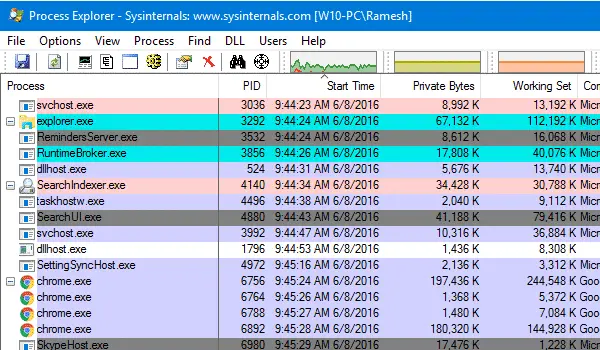
Now you’ll see an additional column named Start Time, shown at the last. You may drag the column to the beginning if needed.
WMI Script
Another option to get the list of running processes (along with their creation time) is using WMI, using CreationDate property in the Win32_Process class. Here is a small script:
Set objFS = CreateObject("Scripting.FileSystemObject")
Set objNewFile = objFS.CreateTextFile("ProcessList.txt")
strComputer = "."
Set objWMIService = GetObject("winmgmts:" _
& "{impersonationLevel=impersonate}!\\" _
& strComputer & "\root\cimv2")

Set dtmProcTime = CreateObject( _
"WbemScripting.SWbemDateTime")

Set colProcesses = objWMIService.ExecQuery( _
"select * from win32_process" )

For Each objProcess In colProcesses
strOutput = strOutput & _
objProcess.Name & " (" & objProcess.ProcessID & ")"

If NOT IsNull(objProcess.CreationDate) Then
strOutput = strOutput & vbTab & _
getmytime(objProcess.CreationDate)
End If

If NOT IsNull(objProcess.ExecutablePath) Then
strOutput = strOutput & vbTab & _
objProcess.ExecutablePath
End If
strOutput = strOutput & vbCrLf
Next
objNewFile.WriteLine strOutput

Function getmytime(wmitime)
dtmProcTime.Value = wmitime
getmytime = dtmProcTime.GetVarDate
End Function
Copy the above code to Notepad and save the file as Proclist.vbs. Double-click the file to execute it, and it creates a text file named ProcessList.txt in the same folder where the script resides.
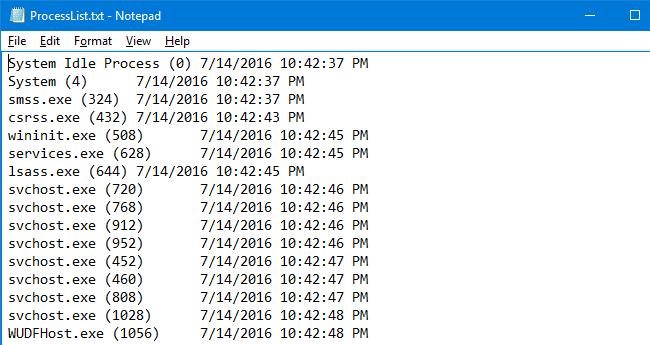
The text file contains the list of process names with their creation times, sorted in chronological order.
Using WMIC (WMI’s Command-line tool)
To get the list of running processes with their creation times, open a Command Prompt window (CMD.EXE) and type the following command:
WMIC PROCESS GET NAME, CREATIONDATE
Press ENTER. You’ll see output similar to below:
20160608113122.658330+330 chrome.exe
20160608114051.136181+330 ShellExperienceHost.exe
20160608114422.533003+330 NisSrv.exe
20160608114515.118887+330 dllhost.exe
20160608114916.195621+330 chrome.exe
20160608115108.793552+330 chrome.exe
20160608115516.446428+330 Greenshot.exe
The date/time stamp is shown in the following WMI time format:
yyyymmddHHMMSS
To understand the WMI date and time format and to convert it to usual format, see article Converting WMI Dates to a Standard Date-Time Format at Microsoft Windows Scripting Guide Website.
One small request: If you liked this post, please share this?
One "tiny" share from you would seriously help a lot with the growth of this blog. Some great suggestions:- Pin it!
- Share it to your favorite blog + Facebook, Reddit
- Tweet it!

