 When a software installation that uses the Windows Installer Package fails, you enable Windows Installer logging and re-run the setup to capture the output to a log file for troubleshooting. Logging can be done using the Registry Editor, the Group Policy Editor, or the msiexec.exe command with the required parameters.
The first two methods are documented in the article How to Enable Windows Installer Logging. The third method uses the msiexec.exe command-line parameter. Here is an example:
msiexec /l*v "%temp%\verbose.log" /i "C:\Users\Ramesh\Downloads\7z465-x64.msi"
This starts the 7-Zip .msi installation (7z465-x64.msi) and records all the results, including verbose output, to a log file named verbose.log in the %TEMP% folder.
Do you find it difficult to type the entire command-line every time you need to log application setups? You can implement this in the context menu for .msi files to launch the installation with verbose logging.
Add “Install (with Logging)” to .MSI Context Menu
- Create a folder named “Log” on the C: drive — i.e., C:\Log.
- Launch the Registry Editor by running regedit.exe.
- Navigate to the following branch:
HKEY_CLASSES_ROOT\Msi.Package\shell\
- Create a subkey named Open2.
- Select Open2, and set the (default) value to Install (with logging).
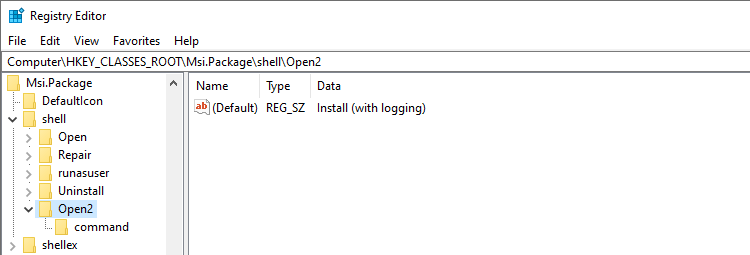
- Under Open2, create a subkey named command.
- Select command, and set the (default) value as follows:
msiexec.exe /l*v "C:\Log\verbose.log" /i "%1" %*
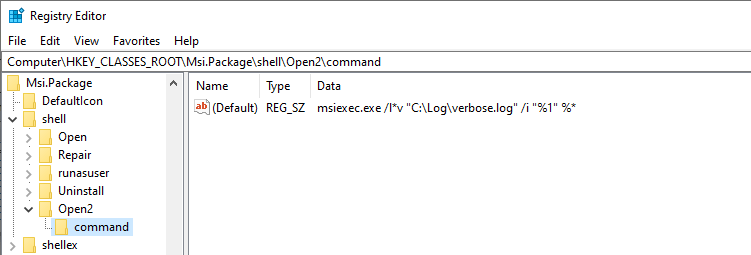
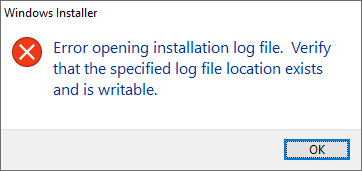
Note: The log file path is set as “C:\Log\verbose.log” in the above example. You may change the output file name and path accordingly if needed. However, ensure that the path exists. That existing log file with the same name will be replaced. If you need to append data to the existing log file, you need to include an additional command-line switch.
- Exit the Registry Editor.
- This adds the Install (with logging) option to the right-click menu for .msi files.
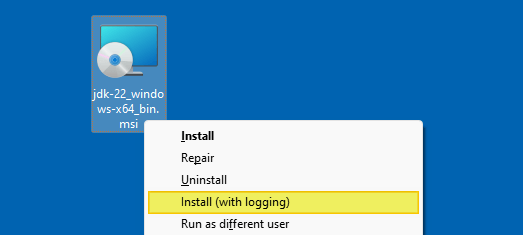
- Now, right-click on the software package you want to install with logging, and click Install (with logging).This starts the installation with logging. To confirm, you can check the msiexec.exe process and its command-line in Task Manager. (Ref: Configure Task Manager to display full path of running processes)

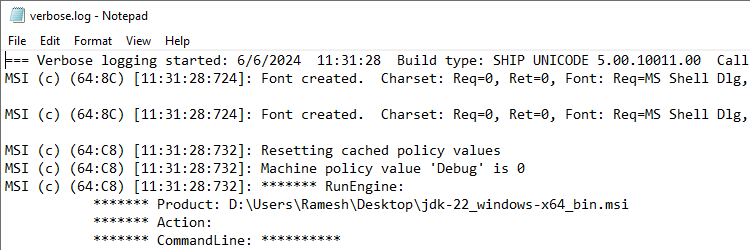
- After the setup completes, open the log file (“C:\Logs\verbose.log”) to analyze what went wrong during the setup.
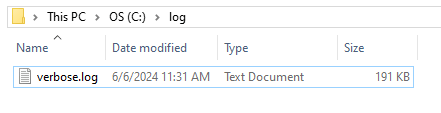
Error opening installation log file. Verify that the specified log file location exists and is writable.
Reading a Windows Installer log file
Analyzing and interpreting a Windows Installer log is another skill. For more information on working with Windows Installer logs, check out the following articles:
Richard’s Weblog: How to Interpret Windows Installer Logs
Windows Installer: Reading a Windows Installer log file.
Windows Installer Log File – How to read, analyze, and debug it
Wilogutl.exe – Win32 apps | Microsoft Learn
One small request: If you liked this post, please share this?
One "tiny" share from you would seriously help a lot with the growth of this blog. Some great suggestions:- Pin it!
- Share it to your favorite blog + Facebook, Reddit
- Tweet it!
