To restart Explorer to test a registry setting without a reboot, we usually terminate the Explorer shell (explorer.exe) using Task Manager. The Task Manager method is like forcibly killing the process instead of terminating it cleanly.
Jeff, a Software Design Engineer at Microsoft, posted a great tip on how to cleanly start and stop explorer.exe in Windows XP.
Quote:
If you are running Windows XP and want a cmd prompt with no strange environment variables set, do the following: Ctrl + Shift+Esc → File → Ctrl + New Task (Run…)
This will open a cmd window with only the basics. This is useful if you have killed Explorer and need to restart it. Explorer will keep the environment of the cmd window that started it.
If you want to cleanly shutdown Explorer without having it automatically restart: Start → Shutdown → Ctrl + Alt + Shift + Cancel.
Although the above method (originally written for Windows XP) would work for the Classic Start menu in Windows Vista and Windows 7, not everyone uses the Classic Start menu.
This article tells you how to exit explorer in Windows Vista and Windows 7 using the New Start menu.
Exit and Restart Explorer.exe Cleanly in Windows 7/Vista
Aaron Margosis of Microsoft tells you how to cleanly stop Explorer.exe on Windows Vista and Windows 7 if you’re using the default Start menu. This is using a hidden GUI option that’s present in Windows Vista and Windows 7 Start menu.
The hidden option named Exit Explorer shows up when you follow these steps:
Click the Start button. Press and hold the Ctrl & Shift keys and right-click on an empty area in the Start menu. You’ll see a Popup menu containing the two options, namely Exit Explorer and Properties.

Note that the above Popup menu can be launched by holding the Ctrl and Shift keys and then right-clicking on the Start menu power button itself.
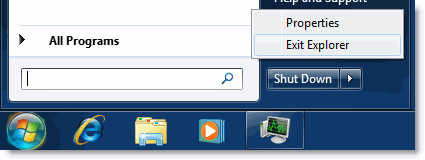
After selecting the Exit Explorer command, the shell (Start menu, Taskbar, and the Desktop) will terminate, and the other applications continue to run. You need to manually start a new explorer.exe process by launching the Task Manager. Use the Ctrl + Shift + Esc key sequence to launch Task Manager.
From the File menu of Task Manager, choose New Task (Run…), type explorer.exe , and click OK.
Keyboard shortcut for automation:
To launch the above popup menu using the keyboard, use the following key sequence:
- Press Ctrl+Esc to launch the Start menu.
- Press Right-arrow so that the focus is set to the power button.
- Press and hold Ctrl and Shift keys, and then press the Application key.
 This key has an image of a mouse pointer on a menu. Depressing this key will display the selected item’s shortcut window. This opens the Popup menu containing the Exit Explorer command. Press the X button on the keyboard to run the command.
Key sequence – Option #1: {CTRL} {ESC} {RIGHT} ({CTRL} {SHIFT}) {APPKEY} {X}
Key sequence – Option #2: {CTRL} {ESC} {RIGHT} ({CTRL} {SHIFT}) {F10} {X}
One small request: If you liked this post, please share this?
One "tiny" share from you would seriously help a lot with the growth of this blog. Some great suggestions:- Pin it!
- Share it to your favorite blog + Facebook, Reddit
- Tweet it!


Thank you – that worked, although it looks like may have to do this every time I reboot.
I’m hoping someone will actually be able to explain why I do not have the “Exit Explorer” option?… I’ve tried `{Ctrl>{Shift>{Click>, {Ctrl>{Shift>{RtClick>, {Ctrl>{Alt>{Click>`, etc. with no luck… very frustrating.
Here is my system info: Win7Ultimate, SP1, 64bit, PentiumD2.8, 4GB ram, no pen or touch
[Windows7Ultimate.x64.ExitExplorerMissing.png][1]
Perhaps it’s a SP1 “fix”?… or a problem with 64bit version?…)
In addition, is there a command line method to “Exit Explorer”?
Thanks in advance! ~ G
[1]: http://i.stack.imgur.com/XVyph.png
Worked great! thank you 🙂
Ah, did you(Geo) Hold down both the control and shift keys together before left/right clicking?
thanks man it really helped me alot to solve my issue regarding volume icon 🙂
You can try a combination of those two methods (the one you’ve reported, which rely on the new Start menu style, and the one which rely on the Classic Start menu style):
You can popup the classic start menu Shutdown dialog window, even when you are using the default start menu, by simply focusing the desktop (a single left-button click of your mouse over any part -including empty background- of your desktop is sufficient), then press ALT+F4 key accelerator.
With classic (start menu) Shutdown dialog window in foreground, simply holt CTRL+ALT+SHIFT keys while clicking the “Cancel” button and the trick is achieved.
Works! Used it to fix taskbar autohide problem. Many thanks.
Thanks dude exactly what I needed. My old installation of win 7 started to get wonky for some reason where the taskbar got screwed and would not work right.
This fixed it.
Is there some way to do this with a bat file?