Installing the graphics driver software for your video card (Intel, NVidia, etc.) adds the respective Control Panel entry in the Desktop right-click menu. If you don’t use the menu option, you can remove it from the registry to speed up right-click menu display on the desktop.
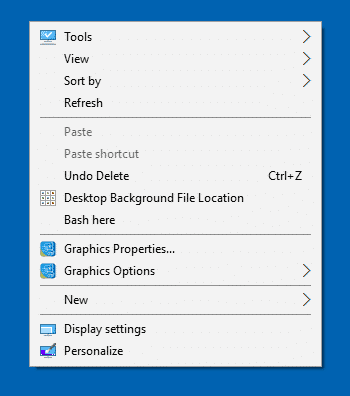
Remove NVIDIA Control Panel from Desktop Right-click Menu
- Launch the Registry Editor (
regedit.exe) - Navigate to the following branch:
HKEY_CLASSES_ROOT\Directory\Background\shellex\ContextMenuHandlers\NvCplDesktopContext
- Right-click
NvCplDesktopContext, click Export, and save the branch to a .reg file. - Right-click
NvCplDesktopContextand choose Delete - Exit the Registry Editor.
NVIDIA Control Panel is now removed from the context menu. Note that you can still access the NVIDIA software via the Control Panel, or by running the program manually.
Remove Intel Graphics Options from Desktop Right-click Menu
If you’re using Intel graphics, the respective driver software adds the following registry keys:
HKEY_CLASSES_ROOT\Directory\Background\shellex\ContextMenuHandlers\igfxcui
HKEY_CLASSES_ROOT\Directory\Background\shellex\ContextMenuHandlers\igfxDTCM
Deleting those keys would remove the Intel “Graphics Options” and “Graphics Properties” from the desktop right-click menu.
NVidia Control Panel GUID
{3D1975AF-48C6-4f8e-A182-BE0E08FA86A9}
Intel GUIDs
{9B5F5829-A529-4B12-814A-E81BCB8D93FC}
{3AB1675A-CCFF-11D2-8B20-00A0C93CB1F4}
One small request: If you liked this post, please share this?
One "tiny" share from you would seriously help a lot with the growth of this blog. Some great suggestions:- Pin it!
- Share it to your favorite blog + Facebook, Reddit
- Tweet it!

