If you’re wondering why Explorer shows certain files or folders with some icon sign in the corners, such as a white tick mark in a green box, or chevron in a blue box, or any other symbol such as a white tick in round green background regardless of the file type, then you’ll find this post helpful.
These are known as icon overlays, added by programs to provide additional information about the files or folders marked with the overlay symbol. For example, a backup program that you use may place an icon overlay for files and folders that are backed up, and a different symbol for files that aren’t included in the backup.
While icon overlays provide great visual clues, certain icon overlays can be distracting too. Here are some screenshots of Icon Overlays in Windows.
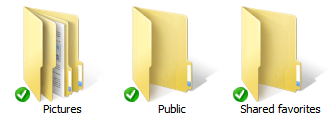
(Fig 1: Overlay added by Microsoft OneDrive, previously SkyDrive)
The following is a screenshot of the overlay added by Norton 360.

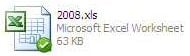
Mozy Backup adds the overlay that looks like below:
How to Find and Disable the Overlay Icons
Option 1: Using ShellExView
ShellExView from Nirsoft has always been very useful in troubleshooting problems in the shell environment all these years, and has proved it time and again. This tool can be used to disable shell extensions, including the Icon Overlay handers.
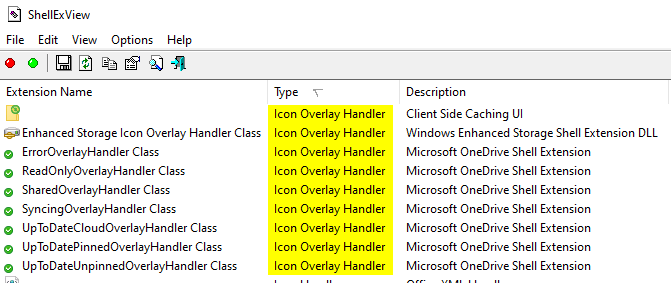
Sort the entries by Type column, check the Icon Overlay Handler entries, select the appropriate item. You can disable them via the right-click menu or toolbar.
If you’re not able to disable the entries, check the registry permissions for the corresponding keys.
Option 2: Using Autoruns for Windows
Download Autoruns from Microsoft Sysinternals. Right-click the Autoruns executable and choose Run as Administrator.
For some reason, the OneDrive extensions aren’t listed by Autoruns (v13.100), although I have the Hide Microsoft Entries and Hide Windows Entries options unchecked in the Options menu.
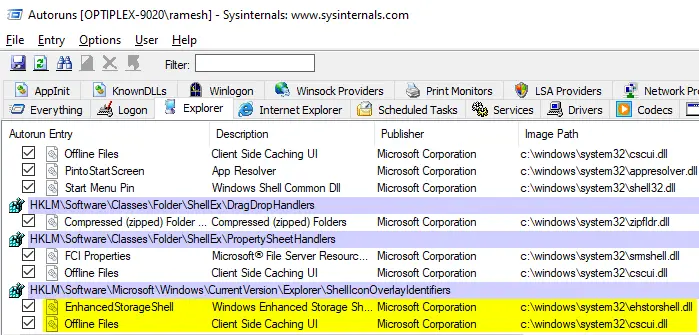
You can disable or delete the entries from there.
Inspecting the Icon Overlay Handlers Manually
The Icon Overlay Handlers are registered under the ShellIconOverlayIdentifiers registry key at:
HKEY_LOCAL_MACHINE\SOFTWARE\Microsoft\Windows\CurrentVersion\explorer\ShellIconOverlayIdentifiers
It shows the list of registered Overlay GUIDs.
Export the branch to a REG file to back it up, and then delete the unwanted icon overlay entry.
OneDrive GUIDs:
OneDrive adds 7 subkeys, and they are mentioned below along with the corresponding data (a GUID):
- OneDrive1 → {BBACC218-34EA-4666-9D7A-C78F2274A524}
- OneDrive2 → {5AB7172C-9C11-405C-8DD5-AF20F3606282}
- OneDrive3 → {A78ED123-AB77-406B-9962-2A5D9D2F7F30}
- OneDrive4 → {F241C880-6982-4CE5-8CF7-7085BA96DA5A}
- OneDrive5 → {A0396A93-DC06-4AEF-BEE9-95FFCCAEF20E}
- OneDrive6 → {9AA2F32D-362A-42D9-9328-24A483E2CCC3}
- OneDrive7 → {C5FF006E-2AE9-408C-B85B-2DFDD5449D9C}
Norton 360 GUIDs:
- OverlayExcluded → {4433A54A-1AC8-432F-90FC-85F045CF383C}
- OverlayPending → {F17C0B1E-EF8E-4AD4-8E1B-7D7E8CB23225}
- OverlayProtected → {476D0EA3-80F9-48B5-B70B-05E677C9C148}
Norton 360
Norton 360 adds a feature called “Backup Status Indicators” which clearly identifies which files have been backed up, which files are pending backup and which are excluded from backup. This feature is responsible for the Tick mark (green box) and double arrow (blue box) overlay icons.
A check in a green box means the file’s backup is current, while a chevron (») character in a blue box indicates a file that’s been changed since its last backup. Files excluded from the backup set display a slash in a gray box.
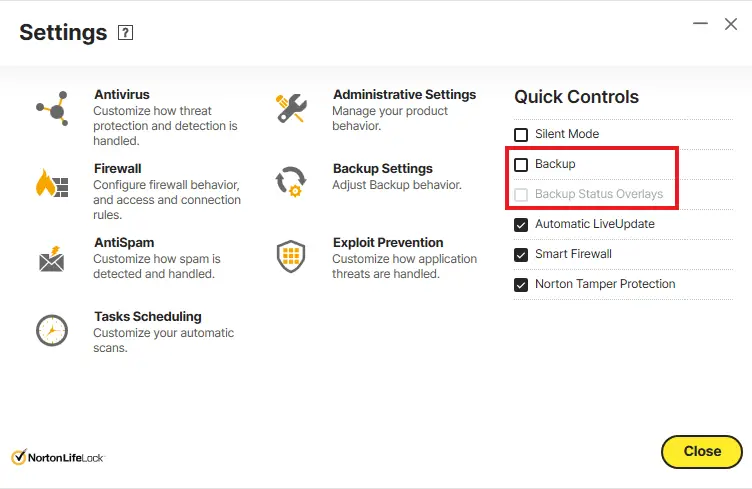
If you don’t need the backup indicators feature, you can turn it off by clicking Settings in the Norton 360 dashboard. The option you need to disable is Backup Status Overlays, or Backup Status Indicators in the earlier versions of Norton.
MozyHome Backup
Another program that adds a green checkmark to files, other than OneDrive, is the MozyHome Backup program. It adds a green checkmark overlay icon for files that are included in your backup list. To disable the overlay, select the Disable icon overlays in Windows Explorer checkbox in Mozy Options. Enabling this option hides the icon displayed next to files and folders in Explorer when a file is included in your backup list.
One small request: If you liked this post, please share this?
One "tiny" share from you would seriously help a lot with the growth of this blog. Some great suggestions:- Pin it!
- Share it to your favorite blog + Facebook, Reddit
- Tweet it!

Thanks for helping me get rid of the pesky little devils. I never would have guessed Norton was the perp.
quick question, once un ticking the notification do you need to reboot as I done this earlya and nothing happened?
can anyone help ASAP please
Awesome , thank you. This helped a lot. Those little icons were driving me nuts.
You will have to right click and “Refresh” your desktop after you uncheck the Norton “Backup Status overlay” box to make it take effect 🙂
Wow, thanks. Really thankful for this help. Also very helpful to hear how you solved it; it takes the mystery out of it and helps me to learn Windows. I actually looked up what a GUID is and navigated the registry. Not sure how you knew what registry to look at or that the problem was an “icon overlay”, but I imagine that comes with experience.
Awesome! I was wondering what made my icons look silly. Thanks for the tip on how to remove it. Yeah, I got Comcast and Norton came with their internet service for free, so I installed it, but always wondered what was up with the Green and Blue overlays. Thanks!
I am also troubled with these overlays on top of picture icons. Can’t sort my pictures, as I can hardly see them!!!
However, as a few other comments, I don’t have Norton.
HELP – any otber suggestions, they are driving my crazy.
Bless you for this solution, even though it took me awhile to find “Settings”
So easy when you know how! Thank You so much for the trouble you take to
give some of us relief from frustrations.
I used the Norton 360 solution.
Cheers, Giz
This is by my oppinion the WORST EVER implementation of an EXCELLENT feature, as you say. Intention is good, I admit, but who is the idiot at MS who decided to overlay and cover almost a 1/3 of icon for the sake of status info? This is especially true in DETAILED view, where status overlay covers the file icon to be almost unrecognizeable. You must actually READ file type to see, what type it is.
Instead, MS introduced STATUS COLUMN in explorer, which makes it increadibly easy to follow the status, while maintaining the visibility. But another moron at MS made this only a feature in case, when you login to PC with MS account, while with local login status column is gone and those overalyed checkboxes are displayed instead.
Thanks so much. I never Tweet, but after so much frustration and effort on trying to remove Norton overlays, you solved my problem and I tweeted it for you.
thanks soooooo much
I started reading and it sounded like a Windows 10 setting/problem which involved the registry.
The icons green and blue markings make it hard to look at, a problem!
I would like to thank you for the information you provided, I would have never through it was my Norton 360.
Keep up the great work1
OMG! This post is amazing. I was reading through the Microsoft Q&A thread ‘Green check marks on desktop icons’ and nobody had any useful info.
I don’t use Norton, I don’t use OneDrive, I don’t use Verizon’s software, none of that.
The registry key was exactly the right place to look. I found out that the MEGA client was the culprit.
Thanks again, just, one unrelated thing, could you _please_ cut down on the adverts on your website? It’s borderline impossible to use the way it is.
Im using the lastest Norton 2024 and there is no check box for Blue or green tick overlay bow to check to deactivate it just back ups on or off but coloured ticks remain.