Recently one of our readers faced a problem with Windows 7 Backup and Restore after installing and then uninstalling Acronis True Image. Nothing happened except for a brief hourglass when the user double-clicked the Backup and Restore item in the Control Panel.
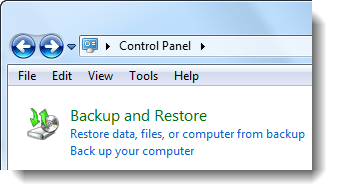
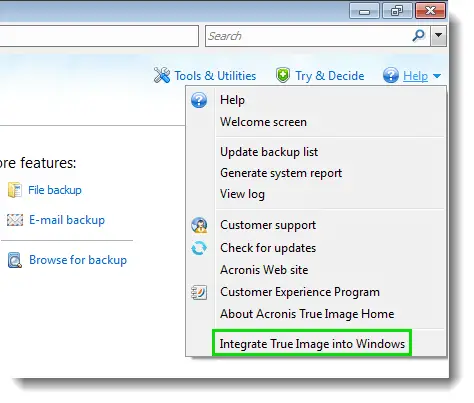
It turned out that the user had enabled the Windows integration feature in Acronis True Image software, which in turn replaced the Windows 7 Backup utility by modifying the Backup and Restore shell folder registry keys. And uninstalling Acronis True Image did not revert the original shell folder values for Backup and Restore, causing it inoperable. Running the file “C:\Windows\System32\sdclt.exe” manually did not launch the Backup utility either.
Fixing the Backup and Restore Registry Keys
- Click Start, type Regedit.exe and press Enter:
- Go to the following branch:
HKEY_CLASSES_ROOT\CLSID\{B98A2BEA-7D42-4558-8BD1-832F41BAC6FD} - Right-click on the key and choose Permissions…
(TrustedInstaller owns the above registry key and subkeys by default, and you may have to take ownership of the keys to restore the default values. ResourceDLL and ResourceID seem to be the two values that Acronis True Image modifies to integrate with the shell.) - Click Advanced, and select the Owner tab.
- Look at the Current owner information. If TrustedInstaller is currently the key owner, select Administrators from the list below, select Replace owner on subcontainers and objects, and then click OK.
- Select Administrators, allow Full Control permission, and click OK.
- Run the Windows 7 Backup Restore – Shell Folder Registry Fix. Download Fix-W7BackupKeys.zip, unzip, and run the REG file.
You’ve fixed the Windows 7 Backup shell folder key. Next, restore TrustedInstaller as the owner of the above registry key, and revoke Full Control permission for the Administrators group.
Reinstate TrustedInstaller as the Owner
- Right-click on the {B98A2BEA-7D42-4558-8BD1-832F41BAC6FD} key and choose Permissions…
- Click Advanced, and select the Owner tab.
- Click Advanced, and select the Owner tab.
- Click Other users or groups… button.
- Type NT Service\TrustedInstaller in the text box, and click OK. This adds the TrustedInstaller group to the listing.
- With TrustedInstaller selected, select Replace owner on subcontainers and objects, and then click OK.
- Select Administrators, uncheck Full Control, and click OK.
Editor’s note: The Windows 7 Backup issue discussed in this article is not to be confused with the similar Windows 7 Backup problem (“Set up backup” or click “Change settings” links within the Backup and Restore applet non-functional, which is a third-party shell extension saga.)
One small request: If you liked this post, please share this?
One "tiny" share from you would seriously help a lot with the growth of this blog. Some great suggestions:- Pin it!
- Share it to your favorite blog + Facebook, Reddit
- Tweet it!

Does not work for me, Running the Fix-W7BackupKeys.reg displays popup “Cannot import Fix-W7BackupKeys.reg: Not all data was successfully written to the registery. Some Keys are open by the system or other processes.”
Argh, this is so frustrating! After uninstalling Acronis 2014 True Image due to “Monitor for Acronis True Image Backup Archive Explorer has stopped working” (TimounterMonitor.exe App Crash) now I am left with no backup utility whatsoever….way to go Acronis.
Many thanks to Ramesh and petermat! I just recently had the same exact issue. Unbelievable Acronis didn’t restore this registry entry after uninstalling! Anyway I had the same error the Tim mentioned BUT when ahead and applied petermat’s solution…and it worked!! Thanks to all.
Thank you, thank YOU, THANK YOU! 😛
Thanks a lot. This really fixed 0x81000036 bug on restore.
ugh, I must be the only dummy here. The fix did not fix. Same no action upon clicking Backup and Restore. I was a previous Acronis user. Win 7 Home Premium, Service Pack1
Rebooted… redid the process… no luck.
Ideas?