When you double-click a library to view the contents, the following error may occur.
“<libraryname>.library-ms” is no longer working.
For example, the following error may occur when opening Documents library
“Documents.library-ms” is no longer working.
This library can be safely deleted from your computer. Folders that have been included will not be affected.
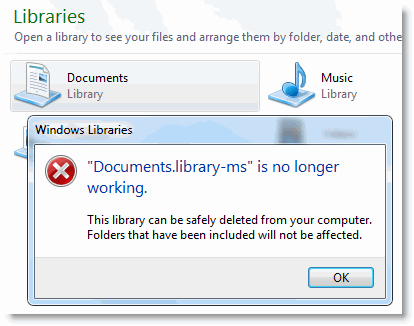
Similarly when opening the Music, Pictures or Videos library
“Music.library-ms” is no longer working.
“Pictures.library-ms” is no longer working.
“Videos.library-ms” is no longer working.
To fix this problem, open Windows Explorer, right-click on the corresponding library and choose Delete. Click Yes when asked for confirmation.
Note: Deleting a library does not delete the contents of the included folders. However, you may need to include your folders manually, if needed.
Then, in the navigation pane of Windows Explorer, right-click Libraries and click Restore default libraries.
This recreates the library that was deleted earlier. This option only restores the default libraries.
One small request: If you liked this post, please share this?
One "tiny" share from you would seriously help a lot with the growth of this blog. Some great suggestions:- Pin it!
- Share it to your favorite blog + Facebook, Reddit
- Tweet it!

Restored Library, Thanks BUT when I try to open any folder in any of the libraries I get a message “This file does not have a program associated with it for performing this action. Please install a program, create as association in Default Programs”.
what do I do now?
wow, fast and SIMPLE!!!! Thank you so much!!!
thanks mate….it works….
worked first time thanks a lot easy fix. Itried system restore and it didn’t work but this did
THANKS !!! It worked … I was SO SCARED to click “delete” documents and pictures then “restore them again” …
Thanks. This worked 100% quick.
Thanks. Worked like a charm!
This didn’t work at all.
Thanks – very useful – solved my problem
thanks its work.