Windows saves the desktop icon layout when the user logs off, and the setting is read during logon. Recently I came across a case where the desktop icons rearrange to their default positions after a restart or logoff/login cycle.
This turned out to be a Permissions issue with a registry key, which kept Windows from writing to it. Here are some fixes for this issue, which apply to all versions of Windows, including Windows 10.
Fix for Desktop Icons Layout Not Getting Saved
1) Fix the MruPidlList Registry key in Windows 10
The desktop icon position and folder views may not be retained if malware has modified some settings under the MruPidlList registry key. To fix the settings, follow these steps:
- Start the Registry Editor (
regedit.exe) - Go to the following registry branch:
HKEY_CLASSES_ROOT\CLSID\{42aedc87-2188-41fd-b9a3-0c966feabec1}\InProcServer32 - Double-click (default) and set its value data to:
C:\Windows\System32\windows.storage.dll
- Repeat the same in the following registry path:
HKEY_CLASSES_ROOT\Wow6432Node\CLSID\{42aedc87-2188-41fd-b9a3-0c966feabec1}\InProcServer32 - Then, delete the following branch under
HKEY_CURRENT_USER. Do NOT delete the one underHKEY_CLASSES_ROOT.HKEY_CURRENT_USER\Software\Classes\CLSID\{42aedc87-2188-41fd-b9a3-0c966feabec1}(The above branch is to be deleted irrespective of the Operating System.)
- Exit the Registry Editor.
REG File to automate the above three tasks: Download w10-desktop-icons-guid-fix.zip and save to desktop. Run the REG file to apply the contents to the registry.
Note: If you’re unable to change the value data and getting a permissions error, you need to take ownership of the above registry locations, and then update the value data. For information on how to change ownership, refer to the article Take ownership of a registry key.
2) Fix the desktop folder registry key (all versions of Windows)
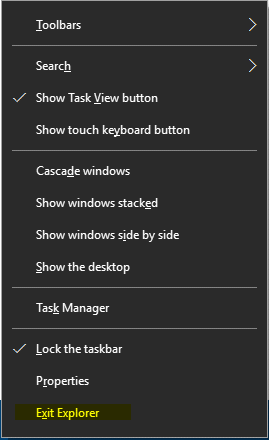
Step 1: Terminate Explorer (Shell) Cleanly
- Open the Registry Editor (
regedit.exe) - Press and hold the Ctrl & Shift keys, and right-click on an empty area in the Taskbar.
- Click the Exit Explorer option. This closes the Explorer shell cleanly.
Step 2: Fix Registry Key Permissions
- Switch to the Registry Editor window, and navigate to the following key:
HKEY_CURRENT_USER\Software\Microsoft\Windows\Shell\Bags\1\Desktop
- Right-click on the
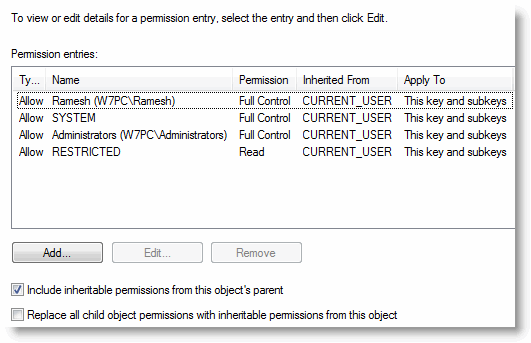
Desktopkey, and choose Permissions. - Click Advanced, and delete any “Deny” entries if present.
- Make sure that your user account has “Full Control” (Allow) Permissions for the registry branch.
- Click OK, OK.
- See if you can create a sample registry value in the Desktop key to test if you can write to the branch.
Step 3: Reset the Desktop Icon Layout Registry Key
This step is required only if the problem remains unresolved although you’re able to write to the Desktop registry key.
- Using the Registry Editor, rename the key
DesktoptoDesktop.old - Exit the Registry Editor.
- Press Ctrl + Shift + Esc to open Task Manager.
- From the File menu, click Run.
- Type
explorer.exeand press Enter. - Customize the desktop icons layout as you want.
- Log off and log back in to check if the icon positions are retained.
One small request: If you liked this post, please share this?
One "tiny" share from you would seriously help a lot with the growth of this blog. Some great suggestions:- Pin it!
- Share it to your favorite blog + Facebook, Reddit
- Tweet it!


“Switch to the Registry Editor window” . . . well, normally I would click Start | Run and type “regedit” to do that. But you had me stop Explorer in step 1. Maybe you could give us a clue how to start the registry editor after stopping Explorer? Or, maybe step 0 should be to start the registry editor so that the user can ALT TAB to it after stopping Explorer.
Use Ctrl+Alt+Del to open Task Manager and then click start new task. Type regedit, and away you go…
I did everything here but STILL the icons default. I might add this happened AFTER I cleared myPC of a virus. I reloaded a mirror copy of the whole drive from 2 weeks ago and evrything is fine but this icon rearrangement still happenes. I’m stumped.
I have the same problem as “john neeting”; I have Windows 7 Ultimate 64 Bit, and followed all the instructions, including resetting the Desktop Layout Key, but icons still rearrange themselves after each reboot. Additionally, autoarrange and align icons to grid are turned off (unchecked), but no dice…! 🙁
I am having the same problem as willbfun.
After removing several pieces of malware, all is OK except the system except that, on log off or restart, the icons reset to a default arrangement on the left and to medium size from a previously set small size.
Please provide another solution as I have tried the one you offered without success.
Same problem as Rob S. A user probably did something stupid on their machine and now “noticed” this issue. I did the steps above to no avail.
Any other recommendations?
This same problem started happening to me as well; right after a MS Update several months ago. I’ve tried everything, including your instructions and NOTHING has worked. If you ever find a real fix for this… I’d love to hear about it.
Still need to know the registry key where the Icon’s desktop location is stored. If I can find the Reg Key I am looking for then I should be able to arrange my Icons on a “template” PC for a user, then go to the reg key where the desktop layout is and export the key. Then I should be able to go to a PC which has been imaged from the template PC and copy the Icon/shortcut etc to the public desktop folder, for example, import the reg key from the template system and when I log in as the user the Icon will be where it was on the “template” PC.
In other words I want to clone the physical location on the desktop of an Icon via a reg import such that all I need to do is put the Icon in the Default Profile desktop folder or the Public Desktop folder and the via a reg import know that the icon will show up on the desktop in the exact location it was at on the PC I use for a “template” for the Icon location.
I do not want a 3rd party program to do it for me I just want to know what reg key I need to export/import to clone the desktop location of an Icon for a user or as the case may be, all users, from one PC to another identical PC.
Thanks for the help,
Ralph
Thanks for the help
I’ve tried this, it didn’t work for me – I deleted the “Desktop” key under Bags\1, and it never got re-created. Simply refreshing the desktop is enough for all icon positions to reset.
To run a program without Explorer running, give it the three key (Ctrl-Alt-Del) and from the next screen you see, Start Task Manager. In Task Manager’s Applications tab, press the New Task button. This will give you a dialog where you can enter the name of a program (like explorer.exe).
what exactly was the fix here ?????, all i seem to have done was to delete any denied entries and make sure my account was allowed, which it was.
I also tried all of the above steps without success. Vista Ultimate 64
OS: Vista Home Premium (64 bit).
I had fixed auto-arrange problem maybe a year ago with a 3rd party program, LAYOUT.DLL and associated key LAYOUT.REG. Last week after removing some malware (which wasn’t a virus and didn’t seem to be causing a problem but turned up in a scan), the problem reappeared.
I originally thought auto-arrange had come back after running Memory test and Drive test, but that’s only when I discovered it because of the restart. Can’t say whether icons were rearranged after Memory Test because I didn’t have to look at the icons to run Drive Test. When I started Memory Test I hadn’t recently rebooted so can’t say the problem definitely preceded it.
Besides removing malware, I had installed one seemingly unrelated Windows update, which was only for Windows Defender.
I tried merging again LAYOUT.REG, which made no difference. Then I tried System Restore, which made Windows Defender complain that it needed to update but otherwise made no difference. I am certain that the icon defaulting problem did not precede that restore point, since it was from only about 12 hours before and the problem is anything but subtle. I turn the computer off when I’m not using it.
I’ve tried everything in this blog (permissions were all OK so no change there) up to and including renaming the Desktop key to OldDesktop and restarting Explorer. Now I’m really puzzled! Not only did it make no difference in the layout behavior, but I really expected Explorer would create a new Desktop key. It didn’t (yes, I refreshed the regedit display)!
I believe LAYOUT.DLL is still working to some extent because if I enable auto-arrange or disable snap-to-grid and then restart Explorer I find those settings restored (but the icons defaulted).
I’m not a real Windows geek, just an experienced user with a problem. I use regedit only when I have trustworthy-looking instructions to follow.
CCleaner found a lot of registry issues, and I let it fix the ones I understood. The rest were missing shared dll’s for iTunes, invalid firewall settings (which I don’t dare fix because it took me a long time to get Vista, XP and 7 to talk to each other), unused file extensions (which I fixed with discretion) – nothing obviously related to this problem.
I’ve found this blog quite instructive even though I still have this rather aggravating problem. I’d been using Restart and later Task Manager to exit/restart Explorer until I found here the right way to do it.
Anything else I can try do to fix it?
I am using virtual XP (VXP) on a windows 7 machine.
I’m stuck at the step, “1. Click Start, Turn Off computer.”
In VXP, when I click Start, the only option I have is to “Log Off (user name)”.
So how do I get past the first step of this fix?
Thanks!
Step 1 did it! Thank you for the info. Those desktop icons where driving me batty!
Thank you. On my computer only works on the 3 step … ;D
When I went to those registry keys, the values I was supposed to change were already what you said I was supposed to replace them with. However, I still have the desktop icon problem. Any ideas?
Didn’t work for me on Windows 10 Pro Version 10.0.18363. The dll setting was already there in steps 1 and 2, and in step 3 I didn’t have the branch to delete. Logging out and back in reverted to previous icon positions.
So I have searched everywhere for an answer to this issue and could not find a solution that worked for me. Up until yesterday I was using ReIcon to restore my icon positions. But after every game launch that was at a different resolution I would still have to refresh the icon positions to where I had them before. That was until I was looking through the windows logs trying to find out why one of my games started crashing all of a sudden and noticed an error: event iD 455 esent svchost tilerepositorys… … … to make a long story short after applying this fix for that itexperience.net/2019/11/06/1-minute-fix-for-event-id-455-esent-error/
I launched a game that I knew before hand I was going to have to restore my icon positions back, but then I noticed they did not change this time. So I moved a few around, then launched another game. They stayed, even after I rebooted. Apparently this was my issue with icons not staying in place. I hope this helps reduce the annoyances of this issue for someone else as well.