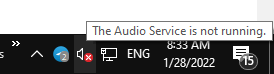
The speaker icon in the Taskbar’s notification area may appear with a red cross. When you hover the mouse pointer, it may say, “The Audio Service is not running.”
Clicking the speaker icon may launch the Get Help or the audio troubleshooter. This happens if the Windows Audio service is turned off. As a result, there will be no sound output in your device.
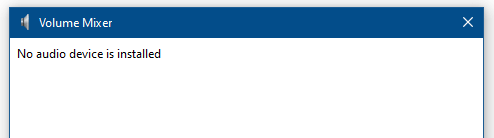
Launching the Volume Mixer by running Sndvol.exe would show the following error:
No audio device is installed
Resolution
To restore the audio playback functionality on your Windows 10 or 11 PC, follow these steps:
- Click Start, type services.msc in the Start Search box.
- Scroll down the list of services, right-click Windows Audio, and select Start.
- Double-click Windows Audio and set its Startup Type to Automatic.
- In the Log On tab, make sure that “Log on as:” is set to “Local Service”.
- Double-click Windows Audio Endpoint Builder and set its Startup Type to Automatic.
- See if you can start Windows Audio Endpoint Builder and Windows Audio.
- Exit the Services console.
In some cases, the Windows Audio service may not start, and you get one of the following errors:
Windows could not start the Windows Audio service on Local Computer.

Error 1075: The dependency service does not exist or has been marked for deletion.
(or)
Error 1068: The dependency service or group failed to start
To resolve the error 1068, ensure that the Windows Audio Endpoint Builder service is started and set to Automatic start.
Error 1075 occurs if the Windows Audio Endpoint Builder Service is deleted. You can verify that by launching the Services MMC.
Windows Audio Endpoint Builder Service is missing?
It appears that the Windows Audio Endpoint Builder service goes missing in the Services MMC (services.msc) on some systems for unknown reasons. The user may have inadvertently deleted the service. As a result, the Windows Audio service wouldn’t start.
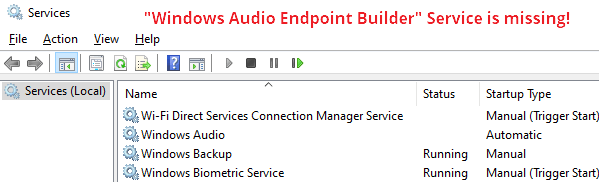
To resolve the issue, reinstate the Windows Audio Endpoint Builder service using the following registry fix:
Windows Registry Editor Version 5.00

; Restores the Windows Audio Endpoint Builder service

[HKEY_LOCAL_MACHINE\SYSTEM\CurrentControlSet\Services\AudioEndpointBuilder]
"Description"="@%SystemRoot%\\System32\\AudioEndpointBuilder.dll,-205"
"DisplayName"="@%SystemRoot%\\system32\\AudioEndpointBuilder.dll,-204"
"ErrorControl"=dword:00000001
"FailureActions"=hex:80,51,01,00,00,00,00,00,00,00,00,00,03,00,00,00,14,00,00,\
00,01,00,00,00,60,ea,00,00,01,00,00,00,c0,d4,01,00,00,00,00,00,00,00,00,00
"Group"="AudioGroup"
"ImagePath"=hex(2):25,00,53,00,79,00,73,00,74,00,65,00,6d,00,52,00,6f,00,6f,00,\
74,00,25,00,5c,00,53,00,79,00,73,00,74,00,65,00,6d,00,33,00,32,00,5c,00,73,\
00,76,00,63,00,68,00,6f,00,73,00,74,00,2e,00,65,00,78,00,65,00,20,00,2d,00,\
6b,00,20,00,4c,00,6f,00,63,00,61,00,6c,00,53,00,79,00,73,00,74,00,65,00,6d,\
00,4e,00,65,00,74,00,77,00,6f,00,72,00,6b,00,52,00,65,00,73,00,74,00,72,00,\
69,00,63,00,74,00,65,00,64,00,20,00,2d,00,70,00,00,00
"ObjectName"="LocalSystem"
"RequiredPrivileges"=hex(7):53,00,65,00,43,00,68,00,61,00,6e,00,67,00,65,00,4e,\
00,6f,00,74,00,69,00,66,00,79,00,50,00,72,00,69,00,76,00,69,00,6c,00,65,00,\
67,00,65,00,00,00,00,00
"ServiceSidType"=dword:00000001
"Start"=dword:00000002
"Type"=dword:00000020

[HKEY_LOCAL_MACHINE\SYSTEM\CurrentControlSet\Services\AudioEndpointBuilder\Parameters]
"ServiceDll"=hex(2):25,00,53,00,79,00,73,00,74,00,65,00,6d,00,52,00,6f,00,6f,\
00,74,00,25,00,5c,00,53,00,79,00,73,00,74,00,65,00,6d,00,33,00,32,00,5c,00,\
41,00,75,00,64,00,69,00,6f,00,45,00,6e,00,64,00,70,00,6f,00,69,00,6e,00,74,\
00,42,00,75,00,69,00,6c,00,64,00,65,00,72,00,2e,00,64,00,6c,00,6c,00,00,00
"ServiceDllUnloadOnStop"=dword:00000001
- Copy the above contents to Notepad.
- Save the file with .reg extension — e.g.,
audioendpoint_service.reg - Double-click the registry file to apply the settings to the registry. Click Yes when prompted for confirmation.
- Open the
C:\Windows\System32folder and verify if the fileAudioEndpointBuilder.dllexists. If it doesn’t, you may need to run DISM and SFC to restore the file.AudioEndpointBuilder.dllis the DLL for the Windows Audio Endpoint Builder service. - Restart Windows for the changes to take effect.
The audio functionality should have been restored now!
One small request: If you liked this post, please share this?
One "tiny" share from you would seriously help a lot with the growth of this blog. Some great suggestions:- Pin it!
- Share it to your favorite blog + Facebook, Reddit
- Tweet it!
