When testing network connectivity or when performing other troubleshooting tasks, you may need to turn off the Windows Firewall temporarily. To quickly disable or enable the Windows Firewall, you may use the Netsh.exe command-line in Windows 10 and Windows 8.
Enable and Disable Windows Firewall Quickly using Command-line
To disable the Windows Firewall, run the following command from elevated Command Prompt.
netsh advfirewall set allprofiles state off
This turns off Windows Firewall for all the profiles.
- Domain profile applies when a computer is connected to its Active Directory domain. If the member computer’s domain controller is accessible, this profile will be applied.
- Private profile applies when a computer is connected to a private network location. By default, no networks are considered private—users must specifically mark a network location, such as their home office network, as private.
- Public profile is the default profile applied to all networks when a domain controller is not available. For example, the Public profile is applied when users connect to Wi-Fi hotspots at airports or coffee shops. By default, the Public profile allows outgoing connections but blocks all incoming traffic that is not part of an existing connection.
To turn off Windows Firewall for a particular profile, use the following command-line examples:
netsh advfirewall set privateprofile state off
netsh advfirewall set publicprofile state off
netsh advfirewall set domainprofile state off
netsh advfirewall set currentprofile state off
You can also use the currentprofile parameter. When you use currentprofile, the command effects changes for the currently active firewall profile (Public, Private or Domain). For example, your laptop may use the domain profile when at your office room, public profile when at the cafeteria etc.
To know the state of Windows Firewall for every profile, run this command:
netsh advfirewall show allprofiles
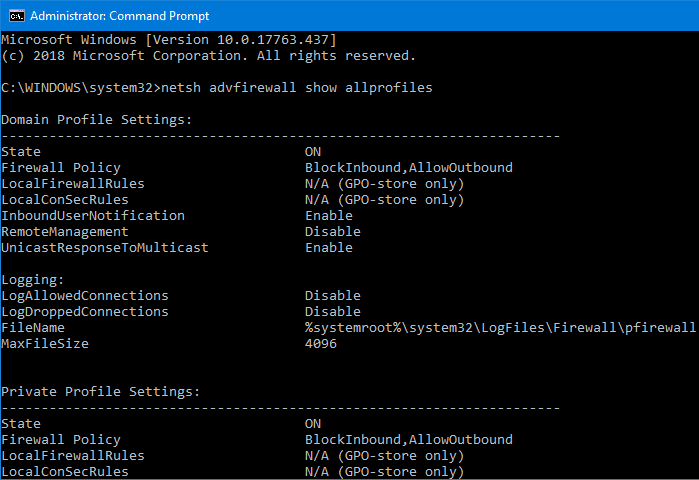
The State (ON|OFF) field tells you if the Firewall is enabled for a profile or not.
Windows Firewall status can also be verified using the Security Center (or Windows Firewall security center).
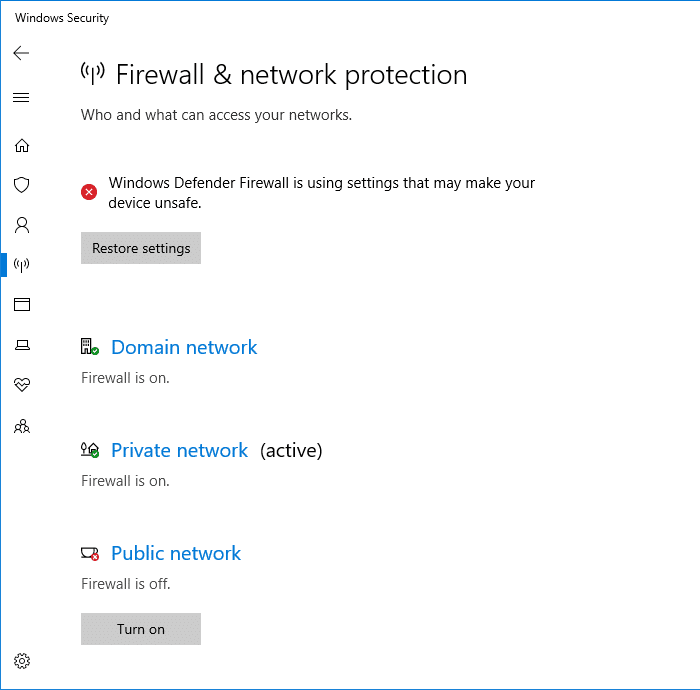
The moment you set the Windows Firewall state to OFF for any profile, you’ll immediately see this notification in the taskbar.
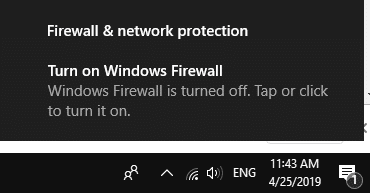
Enabling Windows Firewall
To enable the firewall, use the on parameter with the above command-line:
Examples:
netsh advfirewall set privateprofile state on
netsh advfirewall set publicprofile state on
netsh advfirewall set domainprofile state on
You may create desktop two shortcuts to enable and disable the Windows Firewall. To run the commands as administrator, right-click on the shortcut and choose Run as administrator. Or right-click the shortcut properties, click Advanced and tick the Run as administrator checkbox and click OK. Double-clicking the shortcut run the Netsh… command elevated, after you click the Continue button in the UAC confirmation dialog.
Using PowerShell
From PowerShell (administrator) prompt, run the following command to disable Windows Firewall for all profiles.
Set-NetFirewallProfile -Profile Domain,Public,Private -Enabled False
To enable it back, run:
Set-NetFirewallProfile -Profile Domain,Public,Private -Enabled True
That’s it!
One small request: If you liked this post, please share this?
One "tiny" share from you would seriously help a lot with the growth of this blog. Some great suggestions:- Pin it!
- Share it to your favorite blog + Facebook, Reddit
- Tweet it!

Wow! Thanks!! I am truly grateful for this article !!!