By default, users can insert a USB disk in the system and read from, or write to it without limitation. There is a policy setting that helps system administrators to restrict the ability of users to write to USB storage devices.
Disable writing to USB drives
- Launch Regedit.exe and navigate to:
HKEY_LOCAL_MACHINE\SYSTEM\CurrentControlSet\Control\StorageDevicePolicies
(If the
StorageDevicePolicieskey does not exist already, you need to create it.) - Create a new DWORD value named
WriteProtect - Double-click
WriteProtectand set its data to1 - Exit the Registry Editor.
The above registry edit corresponds to the following Group Policy Removable Disks: Deny write access setting located at the following branch:
Computer Configuration > Administrative Templates > System > Removable Storage Access
With this setting enabled, users will see the error The disk is write-protected. when trying to write to USB disks.
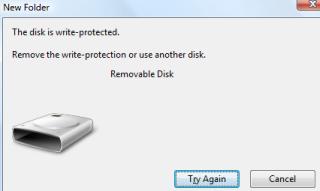
If the above Group Policy setting is enabled, users will see the following message when attempting to write to USB devices.
“You’ll need to provide administrator permission to copy to this folder”
Administrators can implement this setting as part of a security strategy to prevent data theft using USB devices. This setting works fine in Windows XP through Windows 10.
One small request: If you liked this post, please share this?
One "tiny" share from you would seriously help a lot with the growth of this blog. Some great suggestions:- Pin it!
- Share it to your favorite blog + Facebook, Reddit
- Tweet it!
