 Desktop Background Slideshow is a neat little feature in Windows 7 which helps you shuffle your desktop background from a image file store folder, at predefined intervals. But, as Windows doesn’t show the file name of the currently displayed wallpaper, it becomes a problem if you have thousands of images in a store folder and you need to find the file name and the directory location of the currently displayed wallpaper.
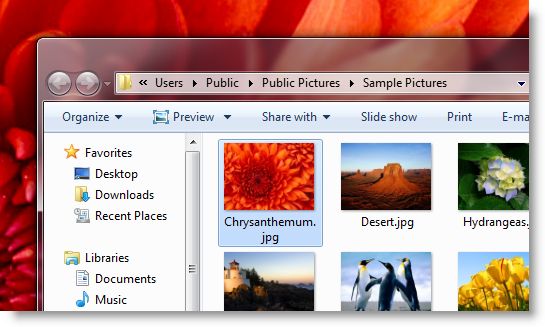
Here is a small script which adds the Desktop Background File Location option in the Desktop context menu, which opens the current wallpaper file’s target folder and selects the file.
Note: This script doesn’t work in Windows 8 or 10. If you’re using Windows 8/8.1 or Windows 10, see article How to Determine the Current Wallpaper File Name and Path in Windows 8 and 10.
1. Download WPTargetDir.zip, unzip and extract the contents to a folder.
2. Move the file WPTargetDir.vbs to the Windows directory.
3. Double-click Add.reg to add the context menu option.
4. Hold the SHIFT key down and right-click on an empty area in the Desktop. You’ll see the Desktop Background File Location option.
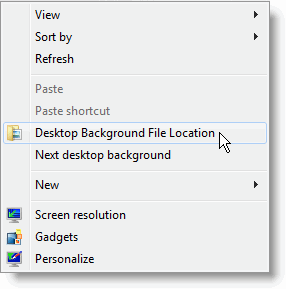
Selecting this option gets the current wallpaper file name from the registry, opens the target folder and selects the image file.
To remove/uninstall this option, run the file undo.reg, and then manually delete WPTargetDir.vbs manually from the Windows folder.
More Information
The script queries the wallpaper source file name from the following registry key:
HKEY_CURRENT_USER\Software\Microsoft\Internet Explorer\Desktop\General
The information is stored in a string value named WallpaperSource
One small request: If you liked this post, please share this?
One "tiny" share from you would seriously help a lot with the growth of this blog. Some great suggestions:- Pin it!
- Share it to your favorite blog + Facebook, Reddit
- Tweet it!

The script works whimsically. It either shows correst file in the wallpaper Folder (L:\My Pictures\Twitter Pictures) or opens my User Folder (C:\Users\Amarnath Wanchoo) depending on its mood.
I have not been able to efit the script to always work properly. can you please help
Amarnath Wanchoo
Great script – just what I was looking for. I Really LOVE it <3
But sometimes (not often) it doesn't select the image file.
Not a BIG problem though. Just close the window and right-click again 🙂
Greetings from Sweden.
Michael Olsen
This is so helpful. Now in 2020 I am still finding great ways to tweak Windows 7!
Thank you Ramesh!