Here is a nice Internet Explorer extension which copies the current webpage title and address to the Windows clipboard.
The script from billsway.com was originally written for earlier Internet Explorer versions, and I’ve modified a line – thanks to IE MVP Socrates (Soc) Trikes – to make it work in all versions of Internet Explorer, include IE in Windows 10.
Download Title_URL.zip, unzip and extract the contents to a folder. Move the file Title_URL.htm to the C:\Windows\Web directory. Then, right-click Title_URL.reg and choose Merge.
This adds the following items in Internet Explorer:
- Copy Title & URL Context menu option
- Copy Title & URL Toolbar button
- Copy Title & URL Tools menu option
Copy Title & URL – Context Menu Extension
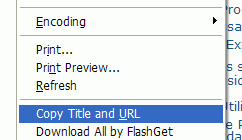
Copy Title and URL Context menu item
To copy the Title and the URL of the current Webpage, simply right-click somewhere on the Webpage, and click Copy Title and URL. The Title and URL are copied to the Clipboard, in the following format:
About – The Winhelponline Blog:
https://www.winhelponline.com/blog/about/
You’ll also see a confirmation message as below:
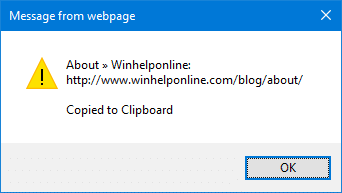
You can turn off the confirmation message by editing the file Title_URL.htm located in “C:\Windows\Web” using Notepad (Run as Administrator). You just need to change the following line:
var showConfirm=1
to
var showConfirm=0
The folder path is hard-coded for C:\Windows\Web in the REG file. If Windows is installed in a different location in your system, you need to edit the REG file using Notepad and update the drive-letter accordingly.
Editor’s Note: I’m using this extension for a long time now, and it’s far more convenient for me to access the command from the Internet Explorer Toolbar. Here is how to add this extension to the Internet Explorer Toolbar.
Copy Title & URL – Toolbar Button
If the Copy Title and URL button (with a globe icon) does not automatically appear in the Toolbar, you need to customize the Toolbar in order to display the button. To do so, right-click the Command bar, point to Customize Command Bar, and then click Add or Remove Commands.
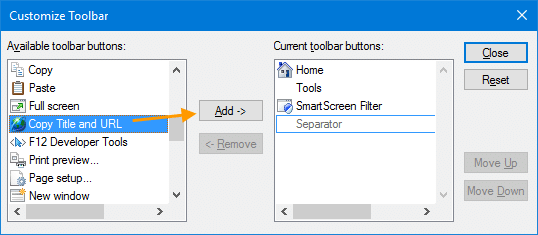
Click the button you want to add in the Available toolbar buttons list, and then click Add. When you’re done, click Close.
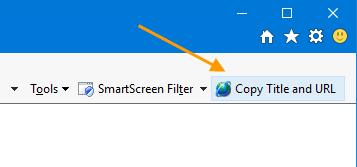
That’s it! As a bonus, you’ll also see this command under Internet Explorer’s Tools Menu.
Related Posts
- How to Copy the Title and URL of All Open Tabs in Internet Explorer
- How to Copy URL and Title of All Open Tabs in Chrome and Firefox
One small request: If you liked this post, please share this?
One "tiny" share from you would seriously help a lot with the growth of this blog. Some great suggestions:- Pin it!
- Share it to your favorite blog + Facebook, Reddit
- Tweet it!


I have IE 9, I followed the steps mentioned and I am getting the following error:
An error has occured in the script on this page:
Line: 17
Char: 26
error: Invalid Character
Code: 0
this is the line in case you need to review:
oTarget.value=sTitle+’: \r\n’+oExtArgs.document.URL+’\r\n’;
Hello I had the same error it are the ‘ signs, delete it and rewrite it with the one of your keyboard.
Can it be done on Surface RT (Win 8.1/IE 11)?
This still works in Windows 10 / IE11.