Windows keeps a copy of all of your picture, video, and document thumbnails in a cache database so they can be displayed quickly when you open a folder. Sometimes due to thumbnail cache corruption, thumbnail previews may not work for some files, for a particular icon size or for all icons sizes.
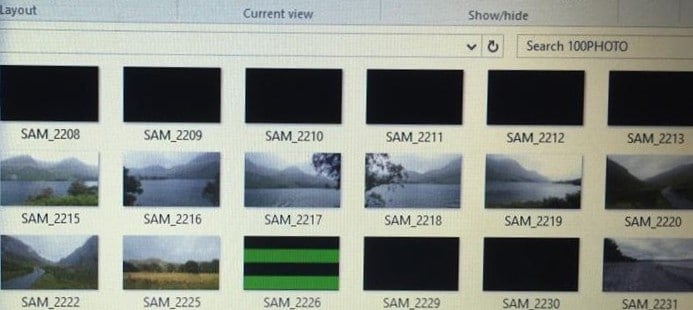
In some cases, the thumbnail for some items will appear in grayscale although the original image is a color image. Sometimes, the thumbnail quality is mediocre that you can barely recognize the item by looking at it.
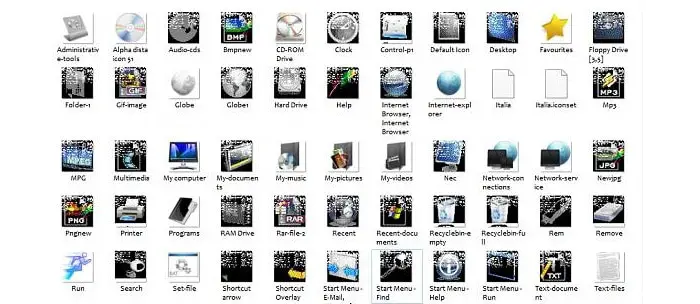
Thumbnail preview problems can be resolved by clearing the thumbnail databases and let the system rebuild it as required. To reset the thumbnail cache in Windows Vista, 7, 8 and Windows 10, use one of the methods in this article.
How to Clear the Thumbnail Cache in Windows
The thumbnail cache can be cleared using many methods. The native option is Disk Cleanup. The second option is using ClearIconCache third-party tool to delete icon & thumbnail cache. Or, you can clear them manually as explained in method 3.
Method 1: Clear the Thumbnail Cache using Disk Cleanup
- Click Start, type Disk Cleanup, click Disk Cleanup. Or, run
cleanmgr.exe. - Select the Operating System drive letter (usually
C:\) from the drop-down, and click OK.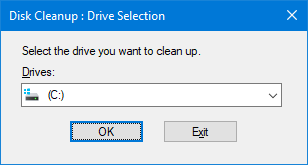
- Uncheck all the entries except Thumbnails
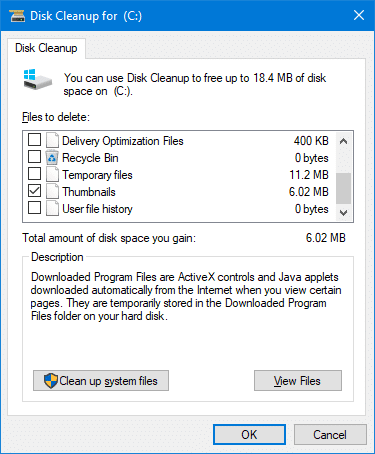
- Click OK, and click Delete Files to confirm.
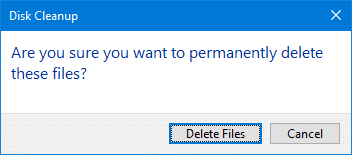
- After the cleanup is complete, log off and login back for the change to take effect.
Note: Windows 10/11 deletes the thumbnail cache using Task Scheduler every once in a while. If you don’t want Windows to auto-clear the thumbnail cache for you, you can disable the task and do it manually only when needed.
Method 2: Clear Thumbnail cache using ClearIconCache
Clear Icon Cache (ClearIconCache.exe) utility from Leo Davidson will cleanly exit Explorer, delete the shell icon cache (IconCache*.db) and localized thumbnail cache (ThumbCache*.db) and then restart Explorer.
Leo Davidson is a trusted source — he is the one who wrote the famous PDF x64 thumbnail & preview fix for Windows a few years back. And, he’s the owner of FileTypeDiag and many other useful portable tools.
With Clear Icon Cache, you just double-click the program and it takes care of the details for you. Clear Icon Cache works in Windows Vista, Windows 7, Windows 8, Windows 10, and Windows 11.
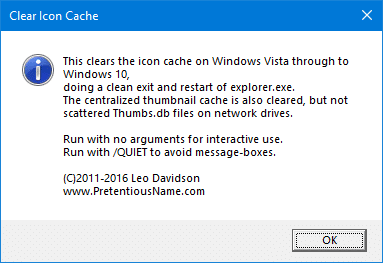
- To run the utility in silent mode, run
ClearIconCache.exe /QUIET
As said earlier, the utility also clears the icon cache on the computer.
RELATED: How to Restart Explorer Gracefully Using Shortcut or Command-line
Method 3: How to Clear the Thumbnail Cache manually
The thumbnail cache database is stored under the following folder path:
%LocalAppData%\Microsoft\Windows\Explorer
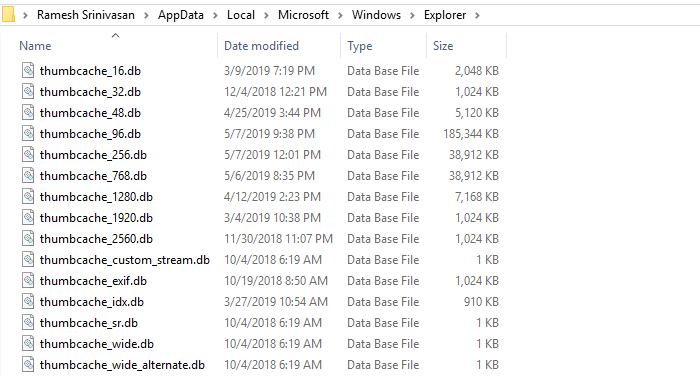
For each folder view mode or size, a separate cache file is maintained. The thumbnail cache database file names would be as below:
- thumbcache_wide_alternate.db
- thumbcache_16.db
- thumbcache_32.db
- thumbcache_48.db
- thumbcache_96.db
- thumbcache_256.db
- thumbcache_768.db
- thumbcache_1280.db
- thumbcache_1920.db
- thumbcache_2560.db
- thumbcache_custom_stream.db
- thumbcache_exif.db
- thumbcache_idx.db
- thumbcache_sr.db
- thumbcache_wide.db
To clear the thumbnail cache manually:
- Close all running programs and folders.
- Open a Command Prompt window
- Exit the Explorer shell
- Run the following command to delete the thumbnail cache database files:
del "%LocalAppData%\Microsoft\Windows\Explorer\thumbcache*.db" /a

If you receive Access is Denied error when deleting the ThumbCache*.db files, then one or more of the open programs is using the thumb cache database. Close all programs and try again, or try clearing them from Safe mode.
- Once done, open Task Manager (
taskmgr.exe) - Click File → Run new task → explorer.exe → click OK.
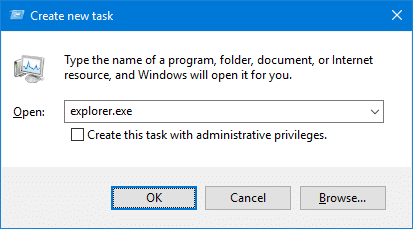
This starts the Start menu, Taskbar, and the desktop — collectively called the “Explorer shell”.
Hope this article explained in detail how to clear the thumbnail cache in your Windows computer.
Related articles
- [Fix] Windows 10 Deleting Thumbnail Cache Automatically
- How to Fix Image Thumbnails Not Displayed in Windows?
- How to Clear and Rebuild the Icon Cache in Windows?
- Fix “No Preview Available” and No Thumbnails for Media Files
One small request: If you liked this post, please share this?
One "tiny" share from you would seriously help a lot with the growth of this blog. Some great suggestions:- Pin it!
- Share it to your favorite blog + Facebook, Reddit
- Tweet it!

Thanks Ramesh. Much obliged ?